> ## Documentation Index
> Fetch the complete documentation index at: https://docs.salesbricks.com/llms.txt
> Use this file to discover all available pages before exploring further.
# Dunning
> Handling failed payments in Salesbricks
## Overview
Manage failed payments effortlessly with dunning. Salesbricks automatically classifies payment failures, alerts the right people, and triggers automatic retries so that you can recover revenue without lifting a finger.
To enable dunning for your account, please contact Salesbricks Support.
Automatic payment retries are an opt-in feature. To enable them for your account, go to **Settings → Finance** and turn on ***Automatic retries*** under the Automatic Retries section.
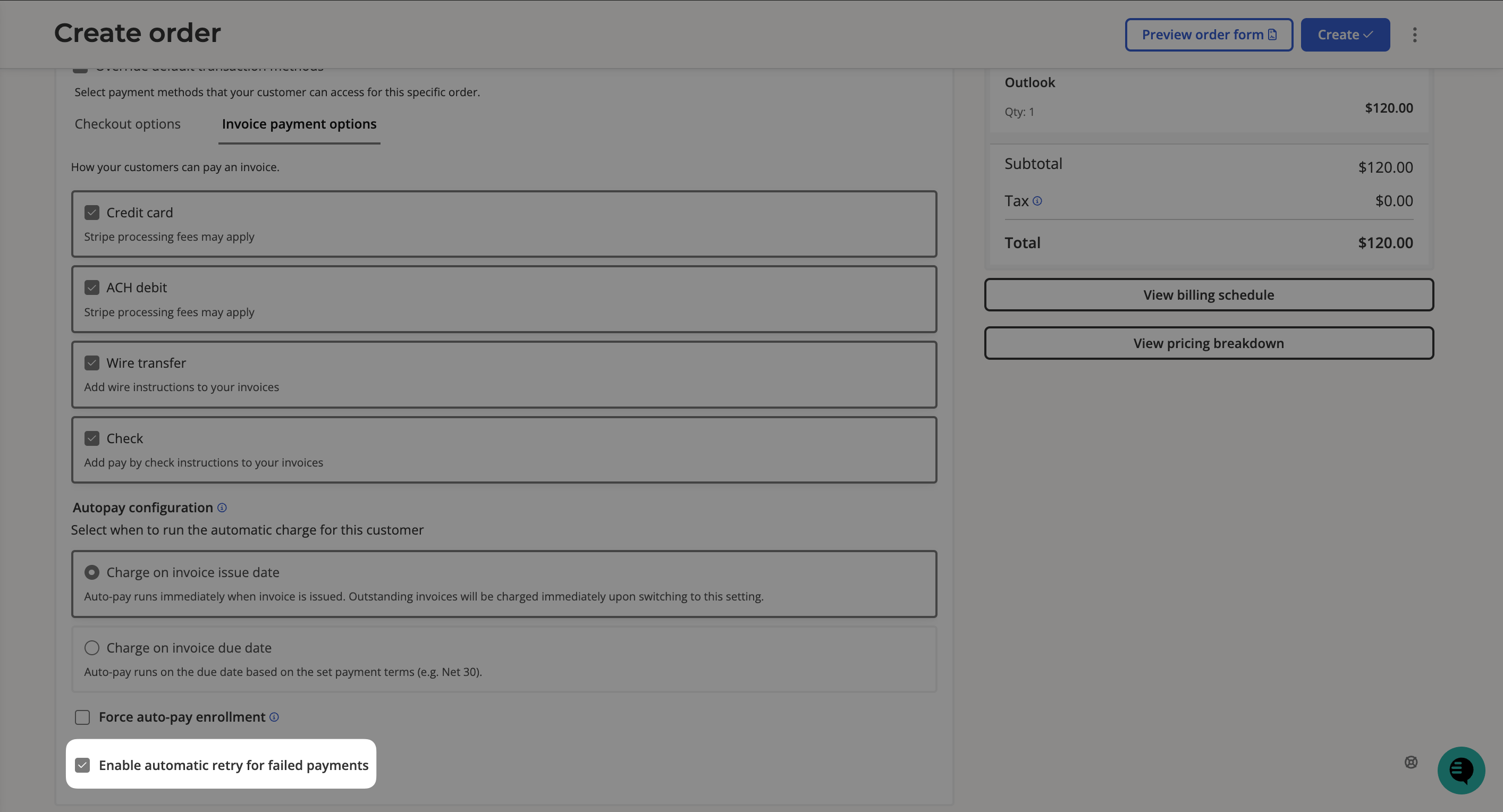
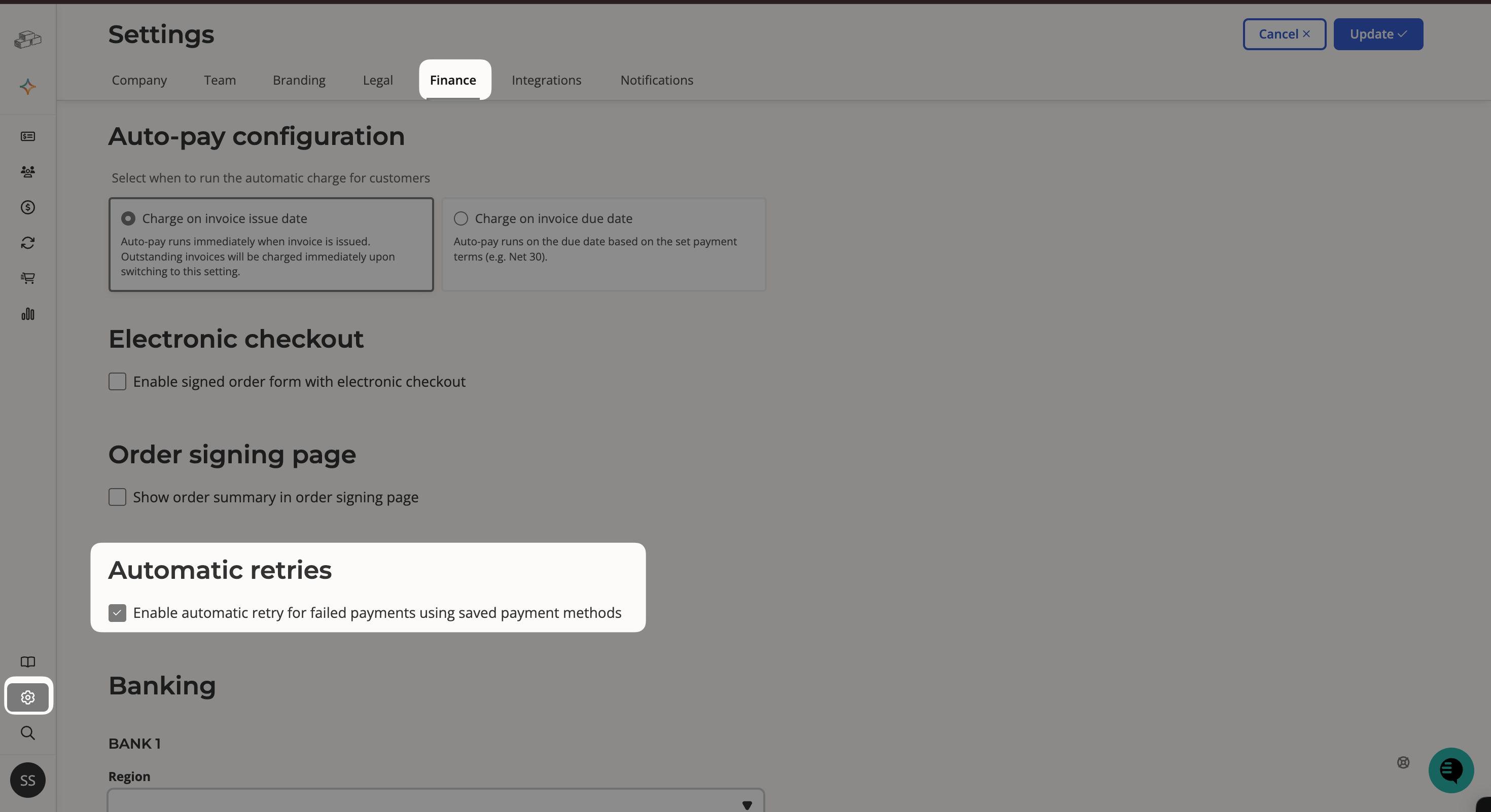 Once enabled globally, retries apply to all orders by default. If you need to turn them off for a specific order, you can do so under ***Additional options → Invoice payment options*** when creating or editing that order.
 ## Automatic payment retries
When a payment fails, Salesbricks classifies the failure as either a **soft decline** or a **hard decline** to determine whether an automatic retry is appropriate.
**Soft declines** are failures caused by temporary issues like insufficient funds, a network error, or a payment provider timeout. These are eligible for automatic retry. Salesbricks will schedule up to three retry attempts:
1. **3 days** after the first payment failure
2. **7 days** after the second failure
3. **14 days** after the third failure
Each retry date is calculated from the most recent failure, not from the original payment date. If all three attempts fail, the invoice is marked **Uncollectible**.
**Hard declines** are failures that require the customer to take action like an expired card, an incorrect card number, or a card reported lost or stolen. These are not retried automatically. When a hard decline occurs, Salesbricks sends the customer an email prompting them to update their payment method via the customer portal.
### Collection logs
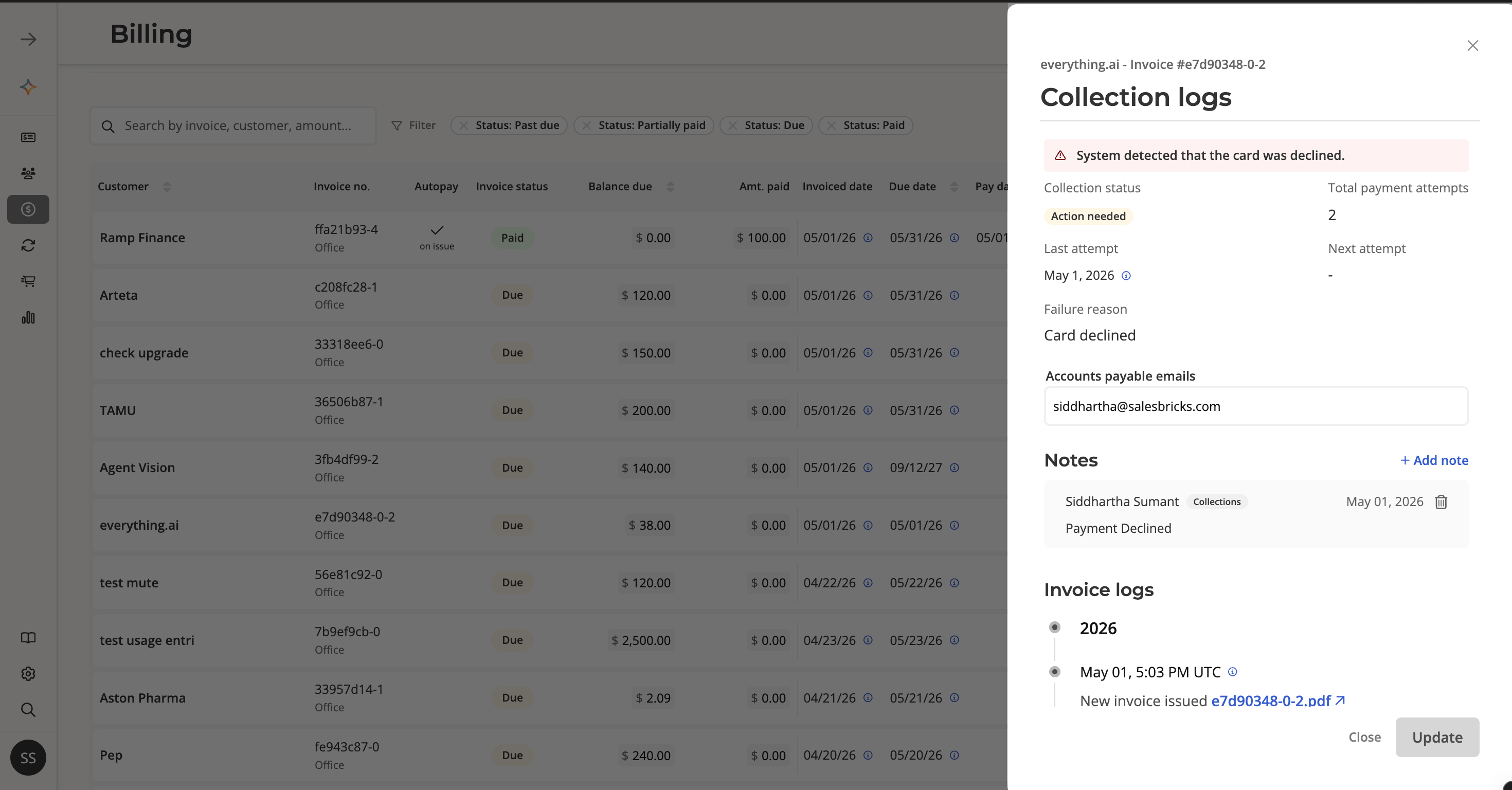
To see the details of any payment failure, click on the invoice row in the **Billing & Payments** tab to open the **Collection logs** panel. This shows you a snapshot of the invoice's current collection state:
* **Collection status** — the current status of the payment (e.g. Action needed, Retry scheduled)
* **Total payment attempts** — how many times payment has been attempted
* **Last attempt** — the date of the most recent payment attempt
* **Next attempt** — the scheduled date of the next automatic retry, if applicable
* **Failure reason** — the reason returned by the payment provider (e.g. Card declined)
* **Accounts payable emails** — the email addresses on file for this invoice
## Automatic payment retries
When a payment fails, Salesbricks classifies the failure as either a **soft decline** or a **hard decline** to determine whether an automatic retry is appropriate.
**Soft declines** are failures caused by temporary issues like insufficient funds, a network error, or a payment provider timeout. These are eligible for automatic retry. Salesbricks will schedule up to three retry attempts:
1. **3 days** after the first payment failure
2. **7 days** after the second failure
3. **14 days** after the third failure
Each retry date is calculated from the most recent failure, not from the original payment date. If all three attempts fail, the invoice is marked **Uncollectible**.
**Hard declines** are failures that require the customer to take action like an expired card, an incorrect card number, or a card reported lost or stolen. These are not retried automatically. When a hard decline occurs, Salesbricks sends the customer an email prompting them to update their payment method via the customer portal.
### Collection logs
To see the details of any payment failure, click on the invoice row in the **Billing & Payments** tab to open the **Collection logs** panel. This shows you a snapshot of the invoice's current collection state:
* **Collection status** — the current status of the payment (e.g. Action needed, Retry scheduled)
* **Total payment attempts** — how many times payment has been attempted
* **Last attempt** — the date of the most recent payment attempt
* **Next attempt** — the scheduled date of the next automatic retry, if applicable
* **Failure reason** — the reason returned by the payment provider (e.g. Card declined)
* **Accounts payable emails** — the email addresses on file for this invoice
 ### Invoice log
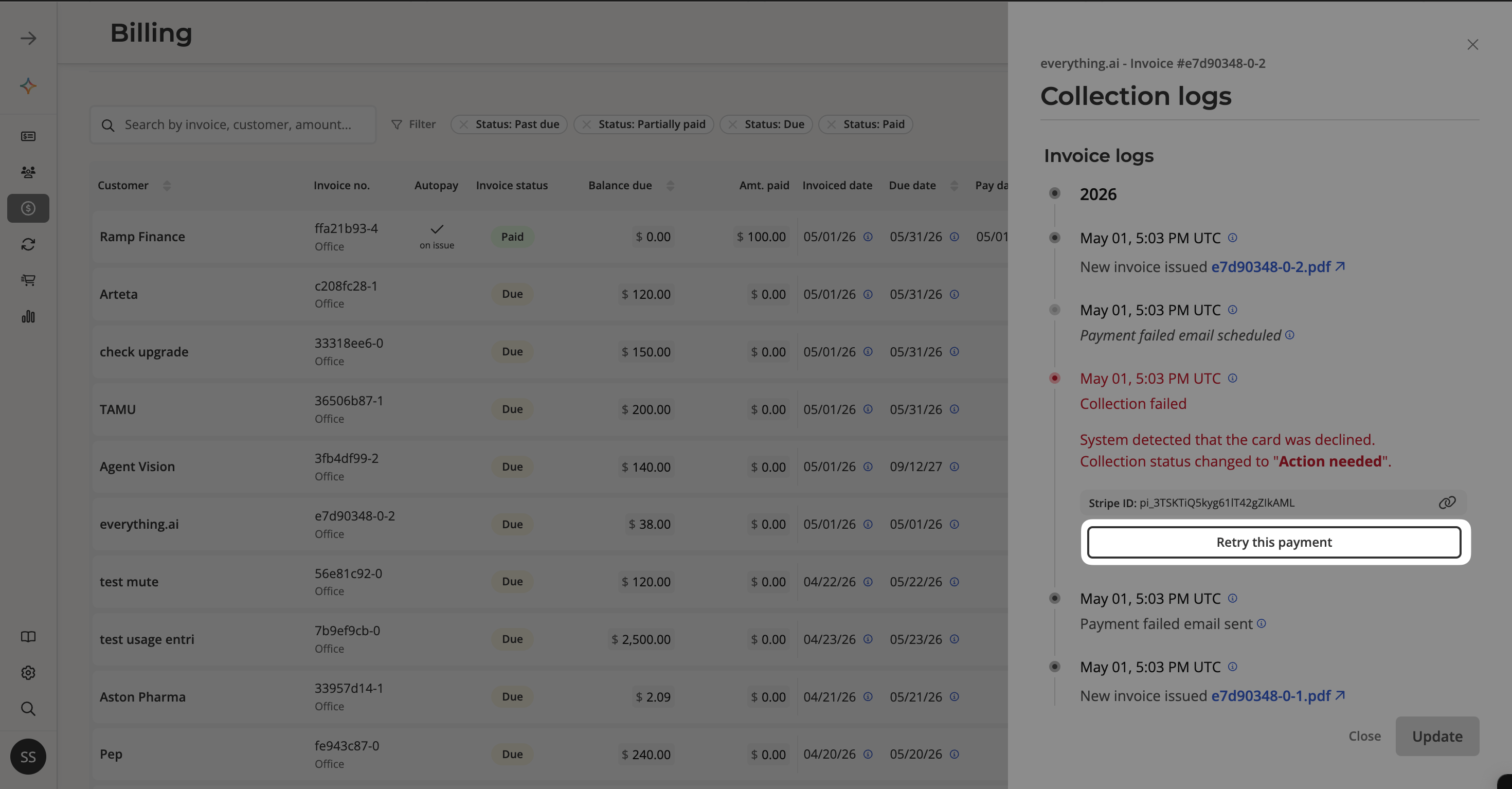
Scroll down in the Collection logs panel to see the **Invoice log** which provides a full timeline of every event on the invoice, including each payment attempt, status changes, and emails sent to the customer.
If a payment has failed and you want to trigger a retry immediately rather than waiting for the next scheduled attempt, click ***Retry this payment*** in the invoice log.
### Invoice log
Scroll down in the Collection logs panel to see the **Invoice log** which provides a full timeline of every event on the invoice, including each payment attempt, status changes, and emails sent to the customer.
If a payment has failed and you want to trigger a retry immediately rather than waiting for the next scheduled attempt, click ***Retry this payment*** in the invoice log.
 ## Collection statuses
Every invoice in the **Billing & Payments** tab displays a **Collection** status so you can quickly see the state of each payment at a glance.
| Status | What it means |
| --------------------- | ------------------------------------------------------------------------------------------------------------------------------------------------------ |
| **Invoice generated** | The invoice has been created but not yet sent to the customer. |
| **Invoice sent** | The invoice has been delivered to the customer's accounts payable email. |
| **Payment failed** | The payment failed and automatic retries are disabled for this invoice. Manual follow-up is required. |
| **Retry scheduled** | The payment failed but Salesbricks has scheduled an automatic retry. No action needed — the system will try again on the next scheduled date. |
| **Action required** | The payment failed with a hard decline (e.g. expired card, stolen card). The customer needs to update their payment method before a retry is possible. |
| **Retrying** | A retry attempt is currently in progress. |
| **Paid** | The invoice has been fully collected. |
| **Uncollectible** | All retry attempts have been exhausted and the payment was not collected. Manual follow-up is required. |
## Webhooks
Salesbricks fires webhooks at key points in the payment lifecycle that you can use to trigger actions in your own systems — for example, suspending service on a failed payment and restoring it once collected.
* [**invoice.payment.failed**](/api-reference/webhooks/invoice/payment/failed) — Fired when a payment attempt fails.
* [**invoice.payment.succeeded**](/api-reference/webhooks/invoice/payment/succeeded) — Fired when a payment succeeds, including payments collected via automatic retry.
## Marking an invoice as paid manually
If a payment has been collected outside of Salesbricks (e.g. via bank transfer or check), you can mark the invoice as paid directly in the admin UI from the invoice's Bill Statement page. You can also do this automatically through a finance system integration such as the [Salesbricks QuickBooks Integration](/integrations/quickbooks).
## Related topics
- [BrIQ AI Assistant](/agents/briq.md)
- [Create standalone invoice](/api-reference/invoices/create-standalone-invoice.md)
- [Update an invoice](/api-reference/invoices/update-an-invoice.md)
## Collection statuses
Every invoice in the **Billing & Payments** tab displays a **Collection** status so you can quickly see the state of each payment at a glance.
| Status | What it means |
| --------------------- | ------------------------------------------------------------------------------------------------------------------------------------------------------ |
| **Invoice generated** | The invoice has been created but not yet sent to the customer. |
| **Invoice sent** | The invoice has been delivered to the customer's accounts payable email. |
| **Payment failed** | The payment failed and automatic retries are disabled for this invoice. Manual follow-up is required. |
| **Retry scheduled** | The payment failed but Salesbricks has scheduled an automatic retry. No action needed — the system will try again on the next scheduled date. |
| **Action required** | The payment failed with a hard decline (e.g. expired card, stolen card). The customer needs to update their payment method before a retry is possible. |
| **Retrying** | A retry attempt is currently in progress. |
| **Paid** | The invoice has been fully collected. |
| **Uncollectible** | All retry attempts have been exhausted and the payment was not collected. Manual follow-up is required. |
## Webhooks
Salesbricks fires webhooks at key points in the payment lifecycle that you can use to trigger actions in your own systems — for example, suspending service on a failed payment and restoring it once collected.
* [**invoice.payment.failed**](/api-reference/webhooks/invoice/payment/failed) — Fired when a payment attempt fails.
* [**invoice.payment.succeeded**](/api-reference/webhooks/invoice/payment/succeeded) — Fired when a payment succeeds, including payments collected via automatic retry.
## Marking an invoice as paid manually
If a payment has been collected outside of Salesbricks (e.g. via bank transfer or check), you can mark the invoice as paid directly in the admin UI from the invoice's Bill Statement page. You can also do this automatically through a finance system integration such as the [Salesbricks QuickBooks Integration](/integrations/quickbooks).
## Related topics
- [BrIQ AI Assistant](/agents/briq.md)
- [Create standalone invoice](/api-reference/invoices/create-standalone-invoice.md)
- [Update an invoice](/api-reference/invoices/update-an-invoice.md)