> ## Documentation Index
> Fetch the complete documentation index at: https://docs.salesbricks.com/llms.txt
> Use this file to discover all available pages before exploring further.
# Credit Pools
> Grant and apply customer credits to invoices
## Overview
**Credit pools** give you a flexible way to manage customer-level credits. Credits can be manually granted to a customer as part of a commercial agreement, a goodwill gesture, or a joining incentive and are automatically applied to invoices as they are issued. You can also apply credits manually to existing outstanding invoices at any time.
All credit activity is tracked in a running transaction log on the customer's **Credits** tab, giving your team full visibility into what was granted, when, and which invoices it was applied to.
## Accessing the Credits tab
Credits are managed at the customer level. To view a customer's credit pool, go to **Customers**, select the customer, and click the **Credits** tab.
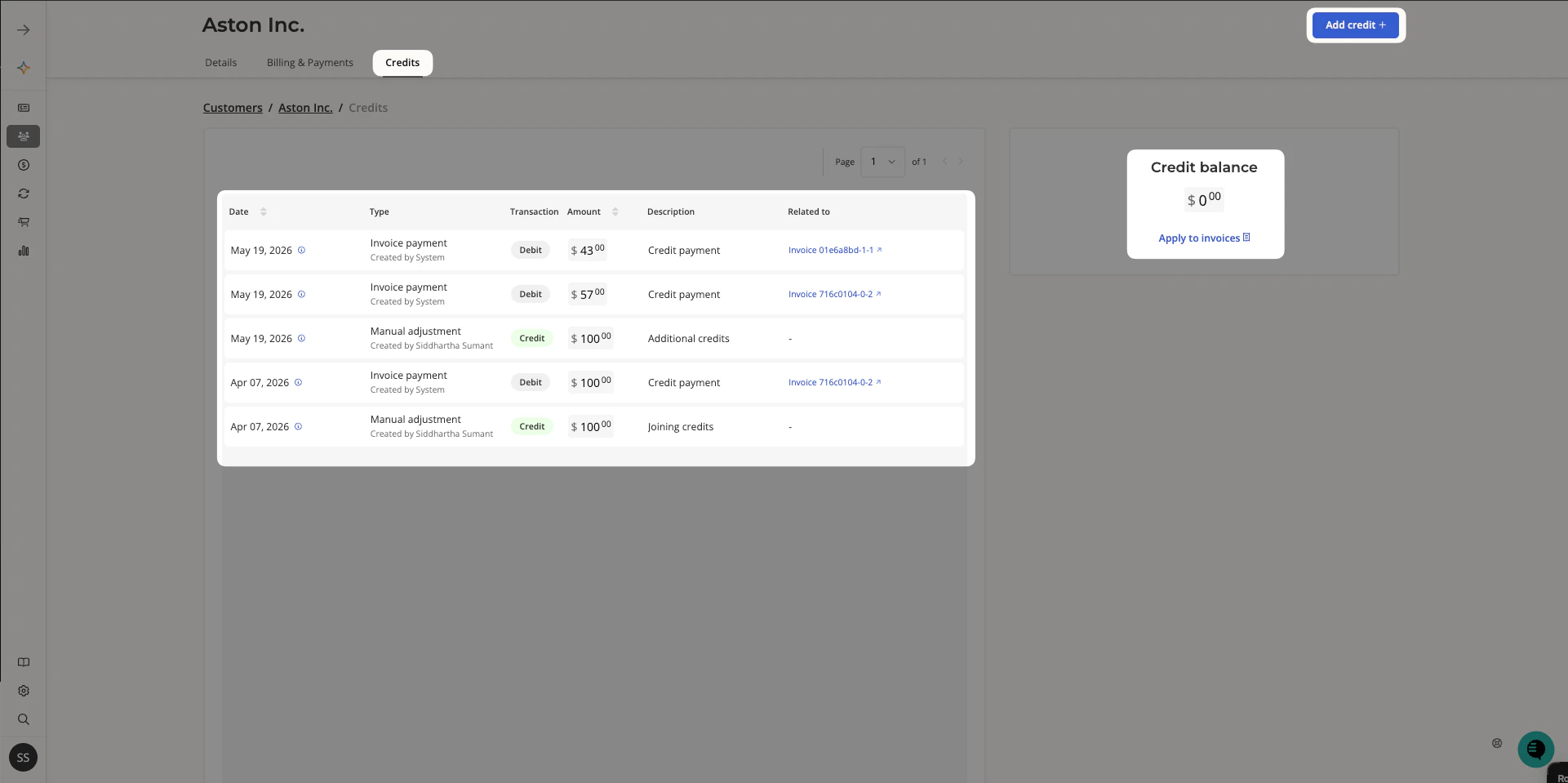
The Credits tab shows:
* **Credit balance** — the current available credit balance in the top-right panel.
* **Transaction log** — a full history of all credit activity, including credits added and credits applied to invoices. Each entry shows the date, type, transaction direction (**Credit** or **Debit**), amount, description, and the related invoice if applicable.
 ## Adding a credit manually
1. From the **Credits** tab, click ***Add credit +*** in the top-right corner.
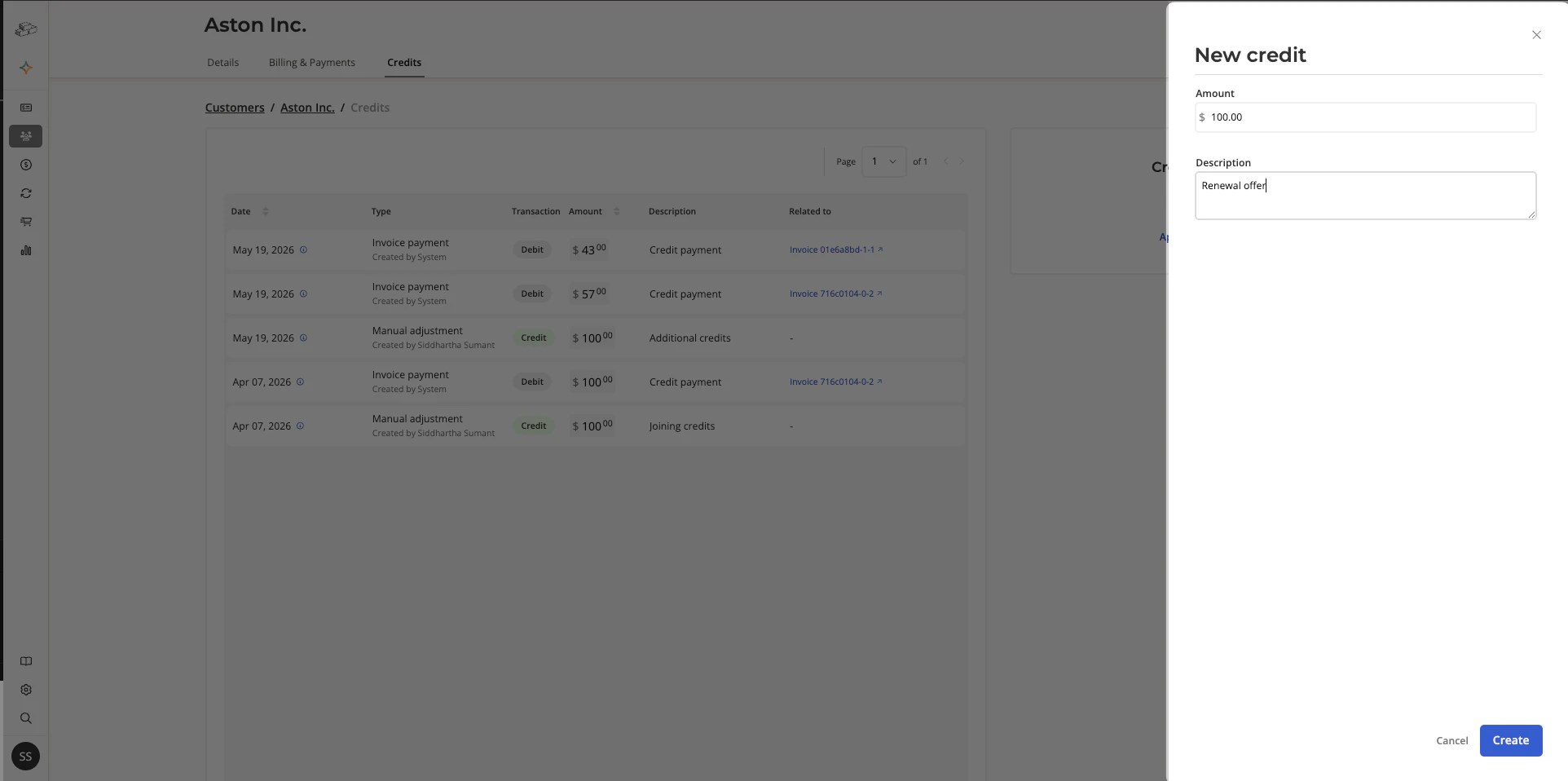
2. In the **New credit** panel, enter the **Amount** and an optional **Description** (e.g. "Joining credits" or "Goodwill adjustment").
3. Click ***Create***.
## Adding a credit manually
1. From the **Credits** tab, click ***Add credit +*** in the top-right corner.
2. In the **New credit** panel, enter the **Amount** and an optional **Description** (e.g. "Joining credits" or "Goodwill adjustment").
3. Click ***Create***.
 Once created, the credit appears in the transaction log as a **Manual adjustment** with a **Credit** badge, and the credit balance updates immediately.
## Applying credits to invoices
### Automatic application
Credits are **automatically applied to new invoices** as they are issued. Salesbricks deducts the available credit balance from the invoice amount when the invoice is generated.
### Manual application to outstanding invoices
If the customer already has outstanding invoices, you can apply the credit balance to them manually. After adding a new credit, Salesbricks will prompt you with **"Apply credits to outstanding invoices?"** You can also trigger this at any time by clicking ***Apply to invoices*** in the credit balance panel.
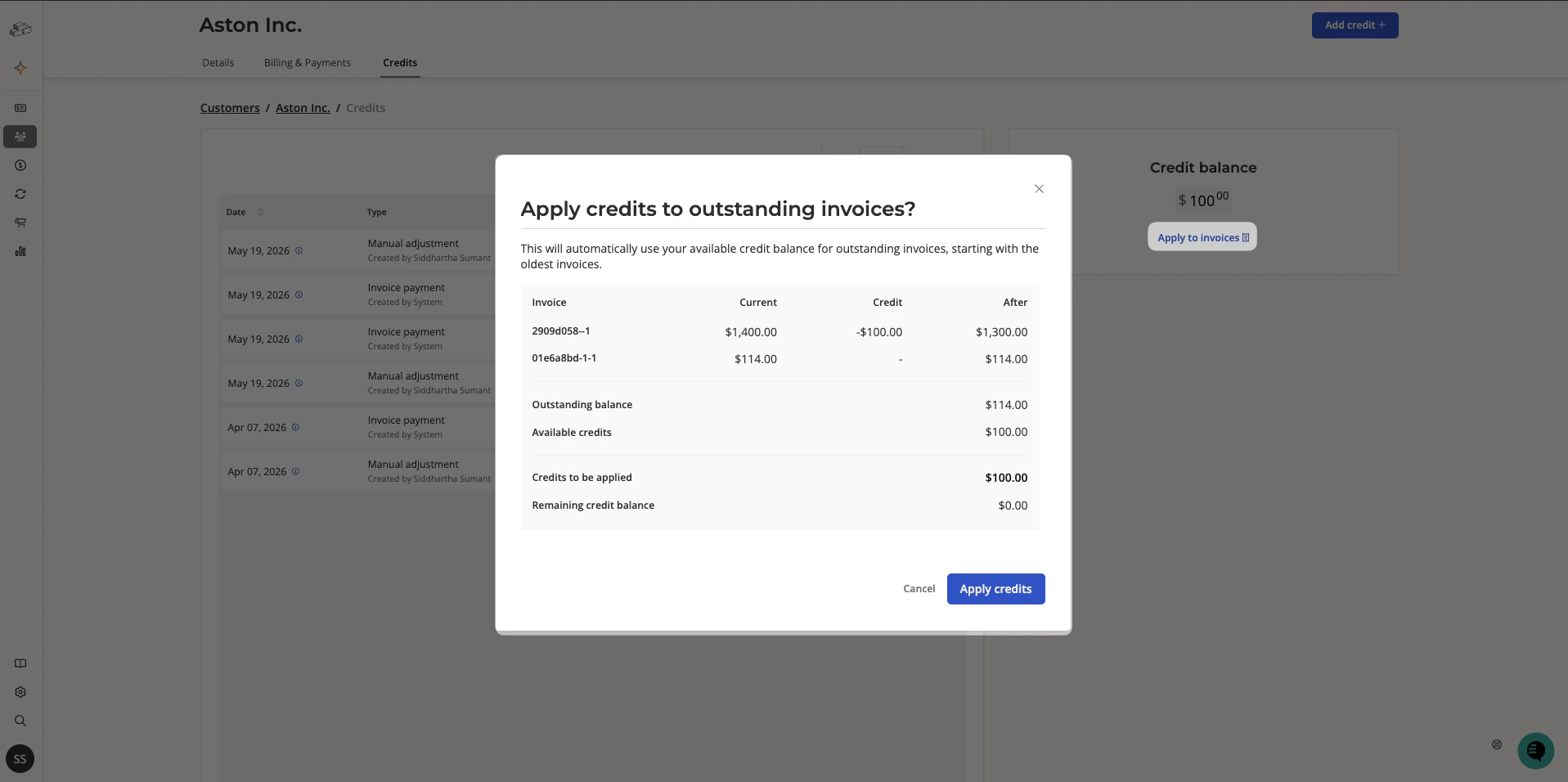
The modal shows a breakdown of how the credits will be applied across outstanding invoices, starting with the oldest first:
* **Invoice** — the invoice the credit will be applied to
* **Current** — the current outstanding balance on the invoice
* **Credit** — the amount of credit being applied
* **After** — the remaining balance after the credit is applied
It also shows the total **Outstanding balance**, **Available credits**, **Credits to be applied**, and **Remaining credit balance** after the application.
Once created, the credit appears in the transaction log as a **Manual adjustment** with a **Credit** badge, and the credit balance updates immediately.
## Applying credits to invoices
### Automatic application
Credits are **automatically applied to new invoices** as they are issued. Salesbricks deducts the available credit balance from the invoice amount when the invoice is generated.
### Manual application to outstanding invoices
If the customer already has outstanding invoices, you can apply the credit balance to them manually. After adding a new credit, Salesbricks will prompt you with **"Apply credits to outstanding invoices?"** You can also trigger this at any time by clicking ***Apply to invoices*** in the credit balance panel.
The modal shows a breakdown of how the credits will be applied across outstanding invoices, starting with the oldest first:
* **Invoice** — the invoice the credit will be applied to
* **Current** — the current outstanding balance on the invoice
* **Credit** — the amount of credit being applied
* **After** — the remaining balance after the credit is applied
It also shows the total **Outstanding balance**, **Available credits**, **Credits to be applied**, and **Remaining credit balance** after the application.
 Click ***Apply credits*** to confirm. The credits are applied starting with the oldest outstanding invoice and working forward until the available balance is exhausted.
If the credit balance is less than the total outstanding amount, it will be applied across multiple invoices in chronological order until the balance reaches \$0.00.
Click ***Apply credits*** to confirm. The credits are applied starting with the oldest outstanding invoice and working forward until the available balance is exhausted.
If the credit balance is less than the total outstanding amount, it will be applied across multiple invoices in chronological order until the balance reaches \$0.00.