> ## Documentation Index
> Fetch the complete documentation index at: https://docs.salesbricks.com/llms.txt
> Use this file to discover all available pages before exploring further.
# Kintsugi
Salesbricks integrates with Kintsugi to calculate sales tax, VAT, and GST on your orders and invoices. Once connected, tax is applied automatically based on your buyer's address and your registrations in Kintsugi.
## Before you start
You'll need:
* A **Kintsugi account** with an API key and Organization ID
* **Company admin** access in Salesbricks. On accounts using role-based access control, any role holding the **Settings → Integrations** update permission can connect a tax provider.
Salesbricks supports **one tax provider at a time**. Connecting Kintsugi replaces an existing Sphere connection.
## Steps
In your Kintsugi dashboard, go to **Configuration** and copy your **API key** and **Organization ID**. You'll paste both into Salesbricks in the next step.
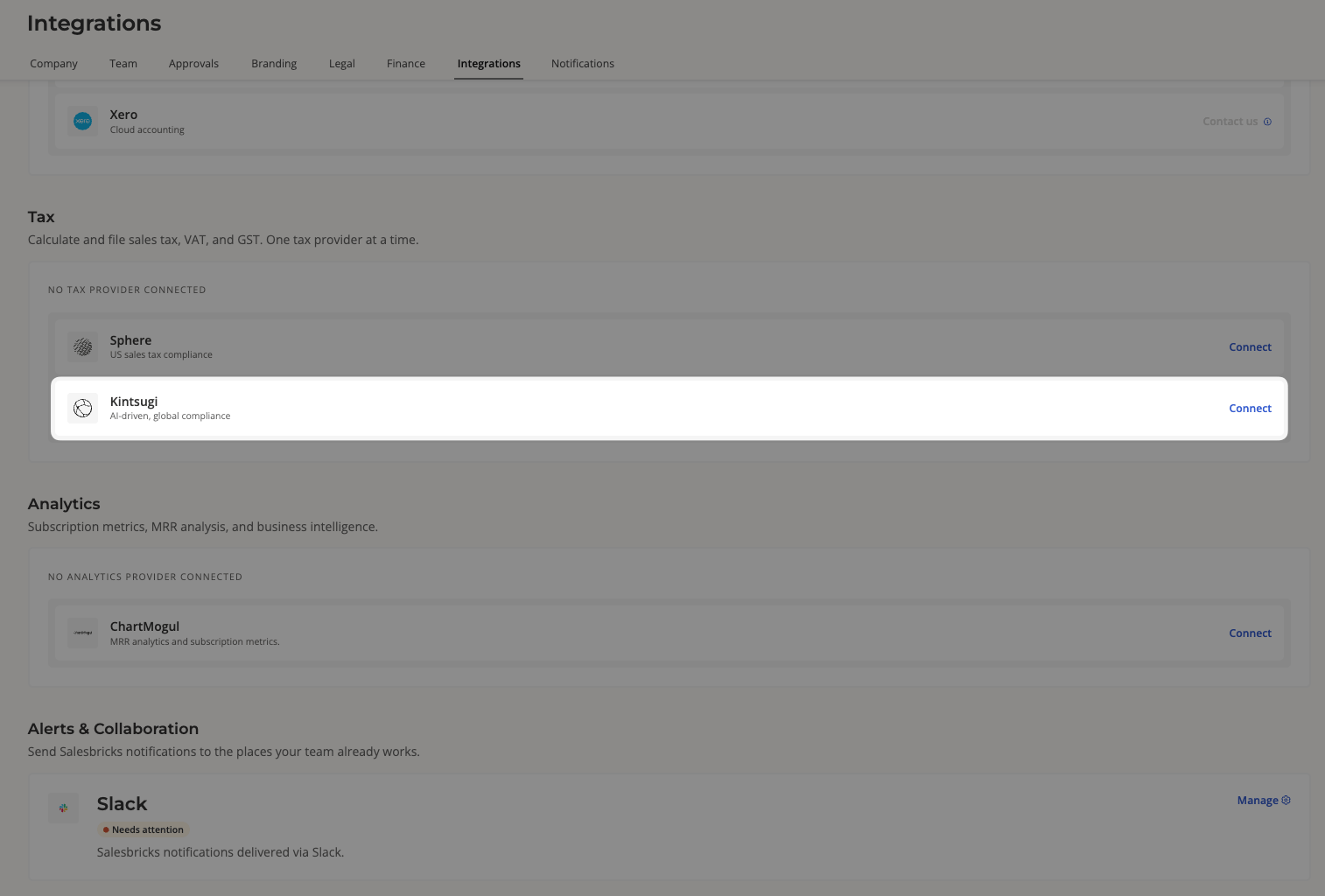
In Salesbricks, navigate to **Settings** -> **Integrations**. Under the **Tax** section, click **Connect** on **Kintsugi**.
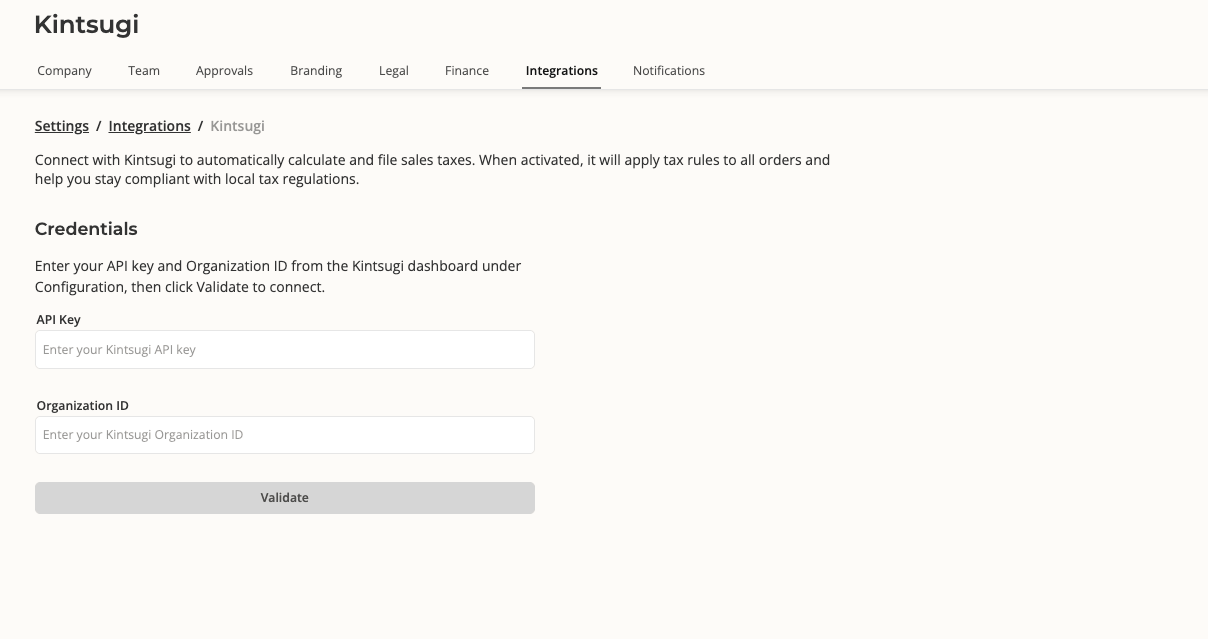
 Paste your **API Key** and **Organization ID**, then click **Validate**.
 Salesbricks verifies the credentials against Kintsugi. If validation succeeds, you'll see **Integration setup successful** and the integration activates immediately.
The Kintsugi page will show a **Connection status** of **Active**, and the Integrations page will list Kintsugi as **Connected** along with the date it was last modified.
## What happens after you connect
### Initial sync
Connecting Kintsugi kicks off two background syncs:
* **Products**: each of your bricks is registered as a product in Kintsugi, using its name and summary. Plan bricks are excluded. Salesbricks sends a neutral placeholder category, and **Kintsugi's classifier** assigns the real tax category from there. Once Kintsugi has classified a product, Salesbricks won't overwrite that classification.
* **Customers**: each of your companies is registered as a customer in Kintsugi, including its address when one is on file.
These run in the background and may take a few minutes for a large catalog or customer list.
Historical invoices are **not** sent to Kintsugi automatically. If you need past transactions loaded into Kintsugi for filing, contact Salesbricks Support. They can start the backfill and report its progress.
### Ongoing behavior
| Event | What Salesbricks does |
| ----------------------------- | -------------------------------------------------------------------------------------------------------------------------------------- |
| Building an order or checkout | Requests a tax estimate from Kintsugi using the buyer's address, and shows it as an order-level total |
| Invoice generated | Calculates tax per line item and commits the transaction to Kintsugi, so it's included in your filings |
| Brick created or updated | Syncs the brick to Kintsugi. A classification Kintsugi has already assigned is preserved |
| Invoice voided | Cancels the matching Kintsugi transaction, or issues a full credit note if the transaction sits in a period Kintsugi has already filed |
| Stripe refund succeeds | Creates a credit note against the original transaction: full if the refund covers the invoice, otherwise prorated |
Refunds recorded outside of Stripe aren't synced to Kintsugi. Companies created after the initial sync reach Kintsugi as part of the first transaction committed for them, rather than through an ongoing customer sync.
### When tax won't be calculated
Tax comes back as **\$0** or is skipped when:
* The buyer has **no address** on file; Kintsugi needs an address to determine taxability
* You have **no active registration** in the buyer's jurisdiction, as configured in Kintsugi
* The order total is **\$0**. Individual \$0 line items are skipped, but the rest of the invoice is still taxed
Kintsugi is the source of truth for taxability while it's connected. Tax is determined by your registrations in Kintsugi and Kintsugi's product classifications, not by anything configured in Salesbricks.
### If a tax call fails
A Kintsugi outage never blocks an order or a product change. Salesbricks retries, then continues without tax rather than failing the operation. When tax was calculated but couldn't be committed to Kintsugi, the affected invoice records a tax error so it can be reconciled.
You can also use **View logs** on the Kintsugi card on the Integrations page to see the requests Salesbricks has sent to Kintsugi, which is the fastest way to confirm a transaction was committed or to see why a call failed.
## Disconnecting Kintsugi
Navigate to **Settings** -> **Integrations** -> **Kintsugi**, click **Deactivate**, and confirm.
Deactivating disables tax calculation for all products, and clears your stored credentials — reconnecting later requires entering your API key and Organization ID again, and re-runs the product and customer syncs. Transactions already sent to Kintsugi remain in Kintsugi.
## Troubleshooting
**"Invalid credentials - verification with tax service failed"**
The API key or Organization ID is incorrect, or the two don't belong to the same Kintsugi organization. Re-copy both values from **Configuration** in your Kintsugi dashboard, and check that neither has a leading or trailing space; the values are sent exactly as entered.
**"Connection error - could not reach tax service, please try again"**
Salesbricks couldn't get a usable response from Kintsugi. Wait a moment and click **Validate** again.
**"Admin permissions required", or you can't open the Kintsugi page at all**
Your user isn't a company admin, and doesn't hold the Settings → Integrations update permission. Ask an admin at your company to complete the connection, or to grant you that access.
**Tax is showing as \$0 on an order**
Confirm the buyer has a complete address, and that you have an active registration for that jurisdiction in Kintsugi. See [When tax won't be calculated](#when-tax-wont-be-calculated) above.
Salesbricks verifies the credentials against Kintsugi. If validation succeeds, you'll see **Integration setup successful** and the integration activates immediately.
The Kintsugi page will show a **Connection status** of **Active**, and the Integrations page will list Kintsugi as **Connected** along with the date it was last modified.
## What happens after you connect
### Initial sync
Connecting Kintsugi kicks off two background syncs:
* **Products**: each of your bricks is registered as a product in Kintsugi, using its name and summary. Plan bricks are excluded. Salesbricks sends a neutral placeholder category, and **Kintsugi's classifier** assigns the real tax category from there. Once Kintsugi has classified a product, Salesbricks won't overwrite that classification.
* **Customers**: each of your companies is registered as a customer in Kintsugi, including its address when one is on file.
These run in the background and may take a few minutes for a large catalog or customer list.
Historical invoices are **not** sent to Kintsugi automatically. If you need past transactions loaded into Kintsugi for filing, contact Salesbricks Support. They can start the backfill and report its progress.
### Ongoing behavior
| Event | What Salesbricks does |
| ----------------------------- | -------------------------------------------------------------------------------------------------------------------------------------- |
| Building an order or checkout | Requests a tax estimate from Kintsugi using the buyer's address, and shows it as an order-level total |
| Invoice generated | Calculates tax per line item and commits the transaction to Kintsugi, so it's included in your filings |
| Brick created or updated | Syncs the brick to Kintsugi. A classification Kintsugi has already assigned is preserved |
| Invoice voided | Cancels the matching Kintsugi transaction, or issues a full credit note if the transaction sits in a period Kintsugi has already filed |
| Stripe refund succeeds | Creates a credit note against the original transaction: full if the refund covers the invoice, otherwise prorated |
Refunds recorded outside of Stripe aren't synced to Kintsugi. Companies created after the initial sync reach Kintsugi as part of the first transaction committed for them, rather than through an ongoing customer sync.
### When tax won't be calculated
Tax comes back as **\$0** or is skipped when:
* The buyer has **no address** on file; Kintsugi needs an address to determine taxability
* You have **no active registration** in the buyer's jurisdiction, as configured in Kintsugi
* The order total is **\$0**. Individual \$0 line items are skipped, but the rest of the invoice is still taxed
Kintsugi is the source of truth for taxability while it's connected. Tax is determined by your registrations in Kintsugi and Kintsugi's product classifications, not by anything configured in Salesbricks.
### If a tax call fails
A Kintsugi outage never blocks an order or a product change. Salesbricks retries, then continues without tax rather than failing the operation. When tax was calculated but couldn't be committed to Kintsugi, the affected invoice records a tax error so it can be reconciled.
You can also use **View logs** on the Kintsugi card on the Integrations page to see the requests Salesbricks has sent to Kintsugi, which is the fastest way to confirm a transaction was committed or to see why a call failed.
## Disconnecting Kintsugi
Navigate to **Settings** -> **Integrations** -> **Kintsugi**, click **Deactivate**, and confirm.
Deactivating disables tax calculation for all products, and clears your stored credentials — reconnecting later requires entering your API key and Organization ID again, and re-runs the product and customer syncs. Transactions already sent to Kintsugi remain in Kintsugi.
## Troubleshooting
**"Invalid credentials - verification with tax service failed"**
The API key or Organization ID is incorrect, or the two don't belong to the same Kintsugi organization. Re-copy both values from **Configuration** in your Kintsugi dashboard, and check that neither has a leading or trailing space; the values are sent exactly as entered.
**"Connection error - could not reach tax service, please try again"**
Salesbricks couldn't get a usable response from Kintsugi. Wait a moment and click **Validate** again.
**"Admin permissions required", or you can't open the Kintsugi page at all**
Your user isn't a company admin, and doesn't hold the Settings → Integrations update permission. Ask an admin at your company to complete the connection, or to grant you that access.
**Tax is showing as \$0 on an order**
Confirm the buyer has a complete address, and that you have an active registration for that jurisdiction in Kintsugi. See [When tax won't be calculated](#when-tax-wont-be-calculated) above.