> ## Documentation Index
> Fetch the complete documentation index at: https://docs.salesbricks.com/llms.txt
> Use this file to discover all available pages before exploring further.
# Quickbooks
> Quickly and easily connect Salesbricks to Quickbooks to automate your invoice, billing, and accounting workflows.
export const ConsecutiveImageGap = () => <>
;
## Overview
Linking Salesbricks to your Quickbooks Online account allows you to automatically sync invoices, customers, and payments from Salesbricks into Quickbooks.
Salesbricks is the source of truth for customers, invoices, and payments. Our integration will write this data into Quickbooks, and reads payment updates in Quickbooks for any invoice originating from Salesbricks.
If a customer pays their Salesbricks invoice through Stripe, or if they checkout directly through Stripe, Salesbricks will automatically push those invoice and payment details into Quickbooks.
If an invoice is paid outside of the Salesbricks paywall (e.g. the customer pays their invoice through check or wire to a bank account connected to Quickbooks), the payment then gets synced from Quickbooks to Salesbricks, and the invoice is auto-reconciled (see [Payment Sync](/integrations/quickbooks#payment-sync) below).
## Setup
[https://app.salesbricks.com/admin/settings/integrations](https://app.salesbricks.com/admin/settings/integrations)
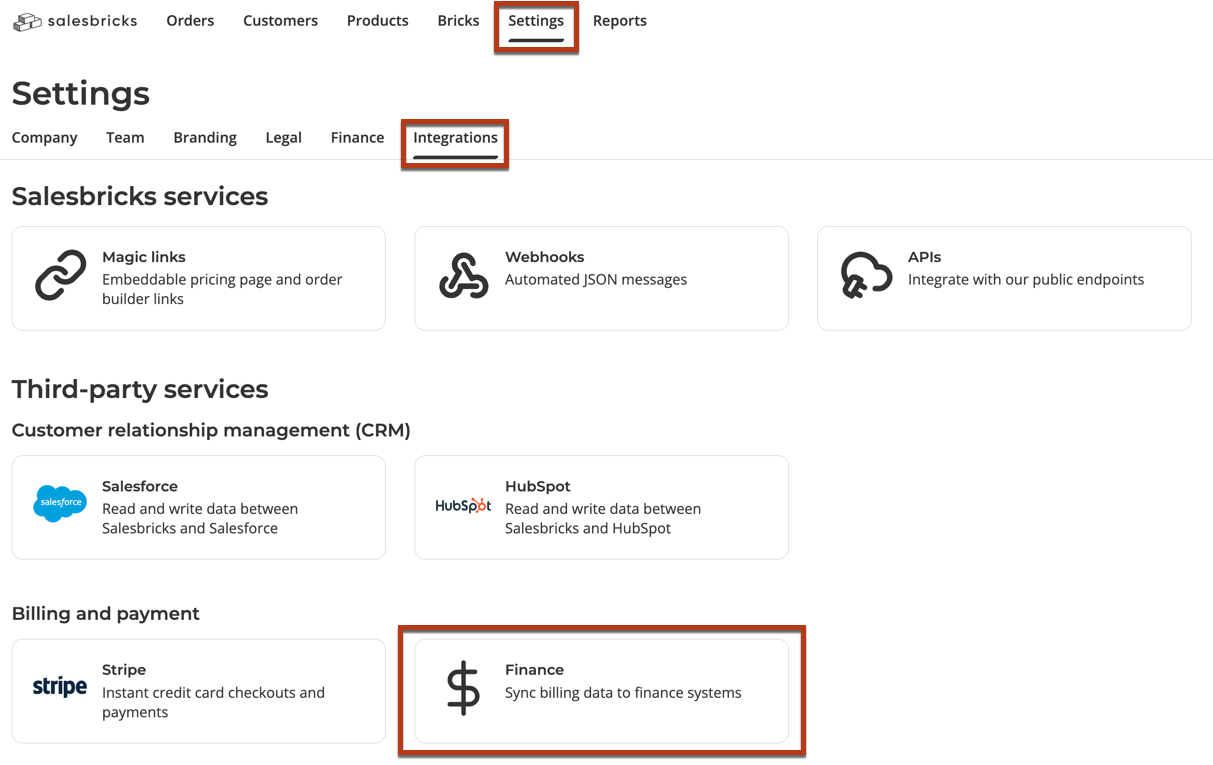
In Salesbricks, navigate to **Settings** -> **Integrations** and click the **Finance** card.
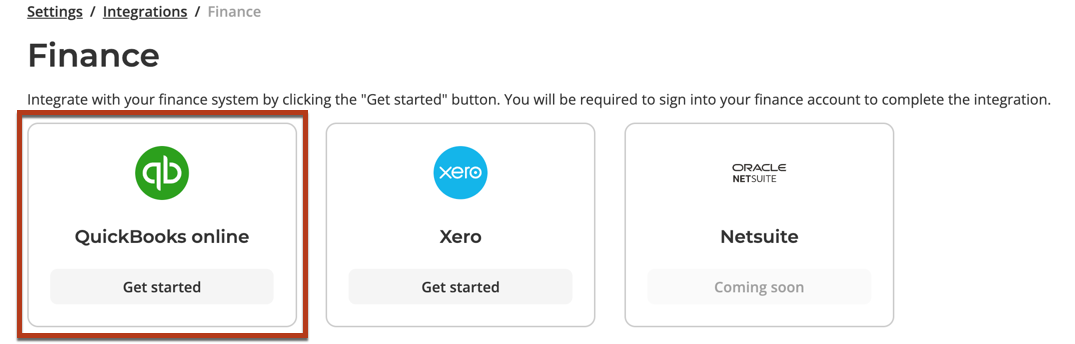
 Find QuickBooks and click **Get Started**.
 At this point, you'll be redirected to the QuickBooks login screen.
Salesbricks leverages an OAuth connection to QuickBooks, ensuring your username and password are secured and never stored by Salesbricks.
At this point, you'll be redirected to the QuickBooks login screen.
Salesbricks leverages an OAuth connection to QuickBooks, ensuring your username and password are secured and never stored by Salesbricks.
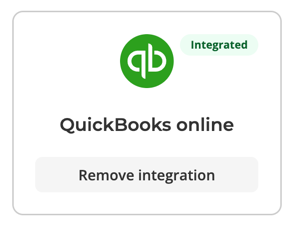
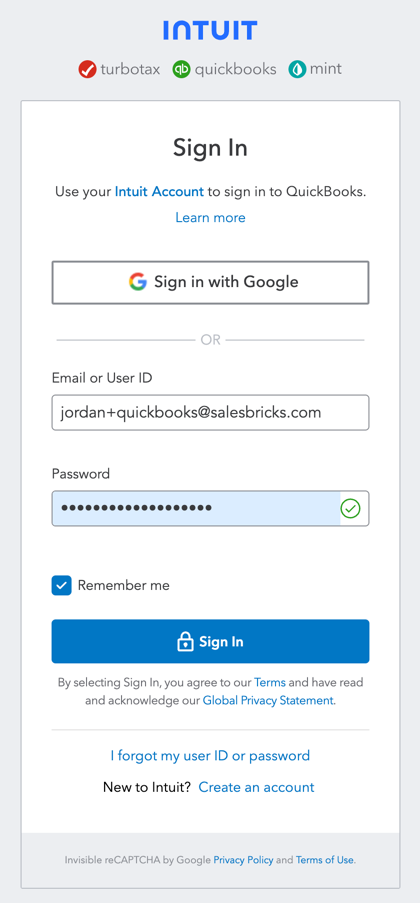 Click **Sign In** and that's it. Your integration is complete!
 ## Field Sync
Below are the fields that are currently being synced for each object within Quickbooks:
### Invoice Fields
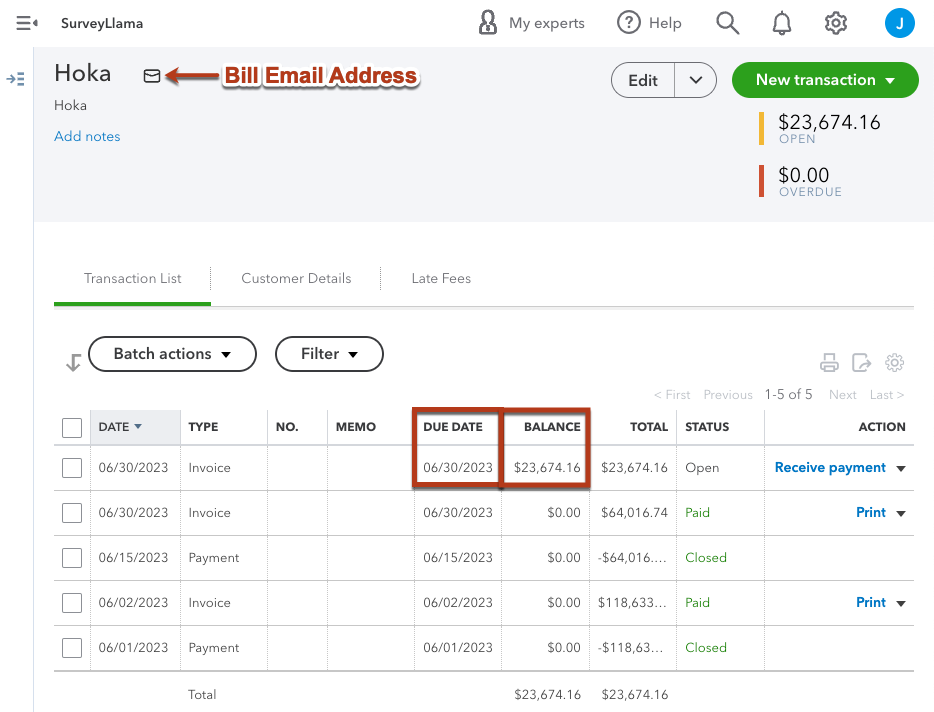
* **Bill Email**: The accounts payable email address the customer inputs when signing the order form within Salesbricks.
* **Due Date**: The date that the invoice is due, based on the order billing terms.
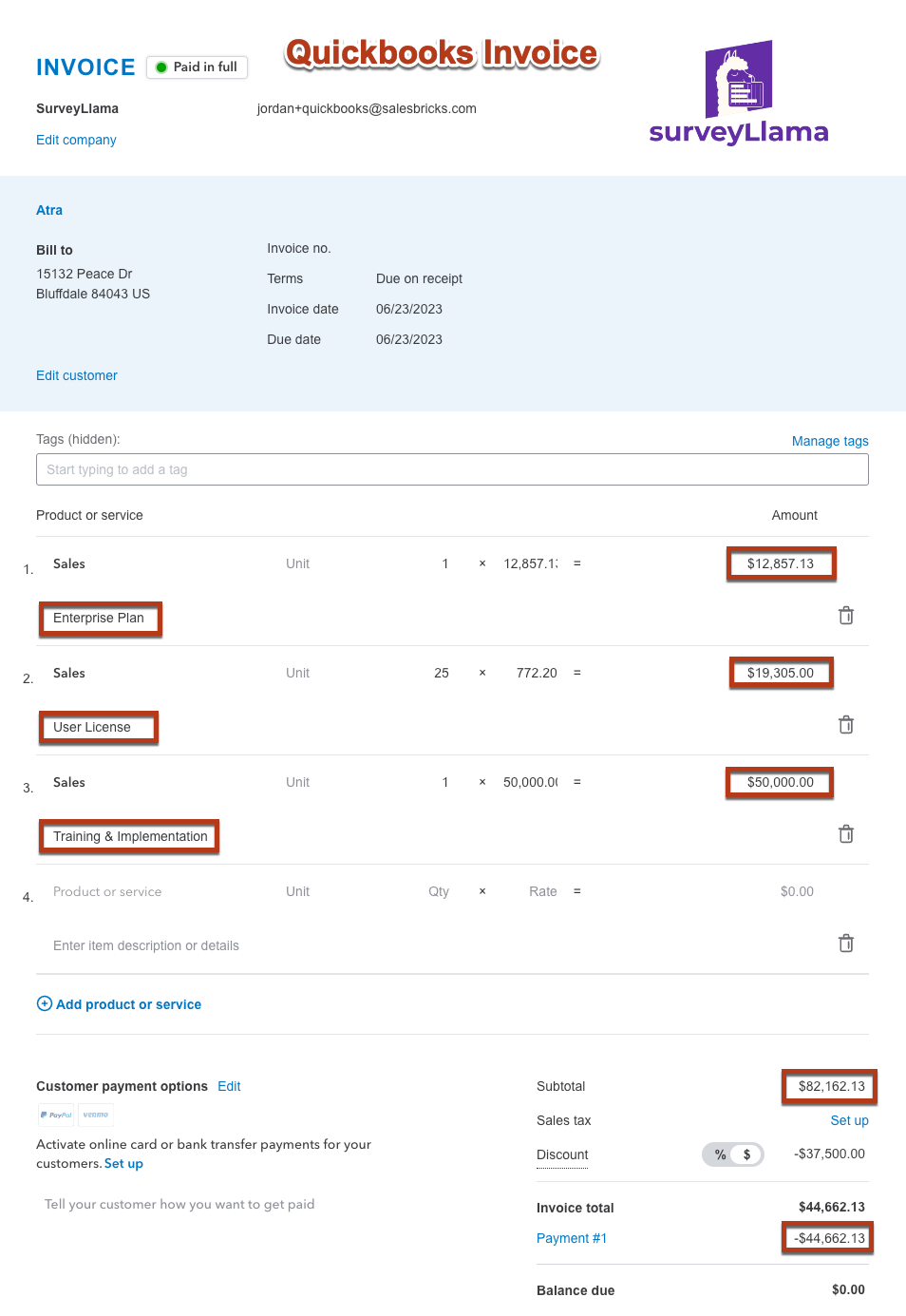
* **Product Line Items**: This includes Bricks sold, units, and amounts. Taxes and discounts are also included.
## Field Sync
Below are the fields that are currently being synced for each object within Quickbooks:
### Invoice Fields
* **Bill Email**: The accounts payable email address the customer inputs when signing the order form within Salesbricks.
* **Due Date**: The date that the invoice is due, based on the order billing terms.
* **Product Line Items**: This includes Bricks sold, units, and amounts. Taxes and discounts are also included.
 ### Customer Fields
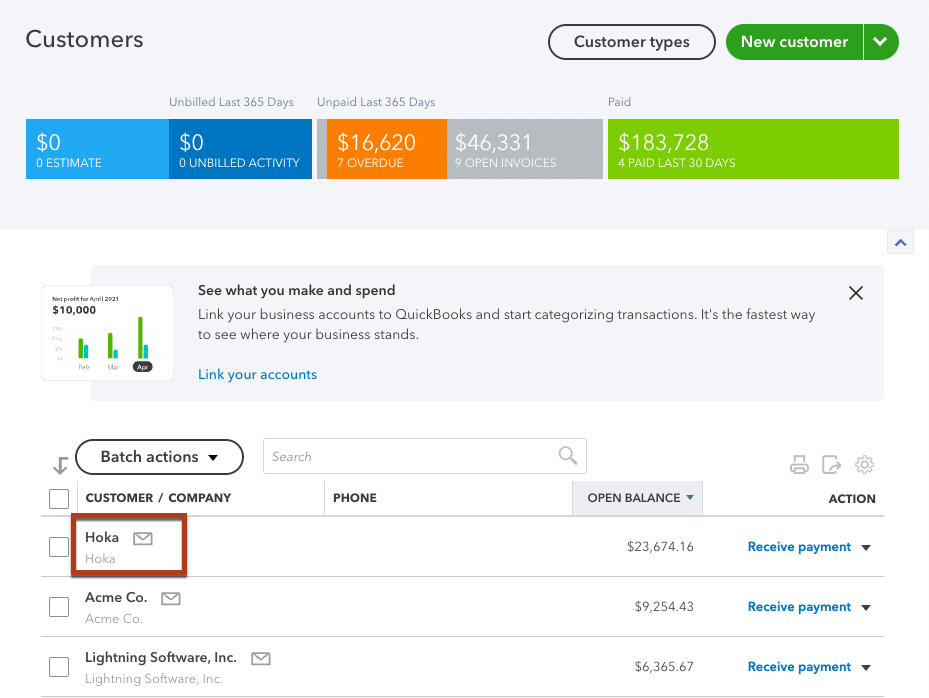
Salesbricks will generate a customer within Quickbooks when a new subscription is created.
If you're interested in syncing current orders with existing Quickbooks customers, reach out to Salesbricks Support.
### Customer Fields
Salesbricks will generate a customer within Quickbooks when a new subscription is created.
If you're interested in syncing current orders with existing Quickbooks customers, reach out to Salesbricks Support.
 ### Payment Fields
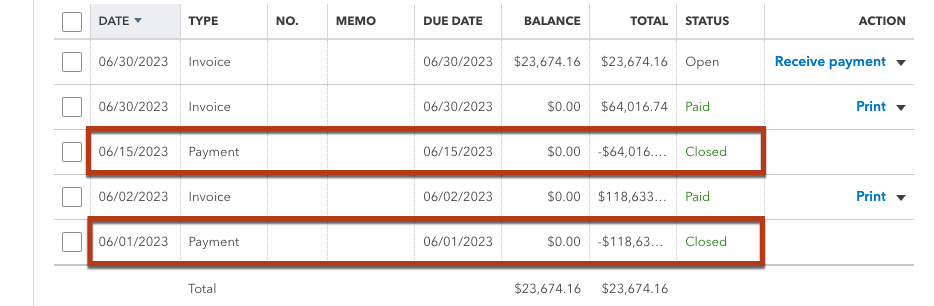
As a payment is recorded in Salesbricks, the payment details will be passed in real-time to Quickbooks.
### Payment Fields
As a payment is recorded in Salesbricks, the payment details will be passed in real-time to Quickbooks.
 ## Payment Sync
Our Quickbooks integration allows the seamless reconciliation of payments and deposits recorded in QuickBooks with unpaid invoices in Salesbricks. This automation reduces manual effort and ensures accurate financial tracking.
### How It Works
#### Payment reconciliation
Salesbricks reads Payments or Deposits recorded in QuickBooks and automatically applies them to unpaid invoices that are synced between the two platforms.
Only payments tied to existing invoices in Salesbricks will be processed.
#### Deposit reconciliation
Salesbricks only reads deposits to bank accounts in QuickBooks.
Payments categorized as “Undeposited Funds” in QuickBooks are excluded from the sync.
#### Daily sync
The sync runs automatically once every 4 hours.
### Troubleshooting
| Potential cause | Resolution |
| ------------------------------------------------------------------------------------------ | ------------------------------------------------------------------------------ |
| *Your Salesbricks account has been connected to multiple QuickBooks accounts in the past.* | Contact Salesbricks Support to help rectify your Salesbricks account. |
| *The bank payment is for an invoice that does not exist in Salesbricks.* | None. Salesbricks cannot reconcile payments for invoices outside the platform. |
## Payment Sync
Our Quickbooks integration allows the seamless reconciliation of payments and deposits recorded in QuickBooks with unpaid invoices in Salesbricks. This automation reduces manual effort and ensures accurate financial tracking.
### How It Works
#### Payment reconciliation
Salesbricks reads Payments or Deposits recorded in QuickBooks and automatically applies them to unpaid invoices that are synced between the two platforms.
Only payments tied to existing invoices in Salesbricks will be processed.
#### Deposit reconciliation
Salesbricks only reads deposits to bank accounts in QuickBooks.
Payments categorized as “Undeposited Funds” in QuickBooks are excluded from the sync.
#### Daily sync
The sync runs automatically once every 4 hours.
### Troubleshooting
| Potential cause | Resolution |
| ------------------------------------------------------------------------------------------ | ------------------------------------------------------------------------------ |
| *Your Salesbricks account has been connected to multiple QuickBooks accounts in the past.* | Contact Salesbricks Support to help rectify your Salesbricks account. |
| *The bank payment is for an invoice that does not exist in Salesbricks.* | None. Salesbricks cannot reconcile payments for invoices outside the platform. |