> ## Documentation Index
> Fetch the complete documentation index at: https://docs.salesbricks.com/llms.txt
> Use this file to discover all available pages before exploring further.
# Setup & Troubleshooting
> Connect your QuickBooks Online company to Salesbricks, manage the connection, and resolve syncs that were skipped.
## Setup
[https://app.salesbricks.com/admin/settings/integrations](https://app.salesbricks.com/admin/settings/integrations)
In Salesbricks, navigate to **Settings** -> **Integrations** and find the **Finance / ERP** section.
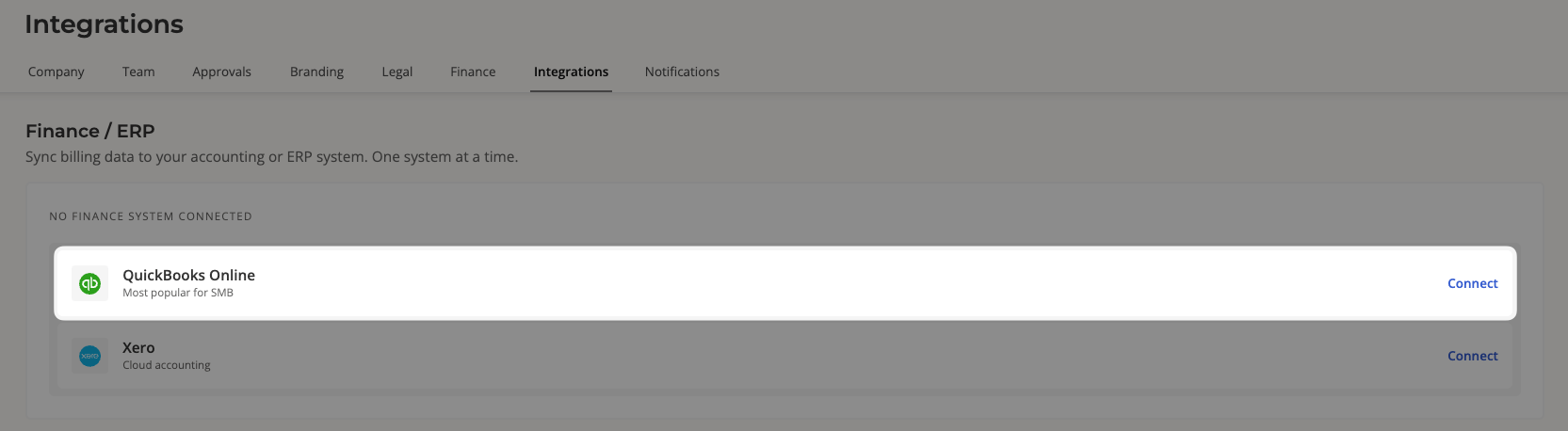 Click **Connect** on the QuickBooks Online option. You'll be redirected to QuickBooks to sign in.
Only one finance system can be connected at a time. If Xero is already connected, the QuickBooks
option is disabled until you disconnect it.
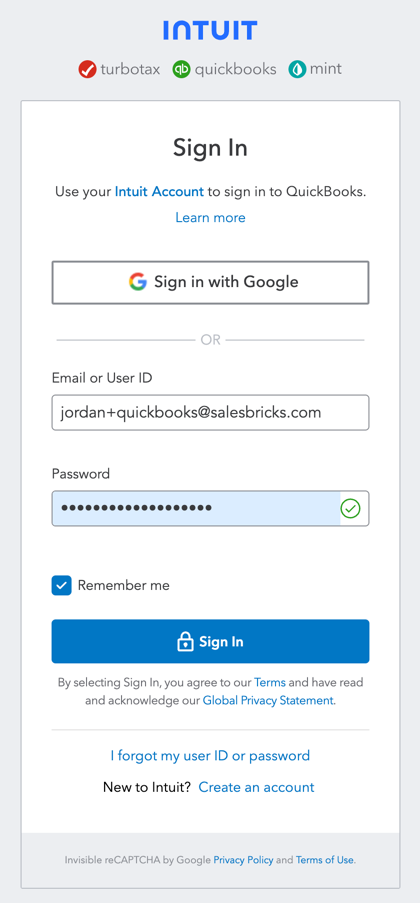
Sign in and allow access to the company you want to sync.
Salesbricks uses an OAuth connection to QuickBooks, so your username and password are never stored by Salesbricks.
Click **Connect** on the QuickBooks Online option. You'll be redirected to QuickBooks to sign in.
Only one finance system can be connected at a time. If Xero is already connected, the QuickBooks
option is disabled until you disconnect it.
Sign in and allow access to the company you want to sync.
Salesbricks uses an OAuth connection to QuickBooks, so your username and password are never stored by Salesbricks.
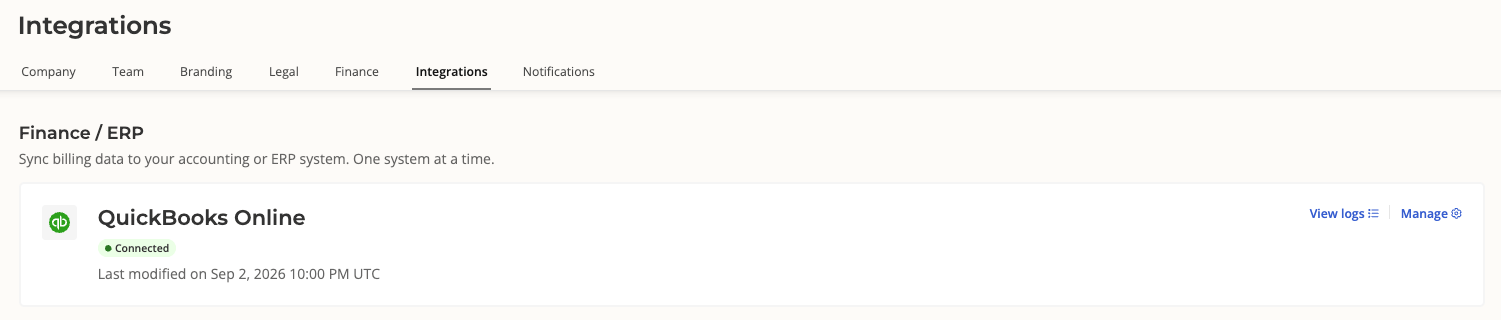
 You'll land back in Salesbricks with a **Connected** tag on the QuickBooks Online card. Your integration is complete.
 ### What Salesbricks configures for you
A new connection starts from a working configuration, so invoices sync without any manual setup:
| Setting | Seeded value |
| --------------------------------------------- | -------------------------------------------------------------------------------------- |
| Auto-create customers, invoices, and payments | On, so new records post to QuickBooks as they happen |
| Auto-matching | On, so payments recorded in QuickBooks reconcile back to Salesbricks invoices |
| Credit memos for adjustments and credits | On, so non-cash credits post as QuickBooks credit memos instead of payments |
| Sync muted invoices | Off, so an invoice excluded from Salesbricks emails is not pushed to QuickBooks |
| Date range descriptions for usage and ramping | On, so those lines carry their billing period instead of the brick name |
| Override invoice number and sales tax | Off, so QuickBooks numbers invoices and calculates tax until you turn the overrides on |
These defaults are only applied on a first-time setup. Reconnecting later never overwrites choices
you've made.
Next, review [what syncs to QuickBooks and how to configure it](/integrations/quickbooks/overview).
## Managing the connection
The QuickBooks Online card in **Settings** -> **Integrations** carries two actions:
| Action | What it does |
| ------------- | --------------------------------------------------------------------------------- |
| **View logs** | Opens every sync attempt for the integration, including anything skipped and why. |
| **Manage** | Opens the Finance page, where the QuickBooks card's actions menu lives. |
From the actions menu on the QuickBooks card under **Manage**:
| Action | What it does |
| -------------------------- | --------------------------------------------------------------------------------------------------- |
| **Update account mapping** | Maps transaction types to [QuickBooks accounts](/integrations/quickbooks/overview#account-mapping). |
| **Update config** | Opens the [integration settings](/integrations/quickbooks/overview#configuration). |
| **Disconnect** | Disconnects QuickBooks and stops syncing your data. |
If the card shows **Needs attention**, the connection to QuickBooks has lapsed. Choose **Reconnect** to reauthorize, which restores syncing without clearing your configuration.
## Troubleshooting
Start with **View sync logs** on the invoice, or **View logs** on the QuickBooks Online card in your integration settings. Skipped syncs are recorded there with the reason.
| Potential cause | Resolution |
| ----------------------------------------------------------------------------------------------------------- | ------------------------------------------------------------------------------------------------------ |
| *The customer hasn't synced to QuickBooks yet.* | The customer syncs first. Retry the sync, or check the logs for a customer sync failure. |
| *The customer was deactivated or deleted in QuickBooks.* | Re-sync the customer, which restores it, then re-sync the invoice. |
| *The invoice is muted and [Sync muted invoices](/integrations/quickbooks/overview#invoice-options) is off.* | Unmute the invoice, turn the setting on, or sync the invoice manually from its billing statement page. |
| *Sync was disabled for the order or the invoice.* | Re-enable syncing from the invoice's actions menu. |
| *The invoice date falls in a closed accounting period in QuickBooks.* | Reopen the period in QuickBooks, or ask Salesbricks Support to post the transaction to a later date. |
| *The invoice has no calculated pricing or line items yet.* | Only calculated invoices sync. Generate the invoice, then re-sync. |
\| Potential cause | Resolution | | --- | --- | | *The invoice hasn't been synced to QuickBooks
yet.* | Payments attach to a synced invoice. Resolve the invoice sync first, then re-sync. | |
*The payment is larger than the invoice's open balance in QuickBooks.* | Expected. QuickBooks
would book the excess as an unapplied credit, so Salesbricks holds the payment for review. Correct
the invoice balance in QuickBooks, then re-sync. | | \_The payment amount is $0._ | Expected.
QuickBooks rejects $0 payments through the API. | | *The payment in QuickBooks is for an invoice
that does not exist in Salesbricks.* | None. Salesbricks cannot reconcile payments for invoices
outside the platform. | | *Your Salesbricks account has been connected to multiple QuickBooks
companies in the past.* | Contact Salesbricks Support to reconcile your account. |
\| Potential cause | Resolution | | --- | --- | | *The brick or plan has no SKU code.* | Add a code
in your catalog that matches the SKU on the QuickBooks item, or ask Salesbricks Support to set up
an item mapping. | | *More than one QuickBooks item carries the same SKU.* | Salesbricks won't
guess between them. Make the SKU unique in QuickBooks, or map the item explicitly. | | *The
invoice is a one-off, with no plan or brick behind its lines.* | Expected. One-off lines have
nothing to map to an item. |
\| Potential cause | Resolution | | --- | --- | | *The payment method has no [account
mapping](/integrations/quickbooks/overview#account-mapping).* | Map that payment method to an
account. Unmapped methods fall back to the default account, then to QuickBooks' own default. | |
*The mapped account was deactivated in QuickBooks.* | Pick an active account in the mapping
drawer. |
| Potential cause | Resolution |
| --------------------------------------------------------------------------------------------- | ------------------------------------------------------------------------------------------------------------------------------- |
| *[Class tracking](/integrations/quickbooks/overview#account-representative-tracking) is off.* | Turn it on in your QuickBooks configuration. If you don't see the section, reach out to Salesbricks Support to have it enabled. |
| *The order has no account representative.* | Assign an owner to the order. Transactions sync untagged when there is no owner. |
| *Class tracking is off in QuickBooks itself.* | Turn on class tracking in your QuickBooks account and category settings. |
## Related topics
- [Setup & Troubleshooting](/integrations/xero/setup.md)
- [Setup](/integrations/stripe/setup.md)
- [Setup a payment method](/api-reference/payment-methods/setup-a-payment-method.md)
### What Salesbricks configures for you
A new connection starts from a working configuration, so invoices sync without any manual setup:
| Setting | Seeded value |
| --------------------------------------------- | -------------------------------------------------------------------------------------- |
| Auto-create customers, invoices, and payments | On, so new records post to QuickBooks as they happen |
| Auto-matching | On, so payments recorded in QuickBooks reconcile back to Salesbricks invoices |
| Credit memos for adjustments and credits | On, so non-cash credits post as QuickBooks credit memos instead of payments |
| Sync muted invoices | Off, so an invoice excluded from Salesbricks emails is not pushed to QuickBooks |
| Date range descriptions for usage and ramping | On, so those lines carry their billing period instead of the brick name |
| Override invoice number and sales tax | Off, so QuickBooks numbers invoices and calculates tax until you turn the overrides on |
These defaults are only applied on a first-time setup. Reconnecting later never overwrites choices
you've made.
Next, review [what syncs to QuickBooks and how to configure it](/integrations/quickbooks/overview).
## Managing the connection
The QuickBooks Online card in **Settings** -> **Integrations** carries two actions:
| Action | What it does |
| ------------- | --------------------------------------------------------------------------------- |
| **View logs** | Opens every sync attempt for the integration, including anything skipped and why. |
| **Manage** | Opens the Finance page, where the QuickBooks card's actions menu lives. |
From the actions menu on the QuickBooks card under **Manage**:
| Action | What it does |
| -------------------------- | --------------------------------------------------------------------------------------------------- |
| **Update account mapping** | Maps transaction types to [QuickBooks accounts](/integrations/quickbooks/overview#account-mapping). |
| **Update config** | Opens the [integration settings](/integrations/quickbooks/overview#configuration). |
| **Disconnect** | Disconnects QuickBooks and stops syncing your data. |
If the card shows **Needs attention**, the connection to QuickBooks has lapsed. Choose **Reconnect** to reauthorize, which restores syncing without clearing your configuration.
## Troubleshooting
Start with **View sync logs** on the invoice, or **View logs** on the QuickBooks Online card in your integration settings. Skipped syncs are recorded there with the reason.
| Potential cause | Resolution |
| ----------------------------------------------------------------------------------------------------------- | ------------------------------------------------------------------------------------------------------ |
| *The customer hasn't synced to QuickBooks yet.* | The customer syncs first. Retry the sync, or check the logs for a customer sync failure. |
| *The customer was deactivated or deleted in QuickBooks.* | Re-sync the customer, which restores it, then re-sync the invoice. |
| *The invoice is muted and [Sync muted invoices](/integrations/quickbooks/overview#invoice-options) is off.* | Unmute the invoice, turn the setting on, or sync the invoice manually from its billing statement page. |
| *Sync was disabled for the order or the invoice.* | Re-enable syncing from the invoice's actions menu. |
| *The invoice date falls in a closed accounting period in QuickBooks.* | Reopen the period in QuickBooks, or ask Salesbricks Support to post the transaction to a later date. |
| *The invoice has no calculated pricing or line items yet.* | Only calculated invoices sync. Generate the invoice, then re-sync. |
\| Potential cause | Resolution | | --- | --- | | *The invoice hasn't been synced to QuickBooks
yet.* | Payments attach to a synced invoice. Resolve the invoice sync first, then re-sync. | |
*The payment is larger than the invoice's open balance in QuickBooks.* | Expected. QuickBooks
would book the excess as an unapplied credit, so Salesbricks holds the payment for review. Correct
the invoice balance in QuickBooks, then re-sync. | | \_The payment amount is $0._ | Expected.
QuickBooks rejects $0 payments through the API. | | *The payment in QuickBooks is for an invoice
that does not exist in Salesbricks.* | None. Salesbricks cannot reconcile payments for invoices
outside the platform. | | *Your Salesbricks account has been connected to multiple QuickBooks
companies in the past.* | Contact Salesbricks Support to reconcile your account. |
\| Potential cause | Resolution | | --- | --- | | *The brick or plan has no SKU code.* | Add a code
in your catalog that matches the SKU on the QuickBooks item, or ask Salesbricks Support to set up
an item mapping. | | *More than one QuickBooks item carries the same SKU.* | Salesbricks won't
guess between them. Make the SKU unique in QuickBooks, or map the item explicitly. | | *The
invoice is a one-off, with no plan or brick behind its lines.* | Expected. One-off lines have
nothing to map to an item. |
\| Potential cause | Resolution | | --- | --- | | *The payment method has no [account
mapping](/integrations/quickbooks/overview#account-mapping).* | Map that payment method to an
account. Unmapped methods fall back to the default account, then to QuickBooks' own default. | |
*The mapped account was deactivated in QuickBooks.* | Pick an active account in the mapping
drawer. |
| Potential cause | Resolution |
| --------------------------------------------------------------------------------------------- | ------------------------------------------------------------------------------------------------------------------------------- |
| *[Class tracking](/integrations/quickbooks/overview#account-representative-tracking) is off.* | Turn it on in your QuickBooks configuration. If you don't see the section, reach out to Salesbricks Support to have it enabled. |
| *The order has no account representative.* | Assign an owner to the order. Transactions sync untagged when there is no owner. |
| *Class tracking is off in QuickBooks itself.* | Turn on class tracking in your QuickBooks account and category settings. |
## Related topics
- [Setup & Troubleshooting](/integrations/xero/setup.md)
- [Setup](/integrations/stripe/setup.md)
- [Setup a payment method](/api-reference/payment-methods/setup-a-payment-method.md)