> ## Documentation Index
> Fetch the complete documentation index at: https://docs.salesbricks.com/llms.txt
> Use this file to discover all available pages before exploring further.
# Sphere
## Overview
Integrating Salesbricks with Sphere enables a seamless data import from Salesbricks to Sphere, as well as live tax calculation within Salesbricks checkout & invoices.
This **two-part guide** provides step-by-step instructions on:
**1.** retrieving your Salesbricks API key and linking it to Sphere for a secure data sync
**2.** linking your Sphere Tax API key within Salesbricks to ensure accurate tax calculations
## Setup
### Part 1: Configure data synchronization from Salesbricks to Sphere
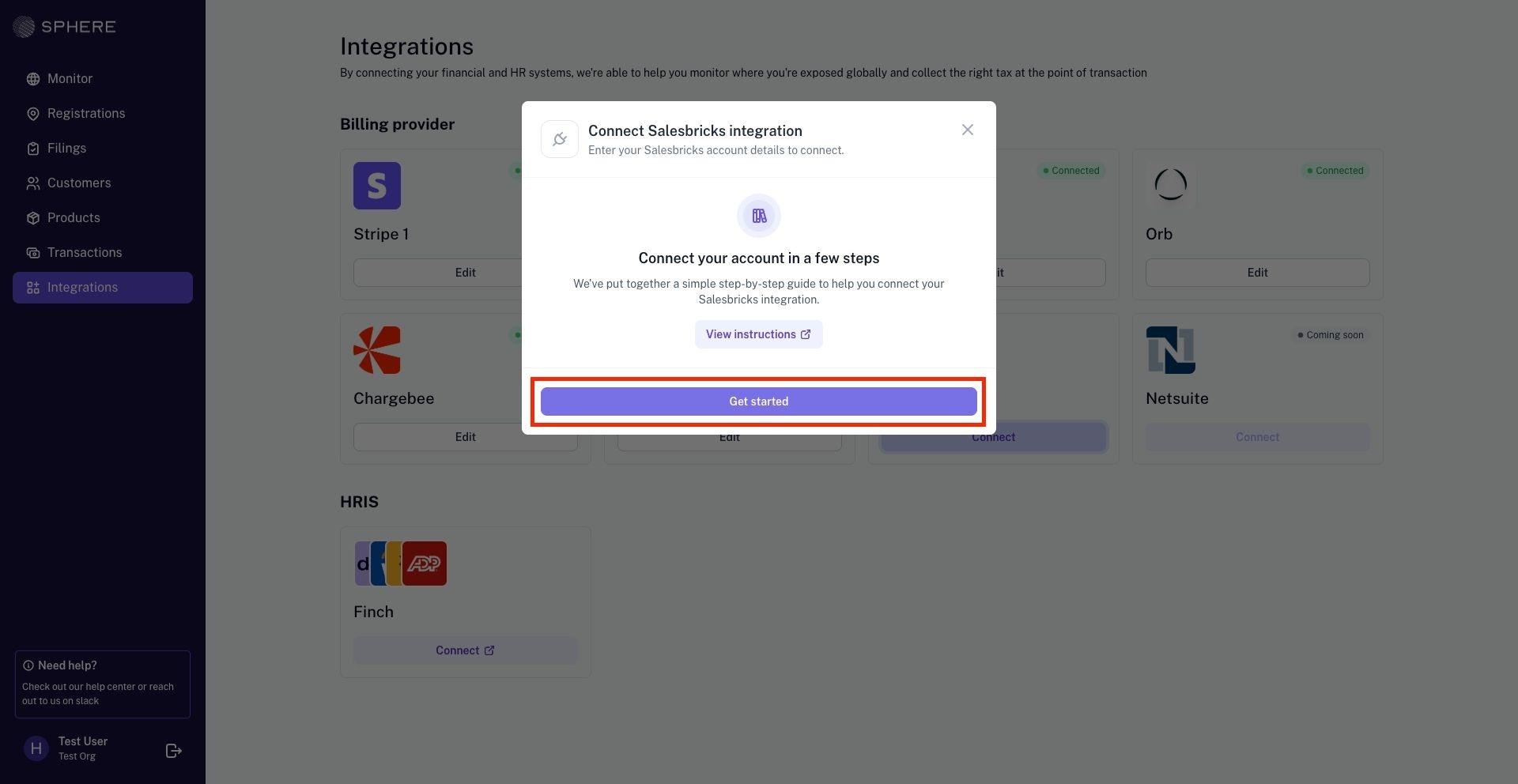
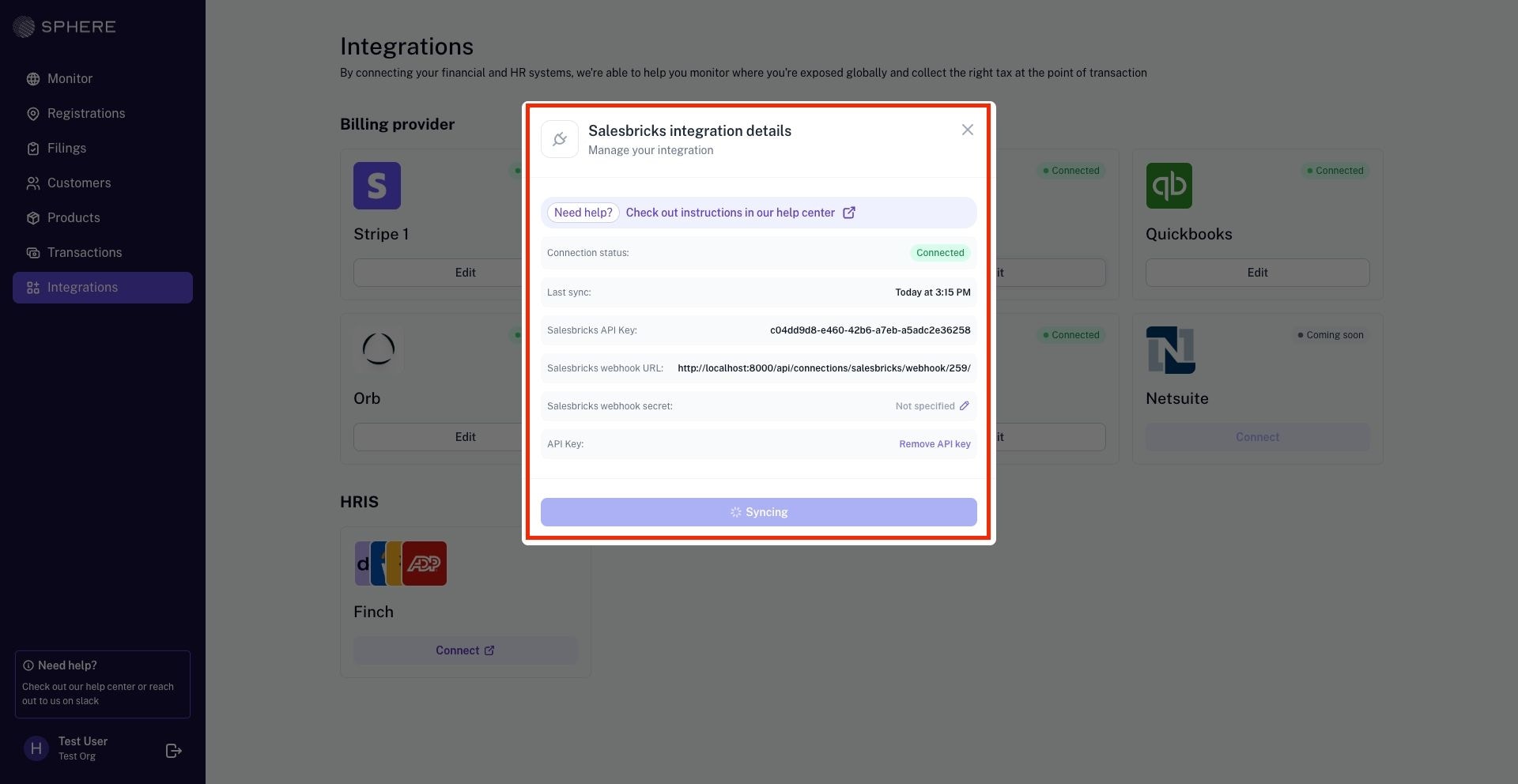
**1.** In your Sphere account, go to **Integrations**, select the **Salesbricks** tile and click **Connect**.
 **2.** A modal will appear — click **Get Started** to proceed.
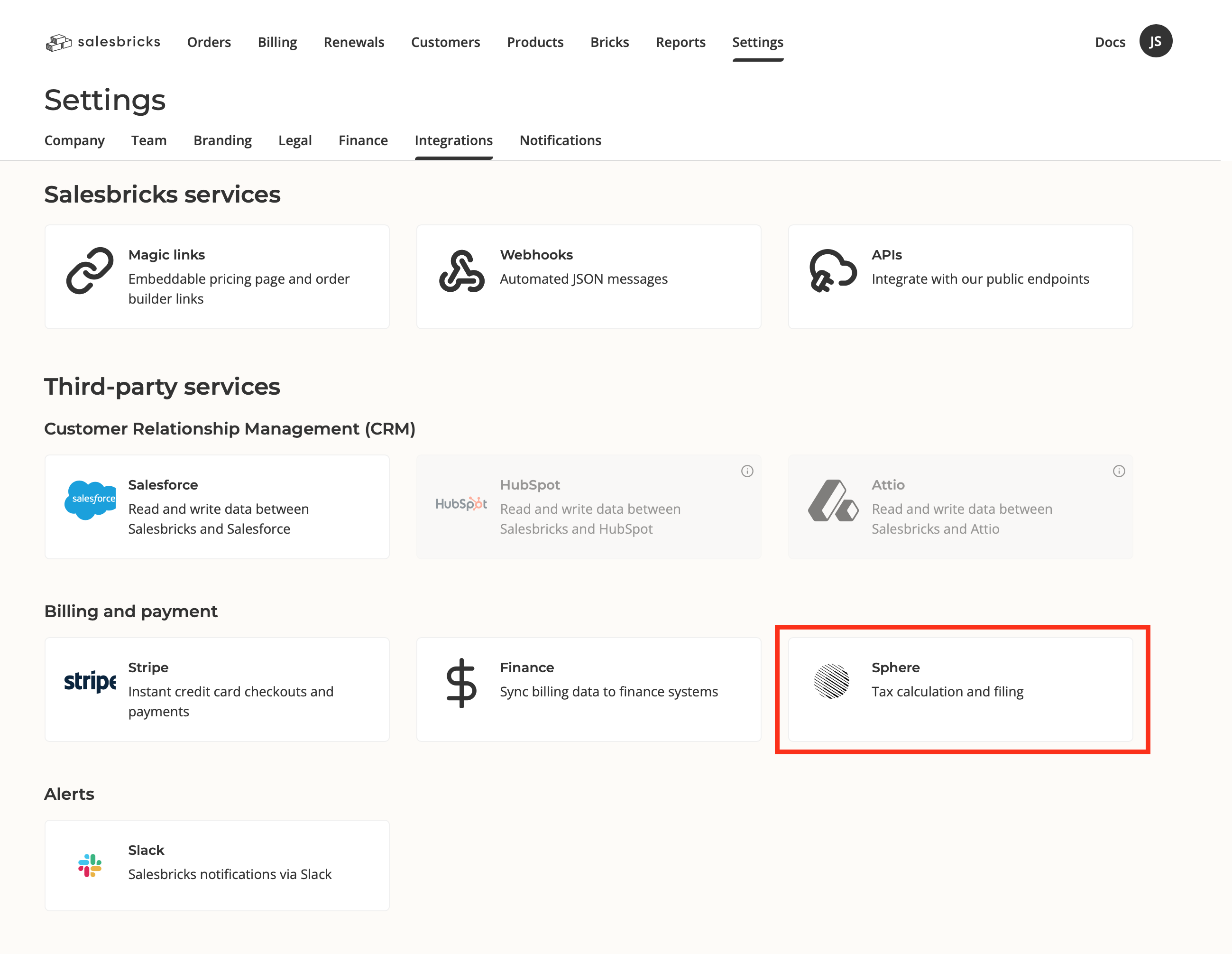
 **3.** In Salesbricks, navigate to Settings -> Integrations. Under the **Billing and payment** section, click **Sphere**.
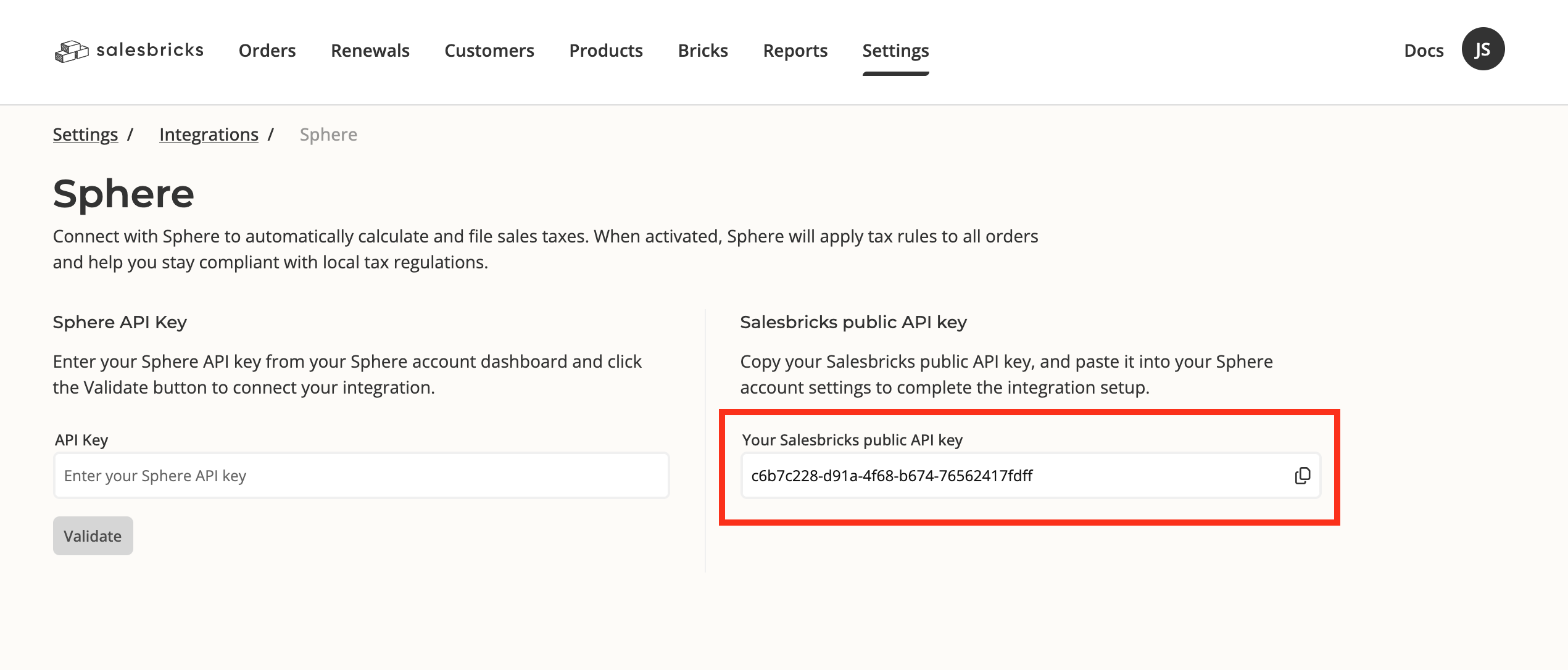
 **4.** Copy your **Salesbricks public API key** to your clipboard.
 **5.** In Sphere, paste the Salesbricks API key and click **Next**.
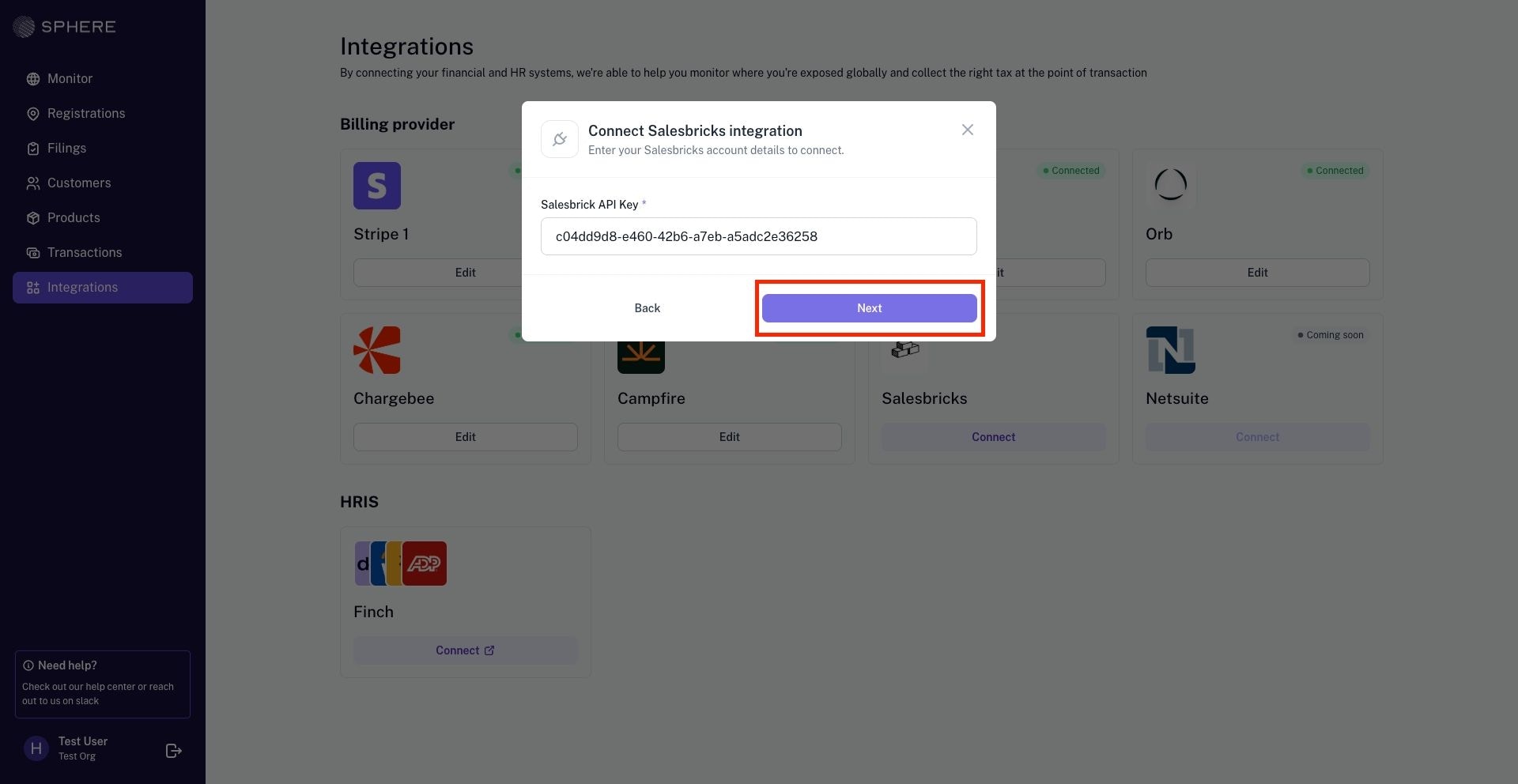 **6.** If the connection is successful, data will begin importing, and after some time, your plans and bricks will appear in **Sphere**.
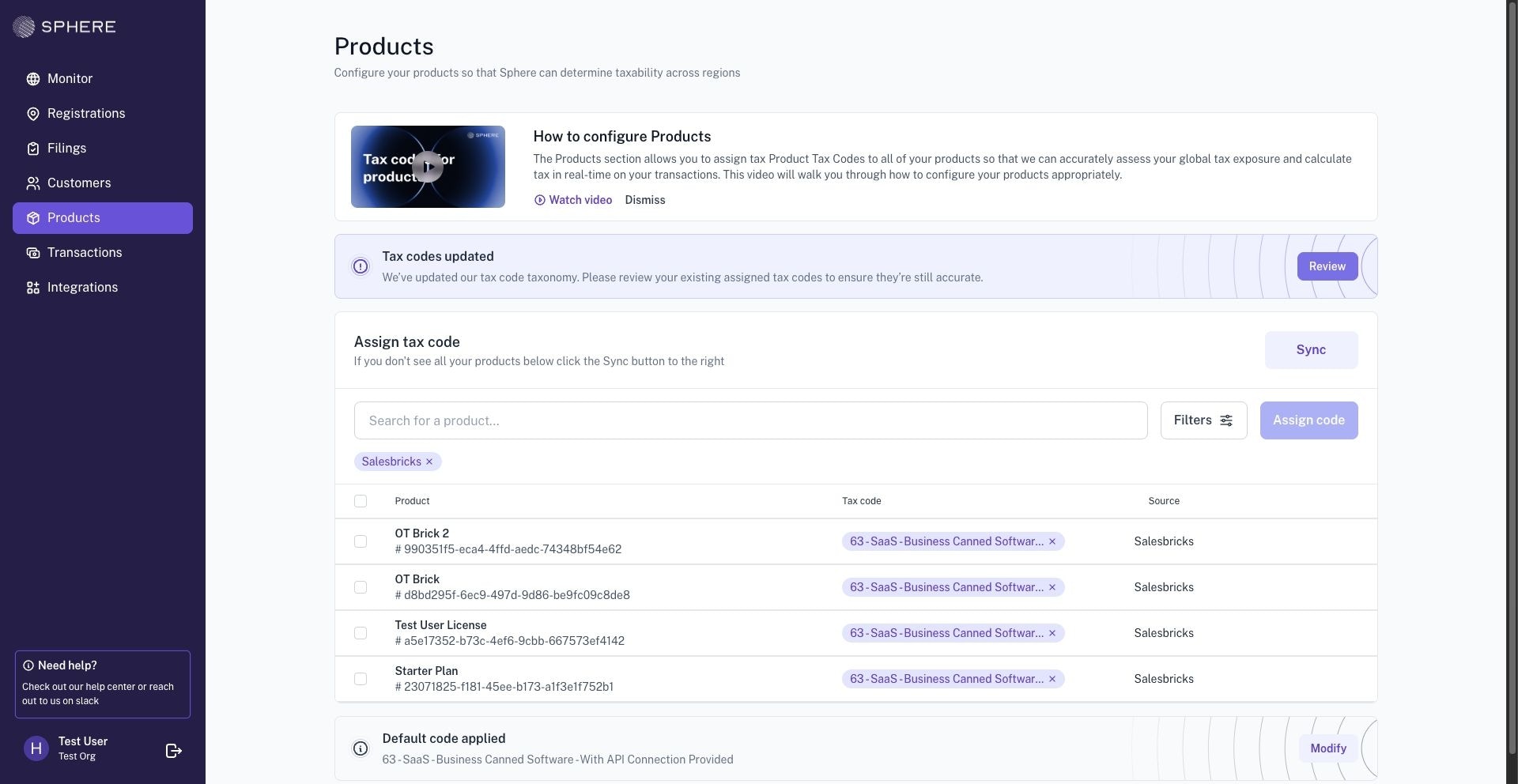 **Continue on to part 2 of the setup below to ensure that the integration is fully set up, and tax is applied correctly to Salesbricks orders.**
### Part 2: Configure Sphere Tax API key for tax calculation
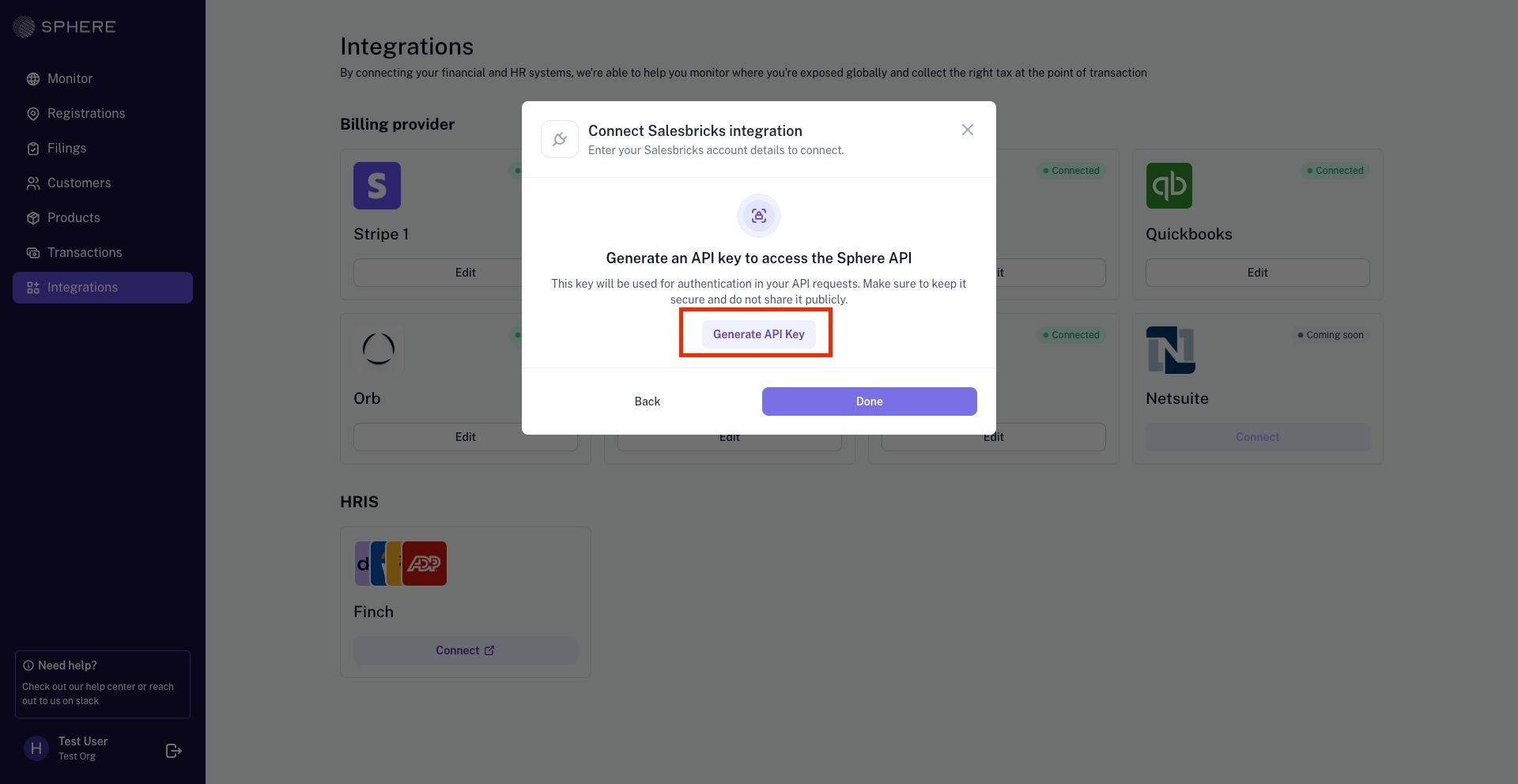
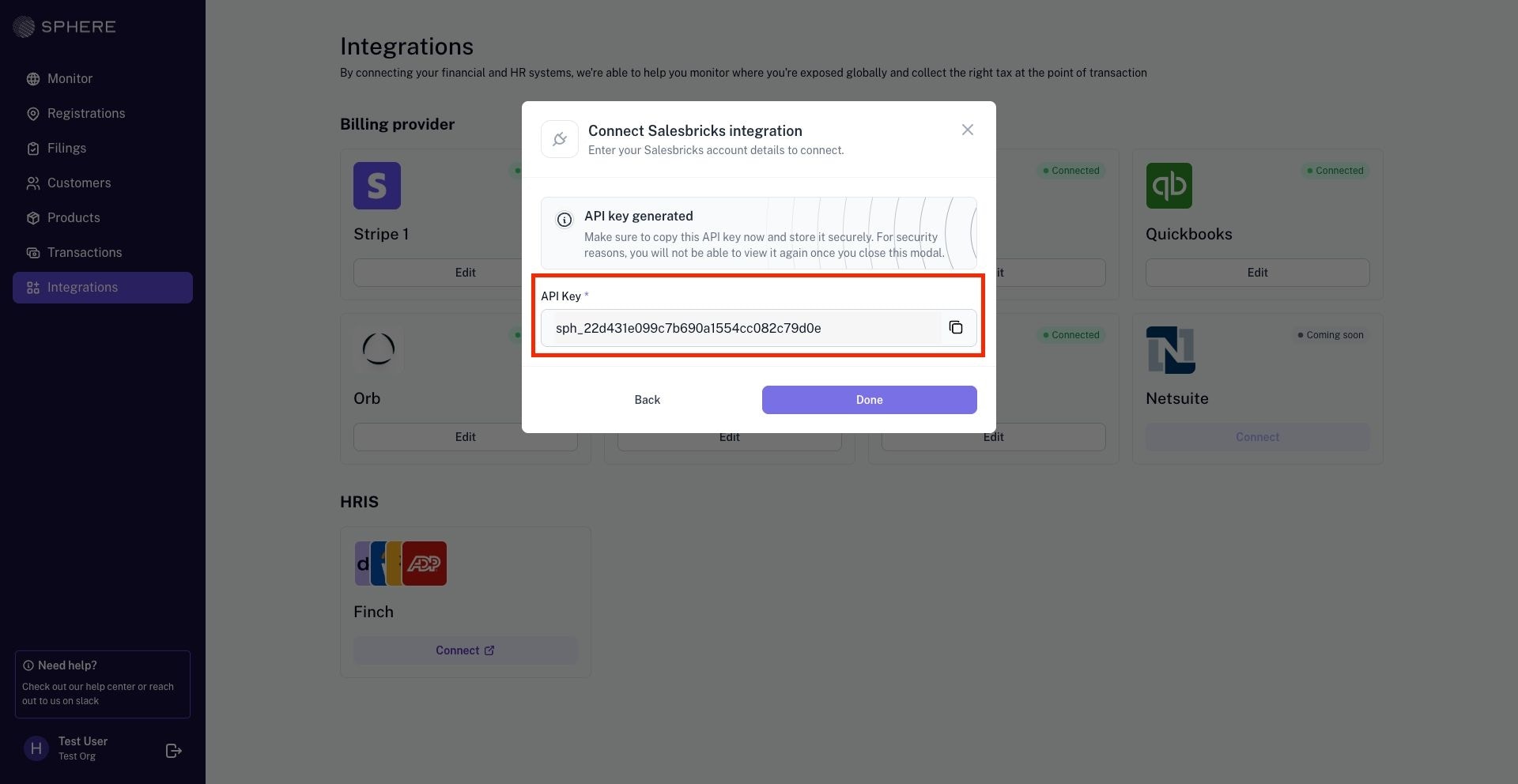
**1.** In Sphere, click **Generate API Key** to generate the Sphere Tax API key. Be sure to save the newly generated key, as it cannot be viewed again later.
**Continue on to part 2 of the setup below to ensure that the integration is fully set up, and tax is applied correctly to Salesbricks orders.**
### Part 2: Configure Sphere Tax API key for tax calculation
**1.** In Sphere, click **Generate API Key** to generate the Sphere Tax API key. Be sure to save the newly generated key, as it cannot be viewed again later.
 **2.** In Salesbricks, return to the Sphere integration page, paste your Sphere Tax API key, and click **Validate**.
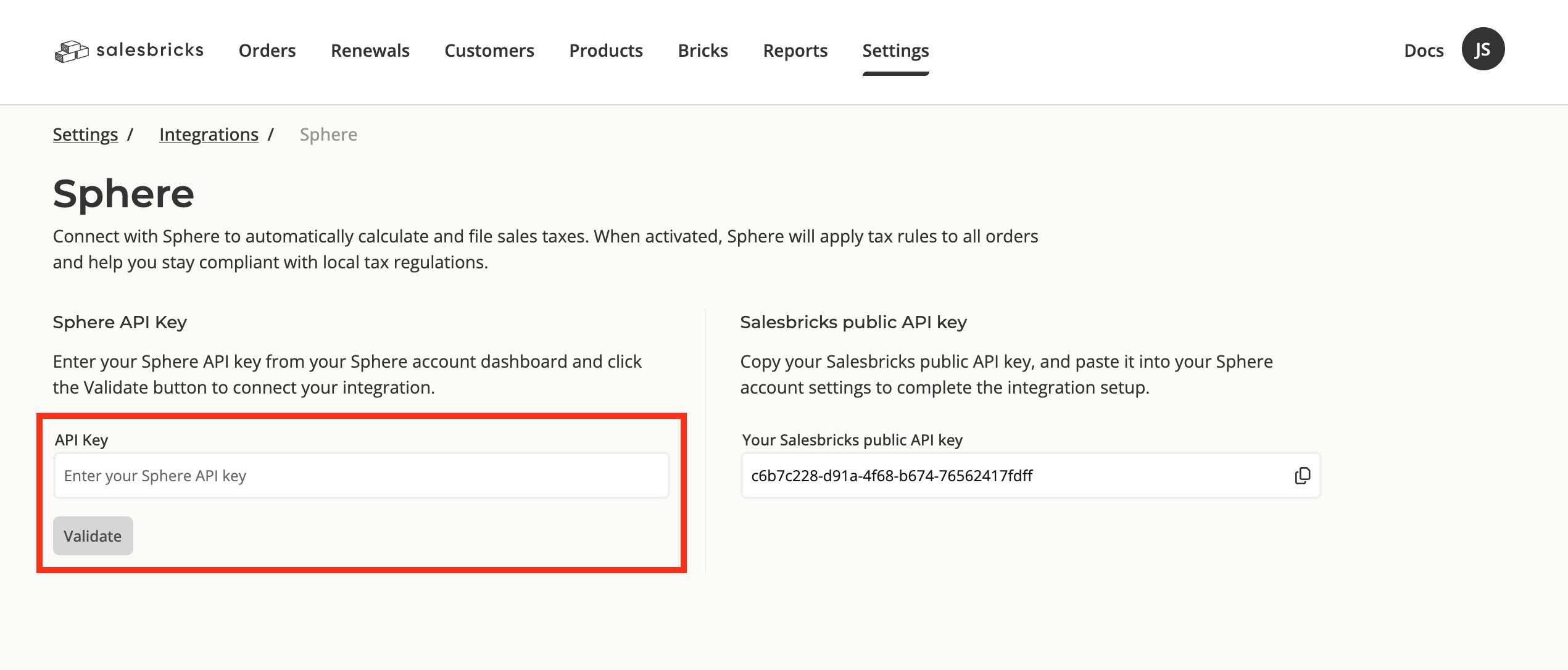 Once configured, taxes will be calculated automatically on orders and invoices in Salesbricks.
 Enabling your Sphere integration will disable any previously selected “taxed states” under Settings → Finance, as well as any custom tax codes for bricks that were previously set in Salesbricks.