> ## Documentation Index
> Fetch the complete documentation index at: https://docs.salesbricks.com/llms.txt
> Use this file to discover all available pages before exploring further.
# Setup
> Quick to configure; simple yet powerful integration.
Learn more about our Stripe integration [here](/integrations/stripe/overview).
## Overview
Integrating with Stripe allows you to collect payments through **credit card** or **ACH** via Stripe's API.
Once the connection is established, Salesbricks will create a "Connected account" under your parent Stripe account. This is the only account that Salesbricks will have access to manage within Stripe.
Important: The Stripe integration does not link directly to your existing Stripe account. You will be required to set up a new Connected (shared) account — this allows Salesbricks to help manage your transactions on our platform without granting us access to your primary account.
Salesbricks leverages Stripe solely to collect payment. It does not use Stripe's subscription or invoicing functionalities. When a credit card or ACH payment needs to be processed, Salesbricks handles all of the logic around subscription, billing frequency, and payment terms, and creates a Customer object within Stripe only.
## Connecting Stripe to Salesbricks
[https://app.salesbricks.com/admin/settings/integrations](https://app.salesbricks.com/admin/settings/integrations)
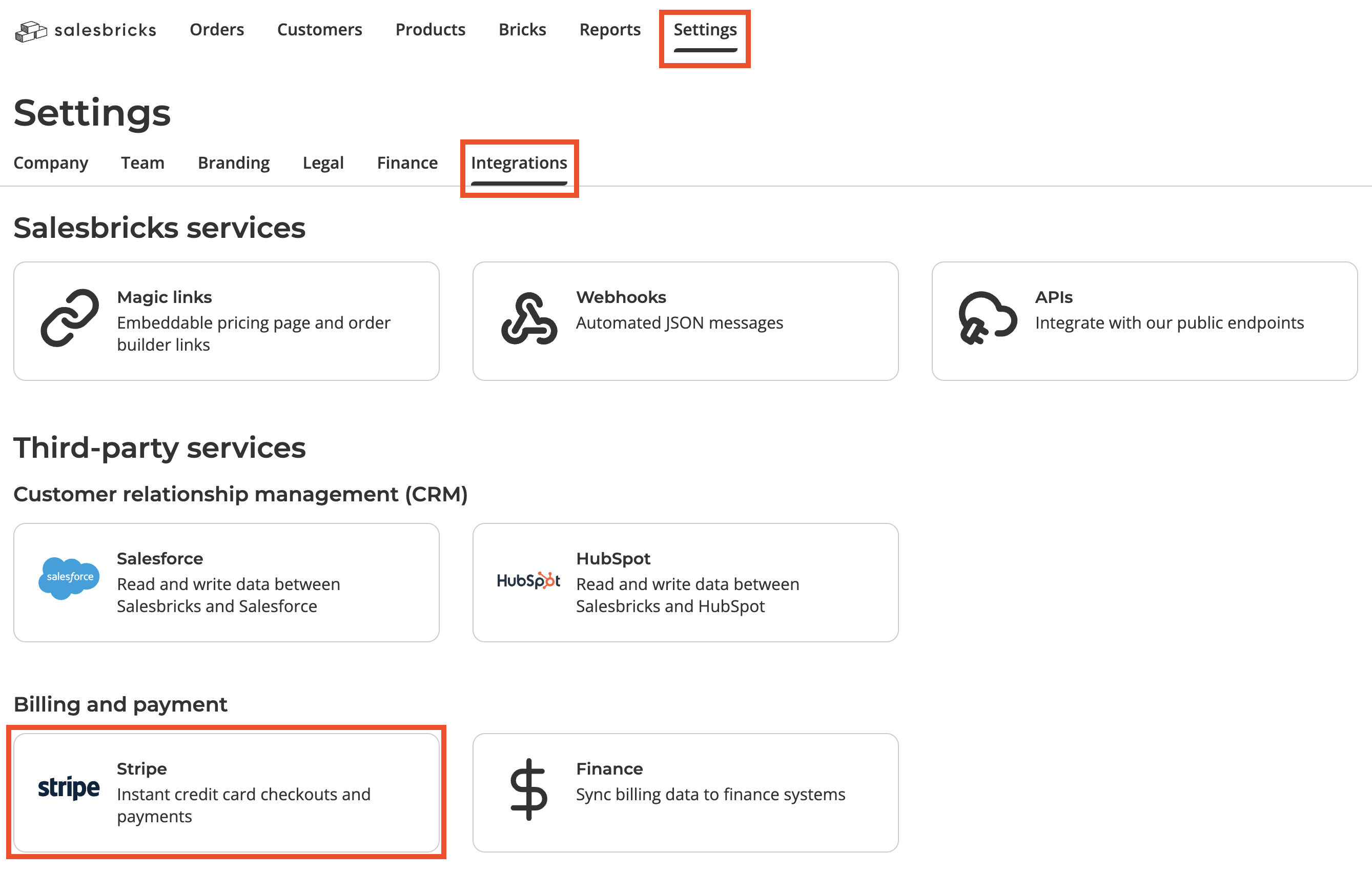
Within Salesbricks, navigate to **Settings** -> **Integrations**, and click on the **Stripe** card under the "Billing and payment" section.
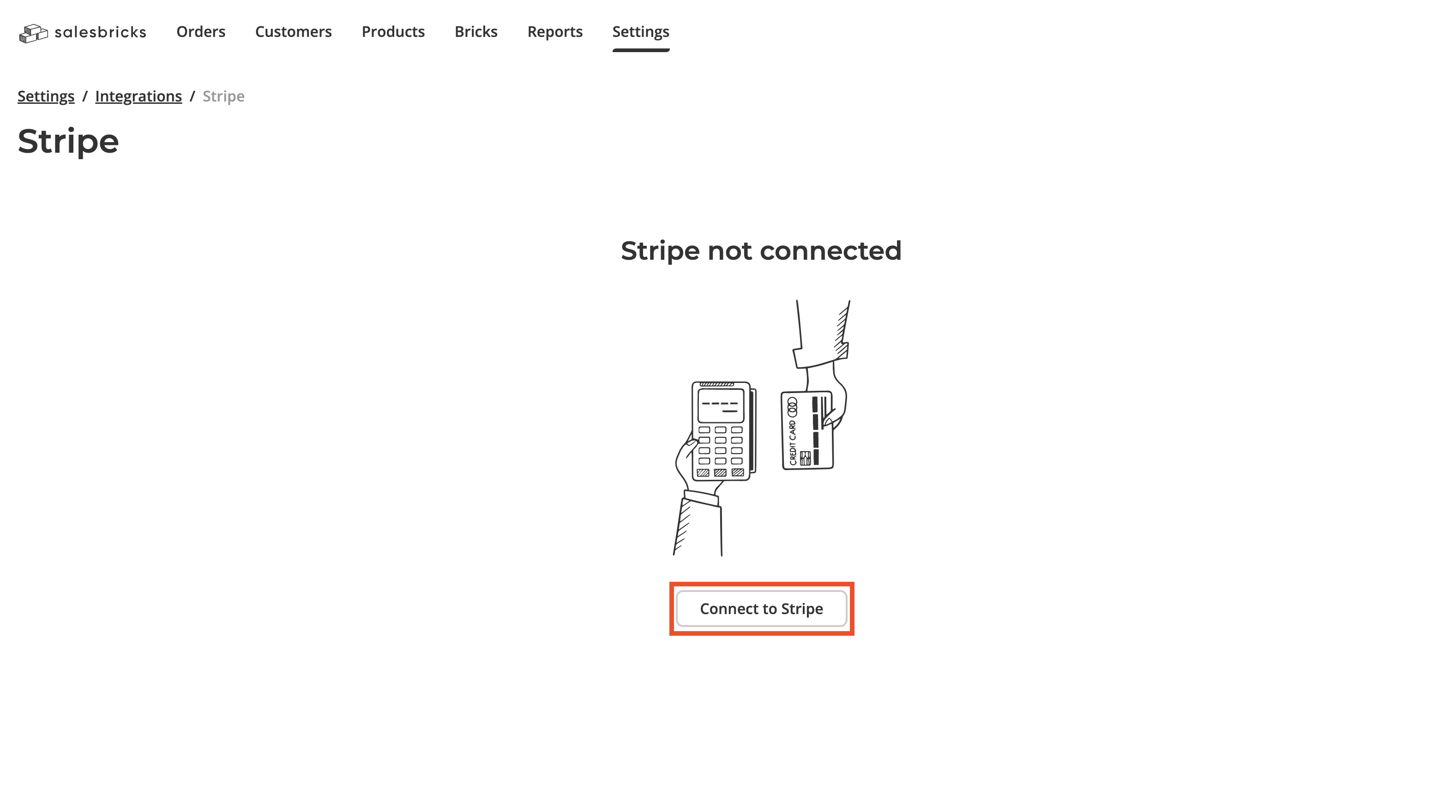
 Click **Connect to Stripe**.
 Log in to your Stripe account.
 If you have already configured your account within Stripe, you can select the saved details. If you're setting up Stripe for the first time, select **Create a new business**. Click **Continue**.
 If you have a business created in Stripe, but do not see it listed as a selectable option, you likely do not have administrative permissions within Stripe to perform the integration for that account (see "Troubleshooting").
Verify the details of your Stripe account, or fill in the details if you are creating a new business.
Click **Agree & Submit**.
Congratulations! Your Stripe business account is now connected to Salesbricks.
You can now enable several payment options for your customers to use during checkout: order form, credit card, and/or ACH.
Read the guide on [Checkout & Invoice Payment Options](/quickstart-guide/checkout-invoice-payment-options).
## Troubleshooting
This section contains scenarios you may encounter when connecting your Stripe account to Salesbricks.
### Integration setup
#### You have a saved business in Stripe but it is not appearing as a selectable option.
**Cause**: If you have a business created in Stripe, but do not see it listed as a selectable option, you likely do not have administrative permissions within Stripe to perform the integration for that account.
**Solution**: Ask the admin/owner of your Stripe business account to add administrative permissions to your user.
If you have a business created in Stripe, but do not see it listed as a selectable option, you likely do not have administrative permissions within Stripe to perform the integration for that account (see "Troubleshooting").
Verify the details of your Stripe account, or fill in the details if you are creating a new business.
Click **Agree & Submit**.
Congratulations! Your Stripe business account is now connected to Salesbricks.
You can now enable several payment options for your customers to use during checkout: order form, credit card, and/or ACH.
Read the guide on [Checkout & Invoice Payment Options](/quickstart-guide/checkout-invoice-payment-options).
## Troubleshooting
This section contains scenarios you may encounter when connecting your Stripe account to Salesbricks.
### Integration setup
#### You have a saved business in Stripe but it is not appearing as a selectable option.
**Cause**: If you have a business created in Stripe, but do not see it listed as a selectable option, you likely do not have administrative permissions within Stripe to perform the integration for that account.
**Solution**: Ask the admin/owner of your Stripe business account to add administrative permissions to your user.