> ## Documentation Index
> Fetch the complete documentation index at: https://docs.salesbricks.com/llms.txt
> Use this file to discover all available pages before exploring further.
# Adding Team Members
## Who should be added to Salesbricks?
As you configure and rollout Salesbricks within your organization, you will need to add a variety of different individuals, usually in the order below:
Responsible for configuring your company's logo, branding, and marketing copy.
This individual or team will build your bricks, plans, and products that make up your pricing and packaging.
Will ensure that all legal documents, such as Master Service Agreements (MSA) and Commercial Terms are up-to-date and ready for use.
Configure the connection to finance systems like Stripe, and help implement the flow of any revenue schedules pushed from Salesbricks to your CRM or accounting systems. They will also handle sales tax.
Facilitate connecting to your CRM like Salesforce or HubSpot.
After your sales team is trained, they will be building orders within Salesbricks, communicating with your customers, and closing deals 🤑!
## Adding a team member
**1.** Navigate to Settings -> Team and click the **New team member** button.
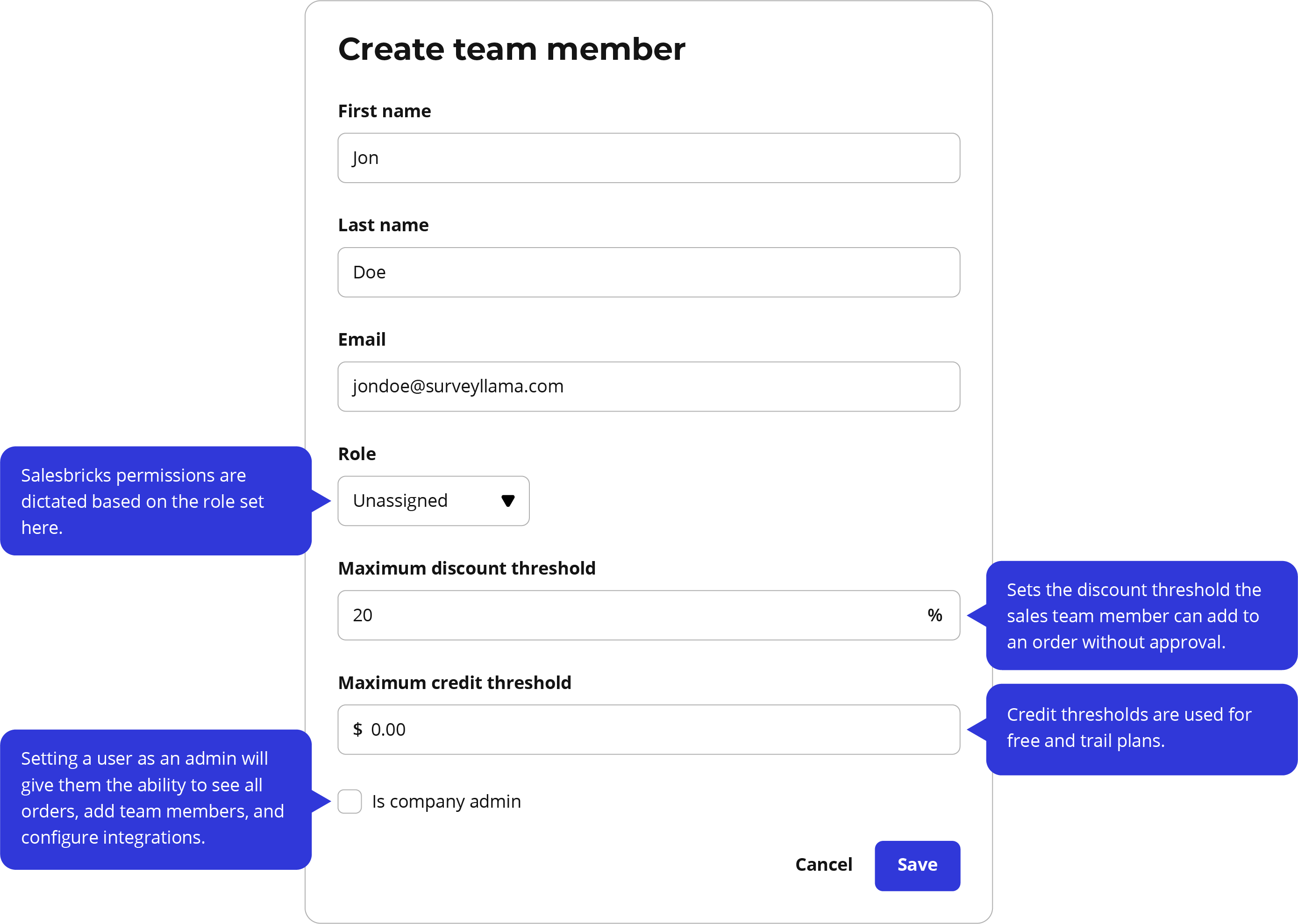
 **2.** Fill out the team member details and click **Save**.
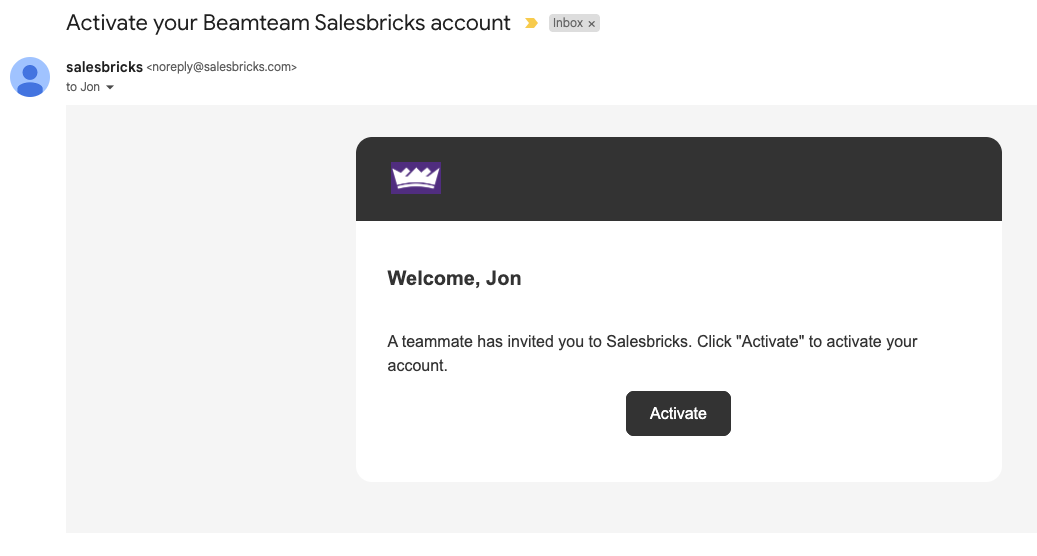
 **3.** Your team member will receive an email to **activate their account** and **create a password**.
 ## Company admin vs. non-admin permissions
Salesbricks provides distinct roles for admin and non-admin users, tailored to support different levels of access and functionality within your team. Below is a comparison of their permissions and capabilities:
### Shared capabilities
Both admin and non-admin users can:
* **Create, share, and close orders** in Salesbricks.
* **Access the Billing page**, where they can view and manage all customer invoices.
* **View reports and charts**, which provide aggregated company-wide data.
### Admin capabilities
Admins have advanced access to manage platform-wide settings and operations, including:
* **View and manage all orders and subscriptions** across the team.
* **Manage products, plans, and bricks** (pricing and packaging settings).
* **View and manage company settings**, including branding, financial, and legal settings.
* **Manage integrations** and customer-facing notifications.
### Non-admin capabilities
Non-admins have limited access:
* **View and manage orders and subscriptions** they created, or are attributed to.
* **Read-only access to pricing and packaging** (products, plans, and bricks).
* **Read-only access to company settings**.
| Capability | Admins | Non-admins |
| ----------------------------------------- | ------ | --------------------------- |
| Create, share, and close orders | ✅ | ✅ |
| Access Billing page & manage all invoices | ✅ | ✅ |
| Access Reports & Charts | ✅ | ✅ |
| View/manage all orders & subscriptions | ✅ | Limited to assigned/created |
| Manage products, plans, & bricks | ✅ | Read-only |
| View & manage company settings | ✅ | Read-only |
| Manage integrations & notifications | ✅ | ❌ |
## Company admin vs. non-admin permissions
Salesbricks provides distinct roles for admin and non-admin users, tailored to support different levels of access and functionality within your team. Below is a comparison of their permissions and capabilities:
### Shared capabilities
Both admin and non-admin users can:
* **Create, share, and close orders** in Salesbricks.
* **Access the Billing page**, where they can view and manage all customer invoices.
* **View reports and charts**, which provide aggregated company-wide data.
### Admin capabilities
Admins have advanced access to manage platform-wide settings and operations, including:
* **View and manage all orders and subscriptions** across the team.
* **Manage products, plans, and bricks** (pricing and packaging settings).
* **View and manage company settings**, including branding, financial, and legal settings.
* **Manage integrations** and customer-facing notifications.
### Non-admin capabilities
Non-admins have limited access:
* **View and manage orders and subscriptions** they created, or are attributed to.
* **Read-only access to pricing and packaging** (products, plans, and bricks).
* **Read-only access to company settings**.
| Capability | Admins | Non-admins |
| ----------------------------------------- | ------ | --------------------------- |
| Create, share, and close orders | ✅ | ✅ |
| Access Billing page & manage all invoices | ✅ | ✅ |
| Access Reports & Charts | ✅ | ✅ |
| View/manage all orders & subscriptions | ✅ | Limited to assigned/created |
| Manage products, plans, & bricks | ✅ | Read-only |
| View & manage company settings | ✅ | Read-only |
| Manage integrations & notifications | ✅ | ❌ |