> ## Documentation Index
> Fetch the complete documentation index at: https://docs.salesbricks.com/llms.txt
> Use this file to discover all available pages before exploring further.
# Creating a Product
## What's a Product?
A Product can be thought of as your company's price book. Within the Product, you will create Plans and within those Plans, Bricks can be added.
Building within the Product structure allows for versioning and flexibility as you roll out new pricing structures and deprecate old ones.
## How to Create a Product
[https://app.salesbricks.com/admin/products](https://app.salesbricks.com/admin/products)
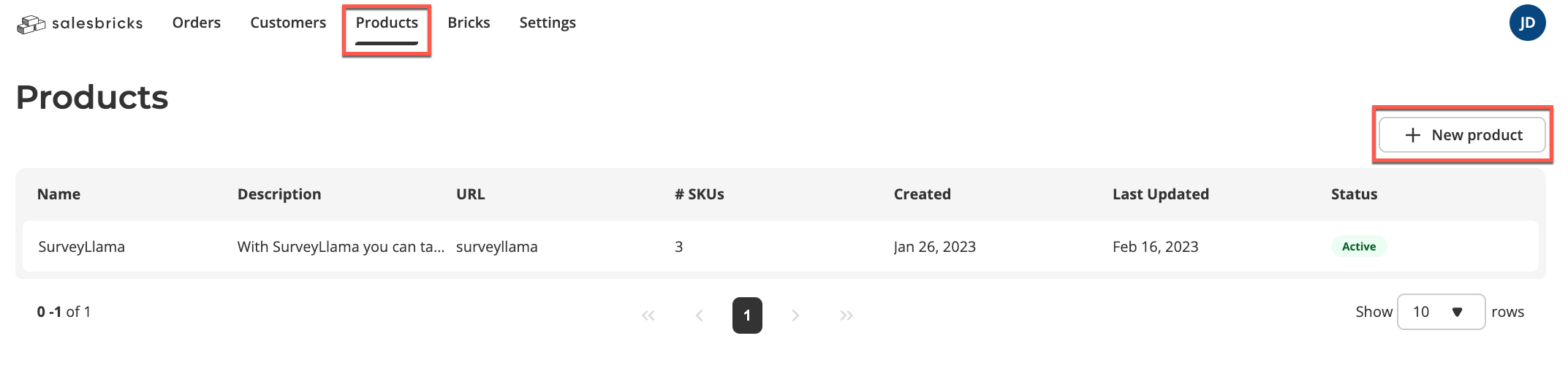
Navigate to **Products** and click **New product**.
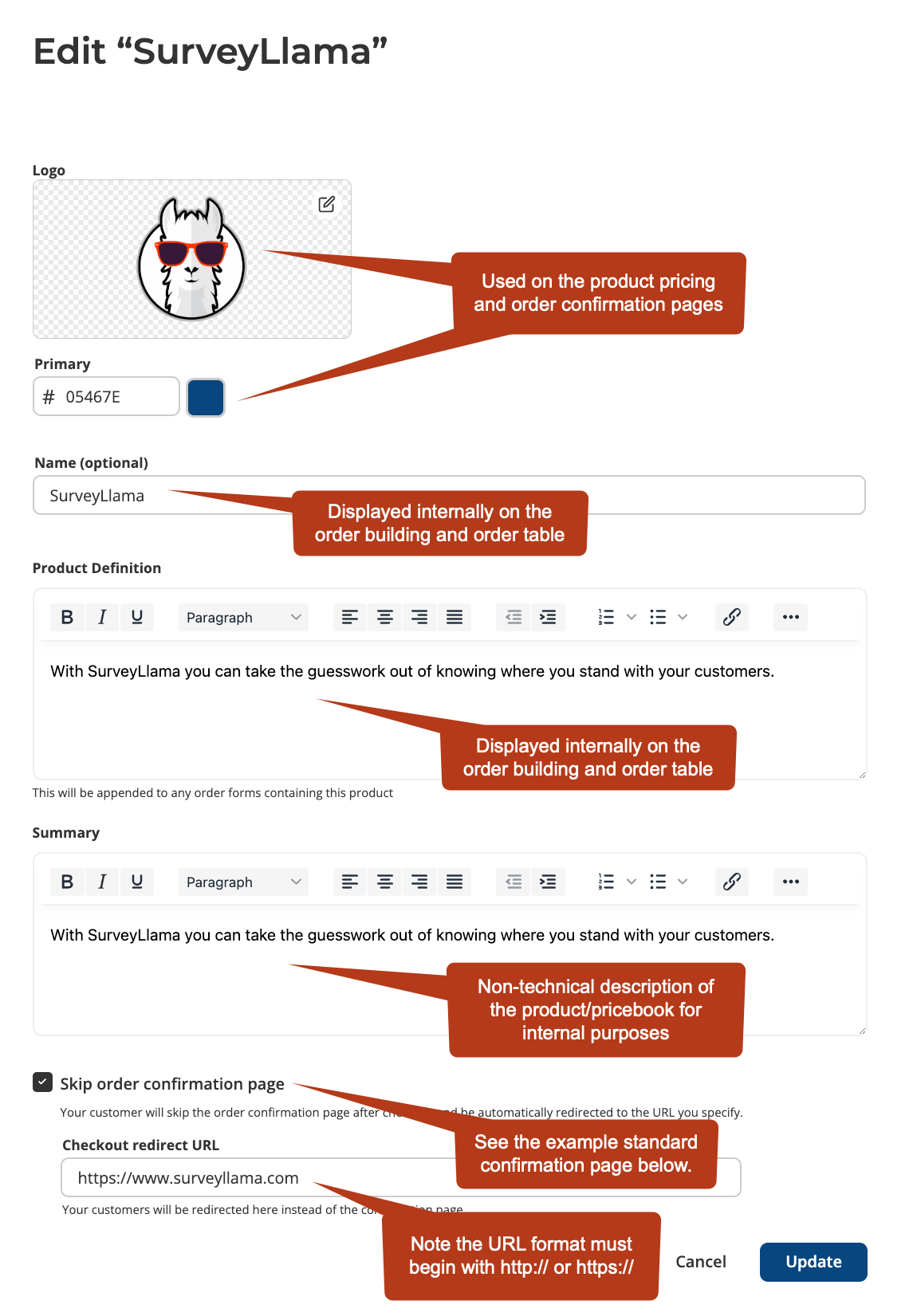
 Edit the Product details. Input your logo, primary color, and fill out the Product fields. Note that Product details will not be visible to your customers.
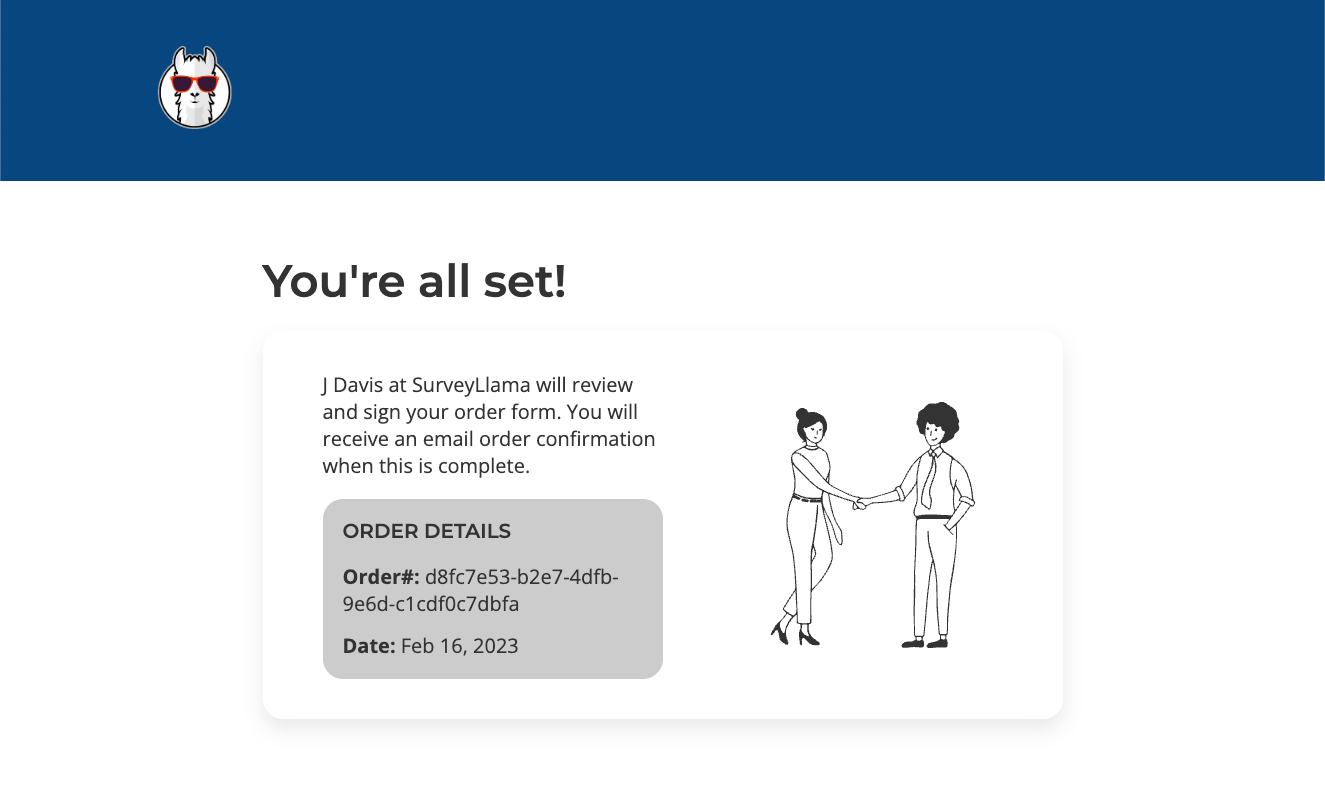
 Standard order confirmation page example:
 Click **Create** or **Update** to save your changes.
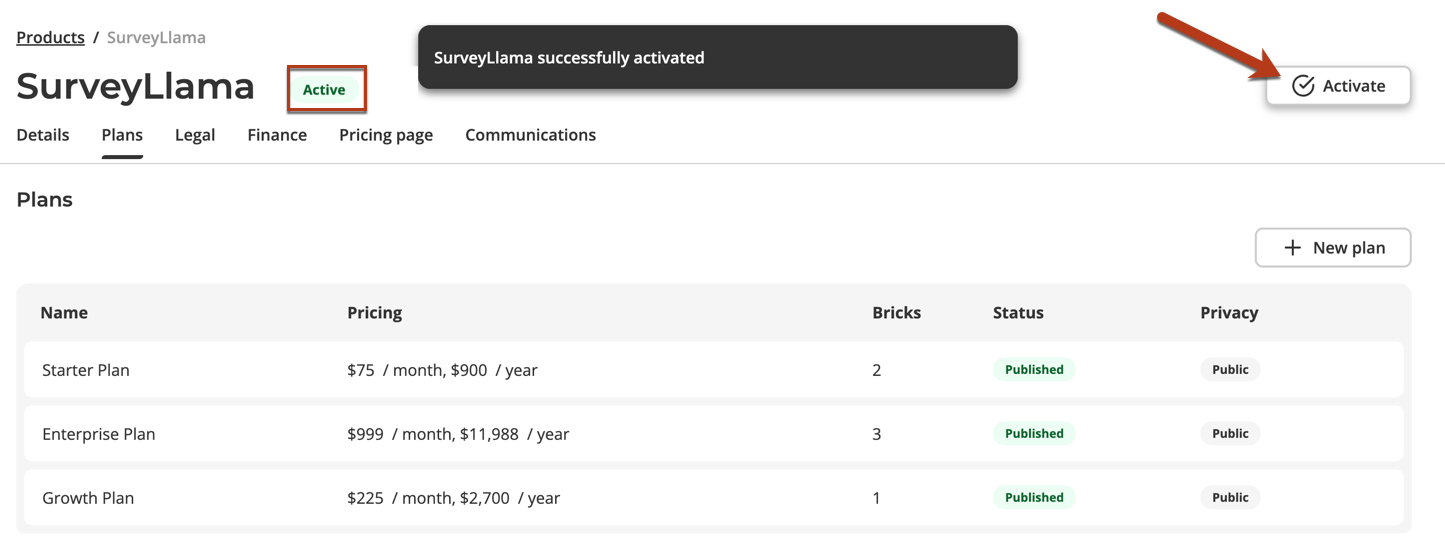
Once you've added and published your Plan(s) (see [Creating a Plan](/quickstart-guide/products-plans-bricks/creating-a-plan)) within your Product, you'll be ready to activate it. You can easily do this by clicking the **Activate** button. This will make your Product live for the world (or, your team and customers, for now).
Click **Create** or **Update** to save your changes.
Once you've added and published your Plan(s) (see [Creating a Plan](/quickstart-guide/products-plans-bricks/creating-a-plan)) within your Product, you'll be ready to activate it. You can easily do this by clicking the **Activate** button. This will make your Product live for the world (or, your team and customers, for now).