> ## Documentation Index
> Fetch the complete documentation index at: https://docs.salesbricks.com/llms.txt
> Use this file to discover all available pages before exploring further.
# Role-based access control (RBAC)
## Overview
Role-based access control (RBAC) lets you define exactly what each team member can see and do inside Salesbricks.
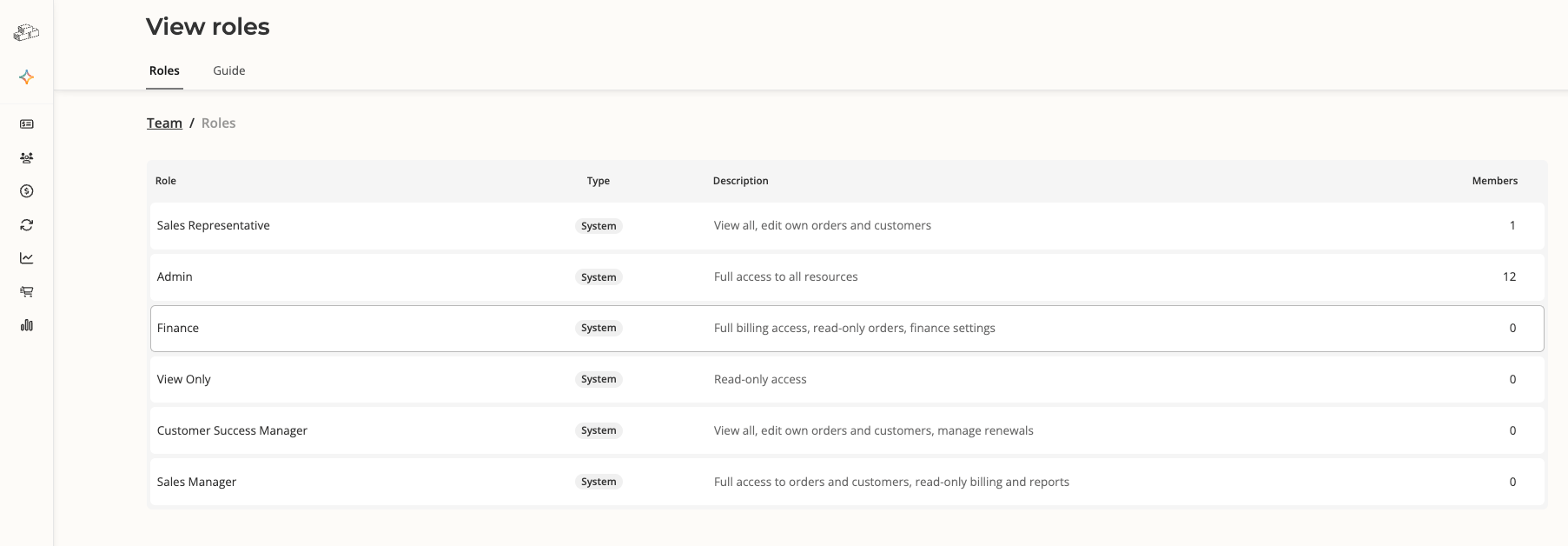
Instead of granting every user full admin access, you **assign each person a role that matches their job function**. Salesbricks ships six built-in system roles (read more below) and enforces those permissions automatically across every part of the platform — orders, customers, billing, products, reports, and settings.
 ## Requirements
RBAC must be enabled on your Salesbricks seller org. Settings tabs and buttons that depend on RBAC will be hidden or disabled until the feature is active.
**Note:** If you do not see a **"View roles" button** at the top of the Team Settings page, reach out to Salesbricks Support to enable this feature.
To set up roles for your team, your Salesbricks user must have the **Admin** role, or a role with full access to **Team management** and **Role management** permissions, to invite team members and change role assignments.
## Built-in system roles
Salesbricks provides the following system roles out of the box. System roles cannot be deleted or modified.
| Role | What it can do |
| ------------------------ | ---------------------------------------------------------------------------------------------------- |
| Admin | Full, unrestricted access to all resources |
| Sales Manager | Full access to orders and customers; read-only billing and reports; can create and manage coupons |
| Sales Representative | View all records; create and edit only records they own; manage their own orders end-to-end |
| Customer Success Manager | View all records; edit own customers; read-only orders; manage milestones and contacts |
| Finance | Full billing and invoicing access; read-only orders; manage finance settings and revenue recognition |
| View Only | Read-only access across all areas of the platform |
To see a full breakdown of permissions across all 6 system roles, visit our System role access comparison guide in Salesbricks.
To view permissions for each role, follow the steps in "View a role's permissions" below.
## Add a new team member & assign a role
In Salesbricks, go to Settings -> Team.
## Requirements
RBAC must be enabled on your Salesbricks seller org. Settings tabs and buttons that depend on RBAC will be hidden or disabled until the feature is active.
**Note:** If you do not see a **"View roles" button** at the top of the Team Settings page, reach out to Salesbricks Support to enable this feature.
To set up roles for your team, your Salesbricks user must have the **Admin** role, or a role with full access to **Team management** and **Role management** permissions, to invite team members and change role assignments.
## Built-in system roles
Salesbricks provides the following system roles out of the box. System roles cannot be deleted or modified.
| Role | What it can do |
| ------------------------ | ---------------------------------------------------------------------------------------------------- |
| Admin | Full, unrestricted access to all resources |
| Sales Manager | Full access to orders and customers; read-only billing and reports; can create and manage coupons |
| Sales Representative | View all records; create and edit only records they own; manage their own orders end-to-end |
| Customer Success Manager | View all records; edit own customers; read-only orders; manage milestones and contacts |
| Finance | Full billing and invoicing access; read-only orders; manage finance settings and revenue recognition |
| View Only | Read-only access across all areas of the platform |
To see a full breakdown of permissions across all 6 system roles, visit our System role access comparison guide in Salesbricks.
To view permissions for each role, follow the steps in "View a role's permissions" below.
## Add a new team member & assign a role
In Salesbricks, go to Settings -> Team.
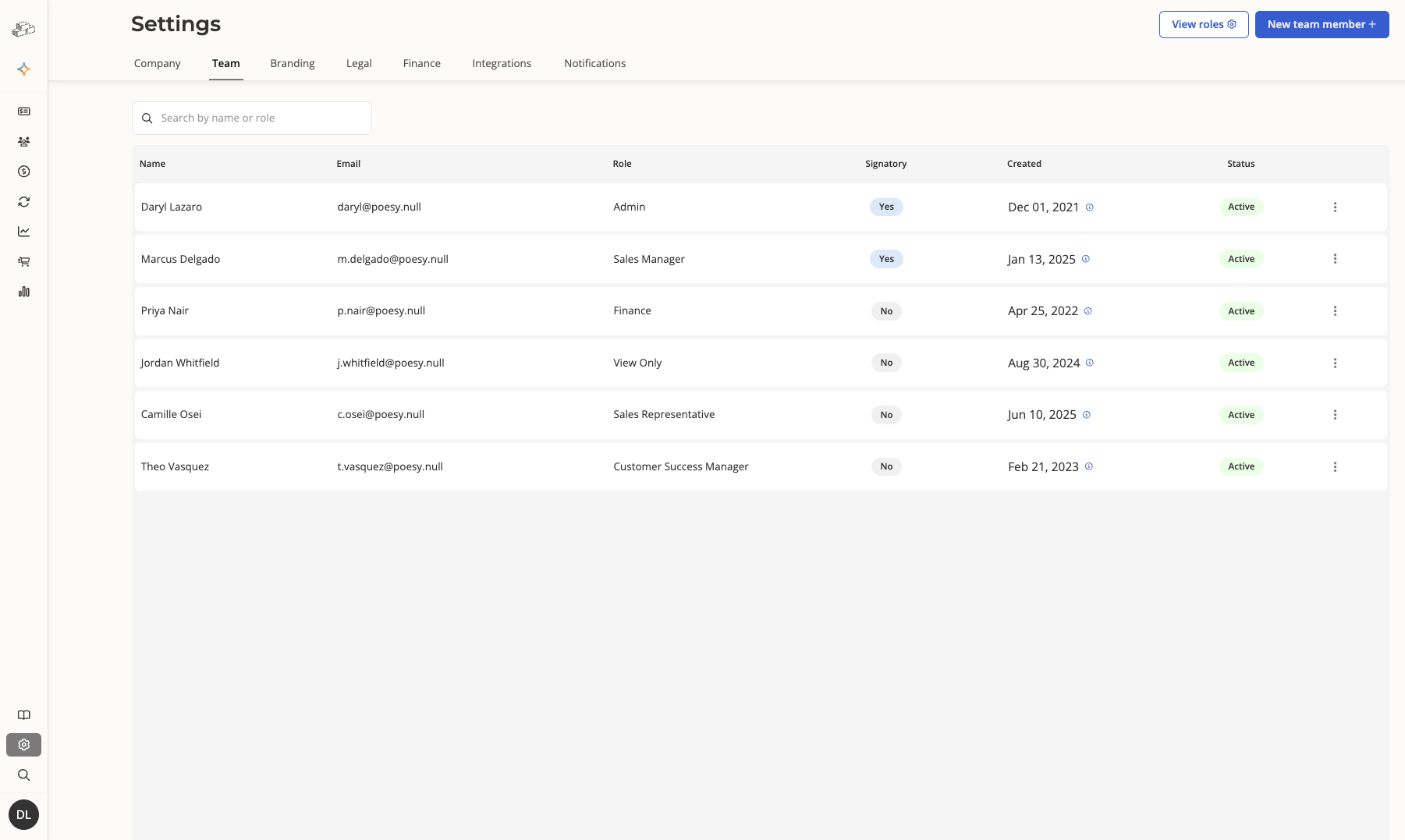 Click **"New team member"** in the top-right corner of the page.
A drawer slides in from the right. Fill in the following fields:
* **First name (required)**
* **Last name (required)**
* **Email (required)** — must be a valid email address
Under **Role & permissions**:
* Use the **"Role"** dropdown to select one of the available system roles.
* Use the **"Job title"** dropdown to select a title, or choose **"Add a title"** to type a custom one.
* Set a **"Maximum discount threshold"** (0–100%) to cap how large a discount this user can apply to orders.
Under **Signatory**, you may allow this user to complete orders by countersigning order forms.
Click **"Create"** to send the invitation.
## Edit a team member's role
Click **"New team member"** in the top-right corner of the page.
A drawer slides in from the right. Fill in the following fields:
* **First name (required)**
* **Last name (required)**
* **Email (required)** — must be a valid email address
Under **Role & permissions**:
* Use the **"Role"** dropdown to select one of the available system roles.
* Use the **"Job title"** dropdown to select a title, or choose **"Add a title"** to type a custom one.
* Set a **"Maximum discount threshold"** (0–100%) to cap how large a discount this user can apply to orders.
Under **Signatory**, you may allow this user to complete orders by countersigning order forms.
Click **"Create"** to send the invitation.
## Edit a team member's role
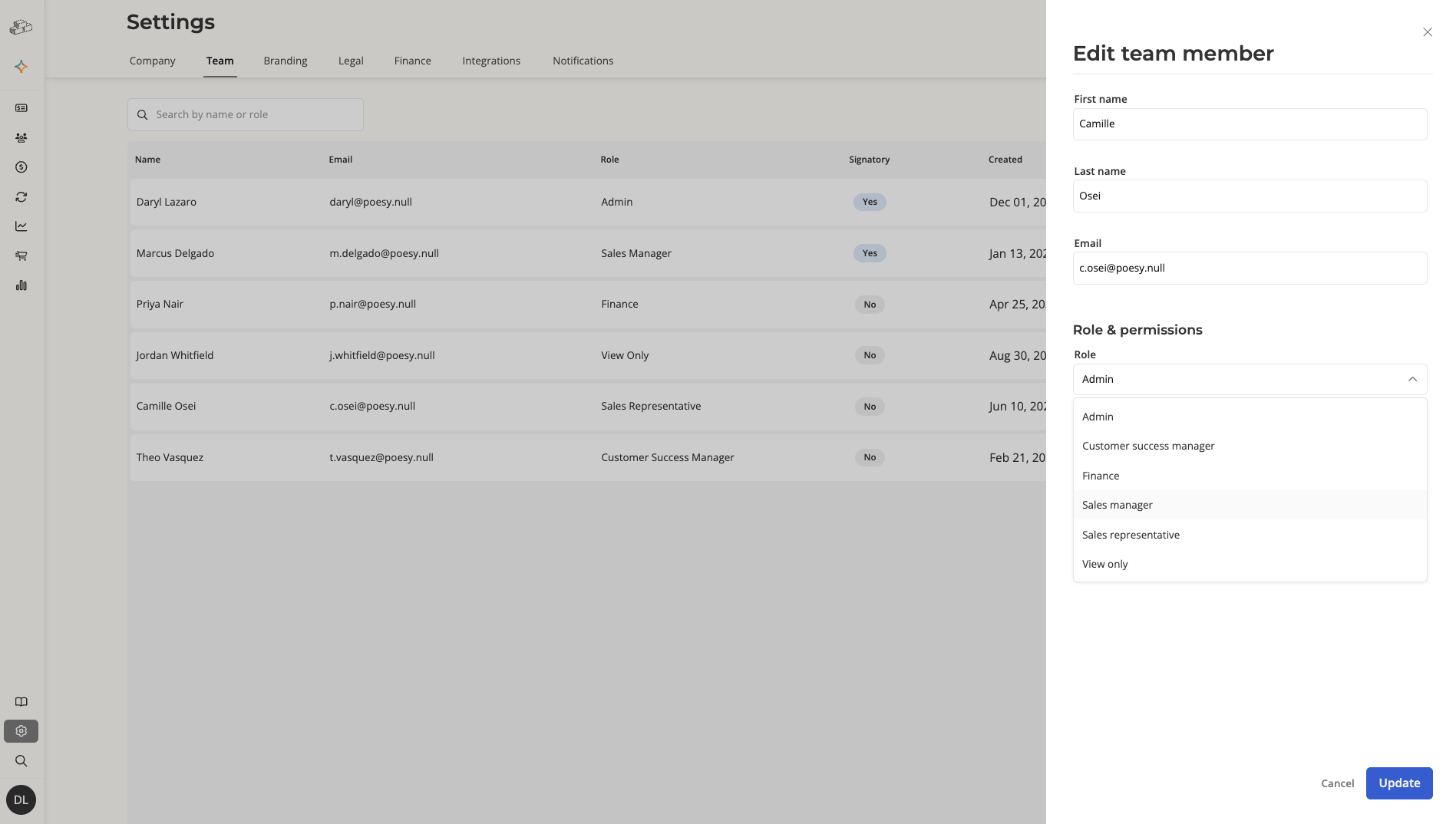 Only users with full access to **Team management** and **Role management** permissions (e.g. Admins) can see and use the Edit button. If the button is hidden or disabled, you do not have sufficient permissions.
In **Settings -> Team**, find the team member in the table. Click the row to open and edit their profile.
Select the new role in the **Role** dropdown.
Update any other fields as needed and click **"Save"**.
## View a role's permissions
Each system role has a detail page that shows its full permission matrix.
Only users with full access to **Team management** and **Role management** permissions (e.g. Admins) can see and use the Edit button. If the button is hidden or disabled, you do not have sufficient permissions.
In **Settings -> Team**, find the team member in the table. Click the row to open and edit their profile.
Select the new role in the **Role** dropdown.
Update any other fields as needed and click **"Save"**.
## View a role's permissions
Each system role has a detail page that shows its full permission matrix.
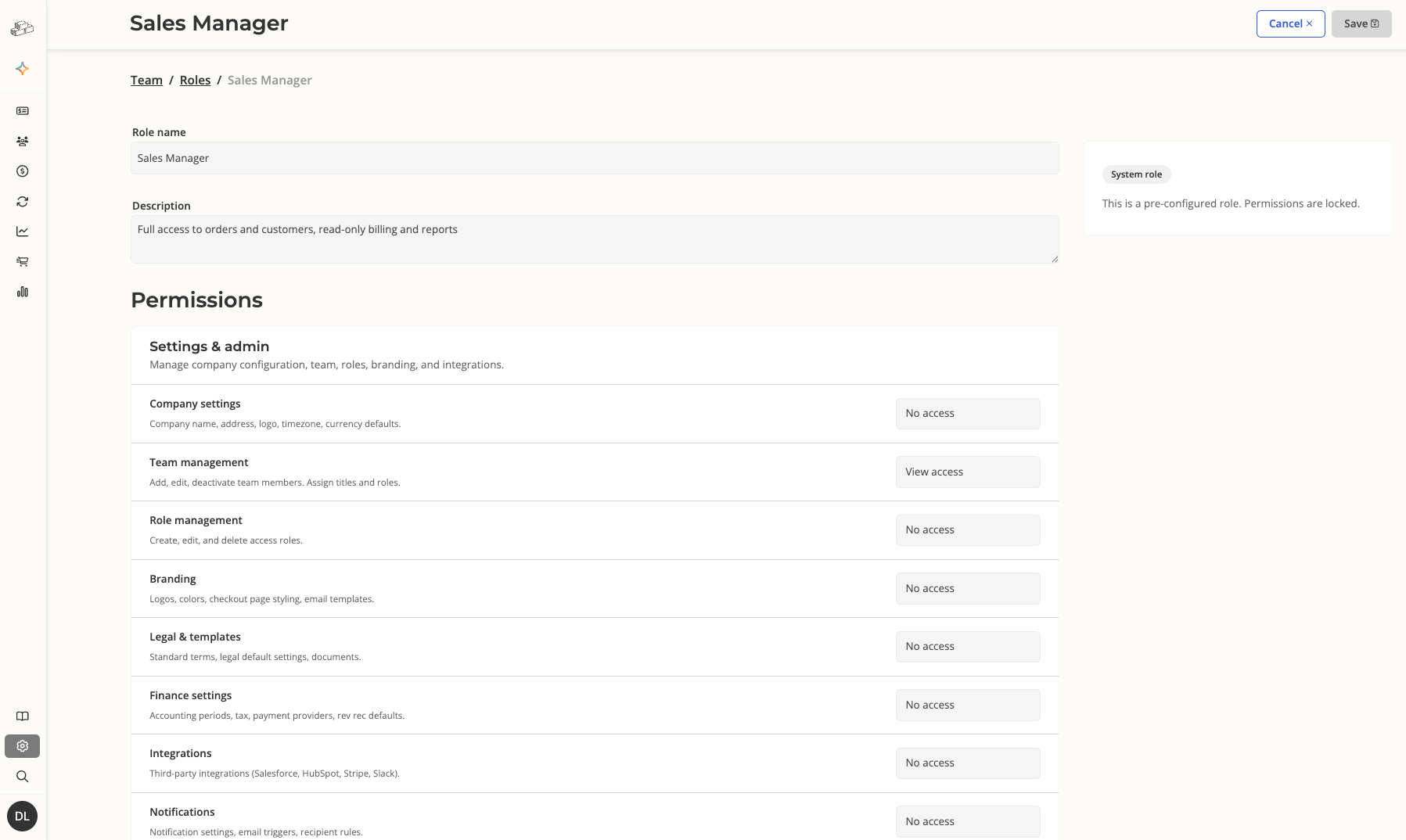 In **Settings -> Team**, click **"View roles"** in the top-right corner.
You are redirected to the **Roles** list. Click any role name to open its detail page and view the permissions for that system role.
The System role access comparison guide allows you to compare access levels of all 6 system roles side-by-side.
## Deactivate a team member
In **Settings -> Team**, click **"View roles"** in the top-right corner.
You are redirected to the **Roles** list. Click any role name to open its detail page and view the permissions for that system role.
The System role access comparison guide allows you to compare access levels of all 6 system roles side-by-side.
## Deactivate a team member
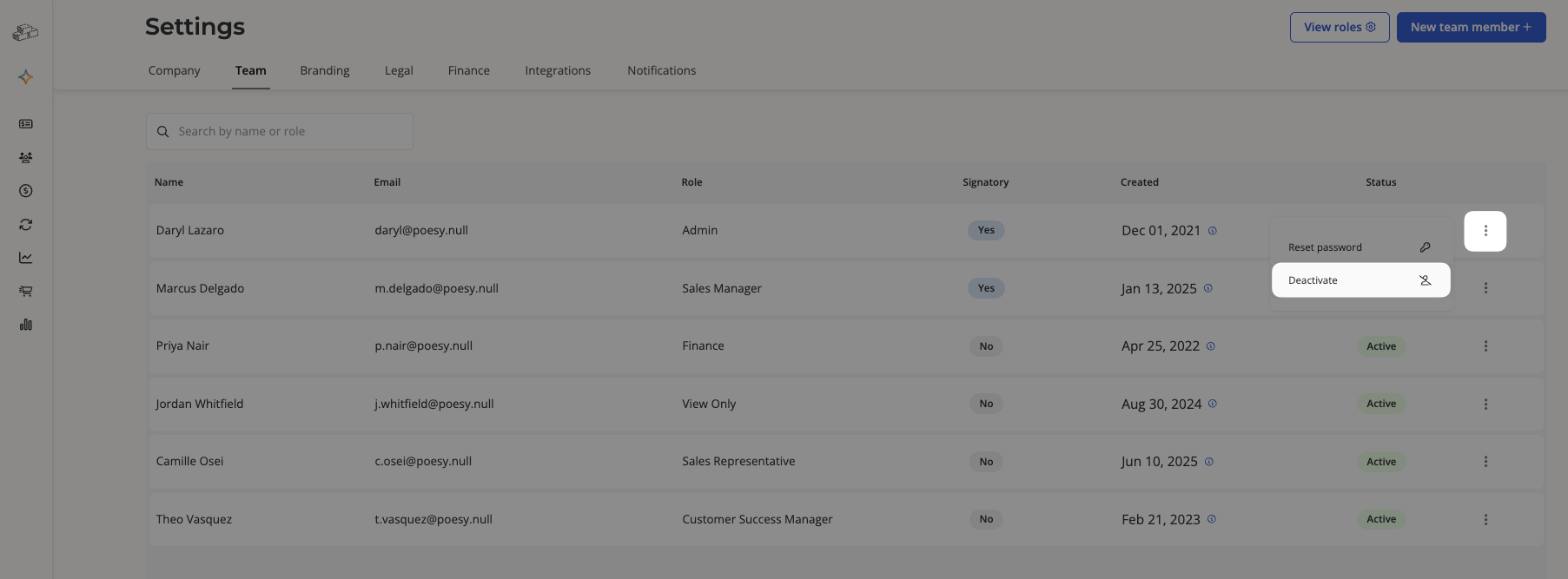 In **Settings -> Team**, click the **action menu** on the right side of the team member's row.
Select **"Deactivate"** to revoke the user's access immediately.
Deactivating a team member does not delete their historical data — their orders, customers, and other records they created in Salesbricks remain intact.
Admins may reassign a deactivated user's open orders and active subscriptions to new account representative under **Customers**.
Their user account can be restored by reaching out to Salesbricks Support.
## Reset a team member's password
In **Settings -> Team**, click the **action menu** on the right side of the team member's row.
Select **"Deactivate"** to revoke the user's access immediately.
Deactivating a team member does not delete their historical data — their orders, customers, and other records they created in Salesbricks remain intact.
Admins may reassign a deactivated user's open orders and active subscriptions to new account representative under **Customers**.
Their user account can be restored by reaching out to Salesbricks Support.
## Reset a team member's password
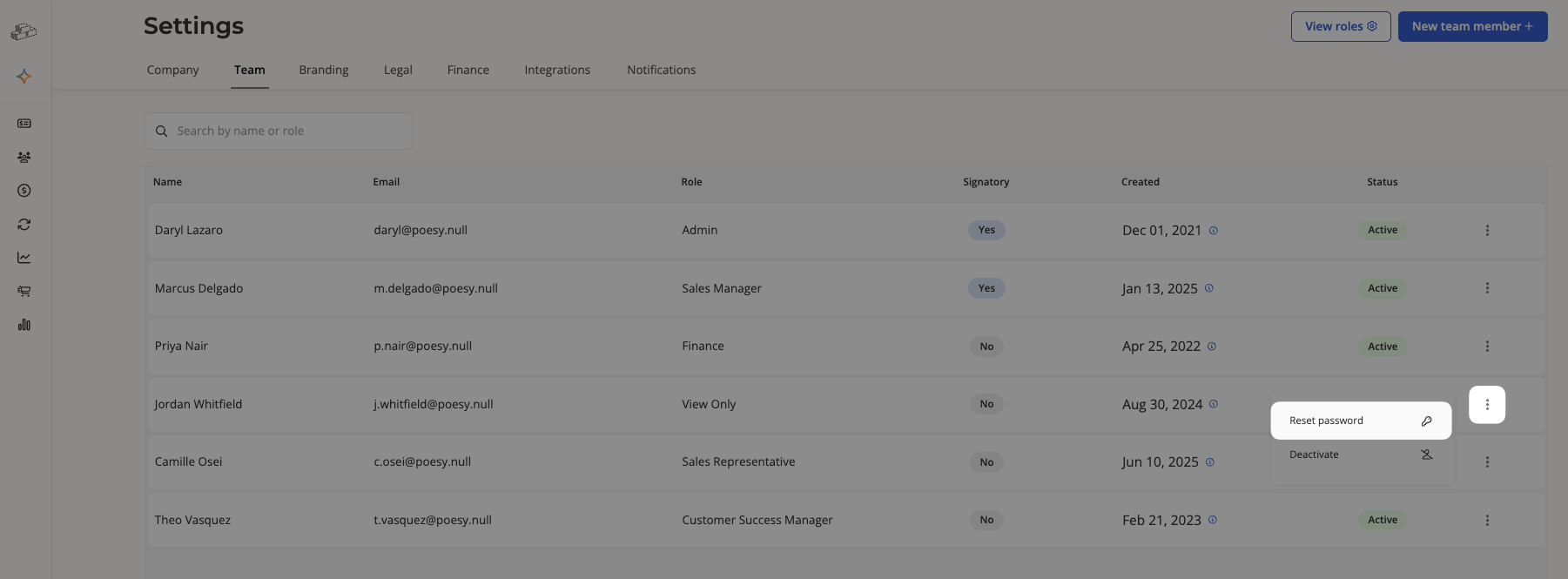 In **Settings -> Team**, click the **action menu** on the right side of the team member's row.
Select **"Reset password."**
Salesbricks sends a **password reset email** to the email address the team member uses for login. If successful, a confirmation dialog appears, along with the email address for verification.
## Frequently asked questions
Custom roles are on the roadmap. At launch, only the six built-in system roles are available.
A user with the proper access can edit the team member and select the correct role. Permission changes take effect immediately on the user's next page load.
A user with the proper access can see all team members. Users with more restricted roles, such as View Only, can only see their own record.
API token requests run with full Admin permissions and are not restricted by role assignments.
In **Settings -> Team**, click the **action menu** on the right side of the team member's row.
Select **"Reset password."**
Salesbricks sends a **password reset email** to the email address the team member uses for login. If successful, a confirmation dialog appears, along with the email address for verification.
## Frequently asked questions
Custom roles are on the roadmap. At launch, only the six built-in system roles are available.
A user with the proper access can edit the team member and select the correct role. Permission changes take effect immediately on the user's next page load.
A user with the proper access can see all team members. Users with more restricted roles, such as View Only, can only see their own record.
API token requests run with full Admin permissions and are not restricted by role assignments.