> ## Documentation Index
> Fetch the complete documentation index at: https://docs.salesbricks.com/llms.txt
> Use this file to discover all available pages before exploring further.

# Custom Billing

## Overview

**Custom billing** allows sellers to customize how a customer is billed throughout the duration of a contract. By providing flexibility in invoice amounts and payment collection timing, custom billing can entice prospects with a billing schedule tailored to their needs, while providing sellers with the guardrails to distribute the total contract value (TCV) accurately and seamlessly.

## Key capabilities

**1. Customize invoice amounts within a standard billing schedule**

Set different billing amounts per period (monthly, quarterly, annual) while maintaining the TCV.

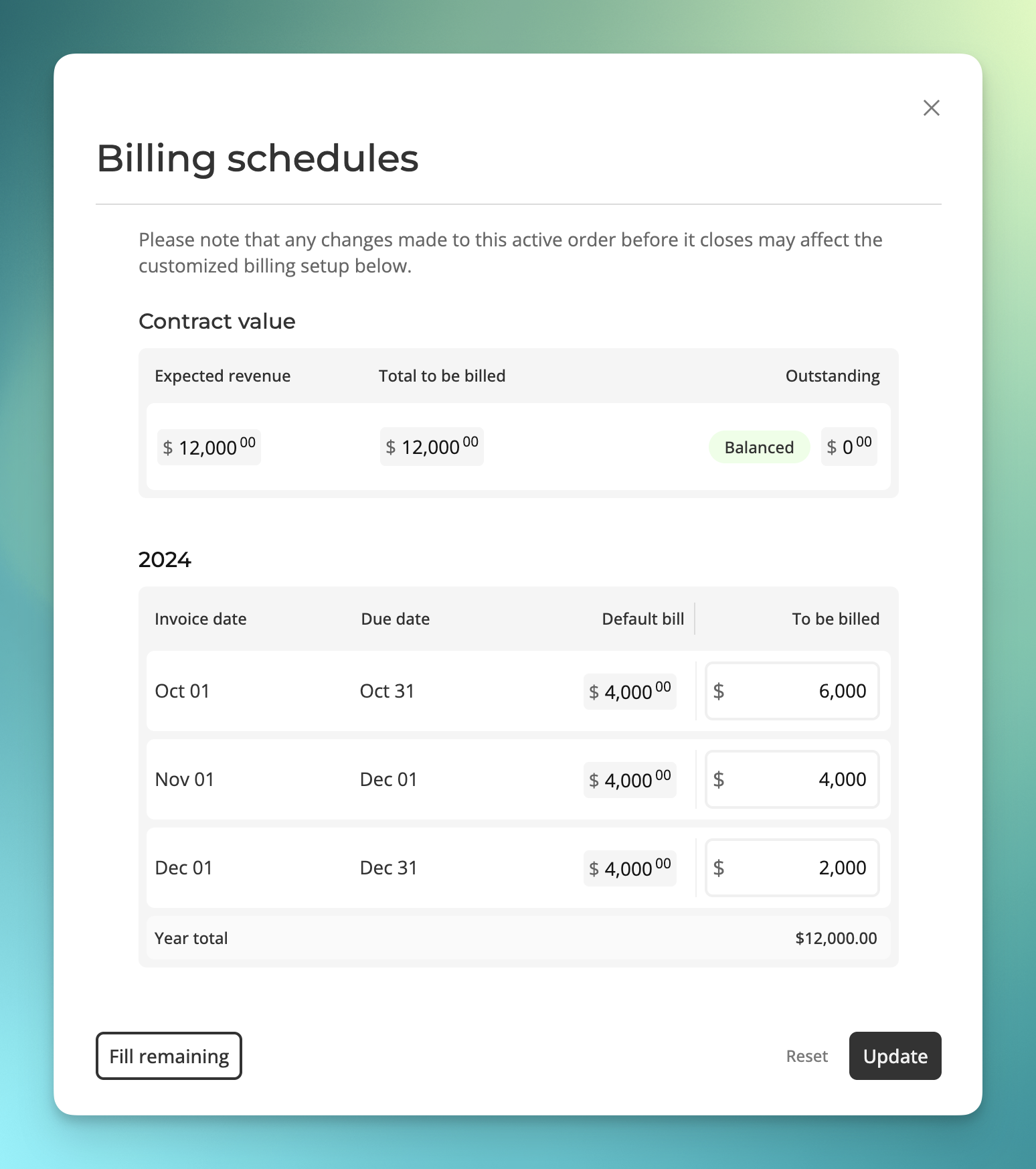
**Example:** *Distribute a \$12,000 contract across 3 billing periods with \$6,000, \$4,000, and \$2,000 installments, instead of the default monthly installment of \$4,000.*

**2. Control when the first invoice is sent**

Select from the checkout date or contract start date.

<Tip>
  Click <a href="/quickstart-guide/building-an-order#deal-setup">here</a> to read about why the first invoice date matters.
</Tip>

**3. Manage payment collection timing for credit card transactions**

The customer's credit card will be charged according to the custom schedule.

## Editing an order with custom billing

<Info>
  By default, Salesbricks shows the custom billing schedule on the order form.

  If you would prefer to hide it, please reach out to Salesbricks Support.
</Info>

<Frame>
  <img src="https://mintcdn.com/salesbricks/YgX7xKXDNNE09RCl/documentation/images/custom-billing/order-builder-custom-billing.png?fit=max&auto=format&n=YgX7xKXDNNE09RCl&q=85&s=d2d7227201127b01cbe1f0386f8c780a" alt="order-builder-custom-billing" width="3412" height="1998" data-path="documentation/images/custom-billing/order-builder-custom-billing.png" />
</Frame>

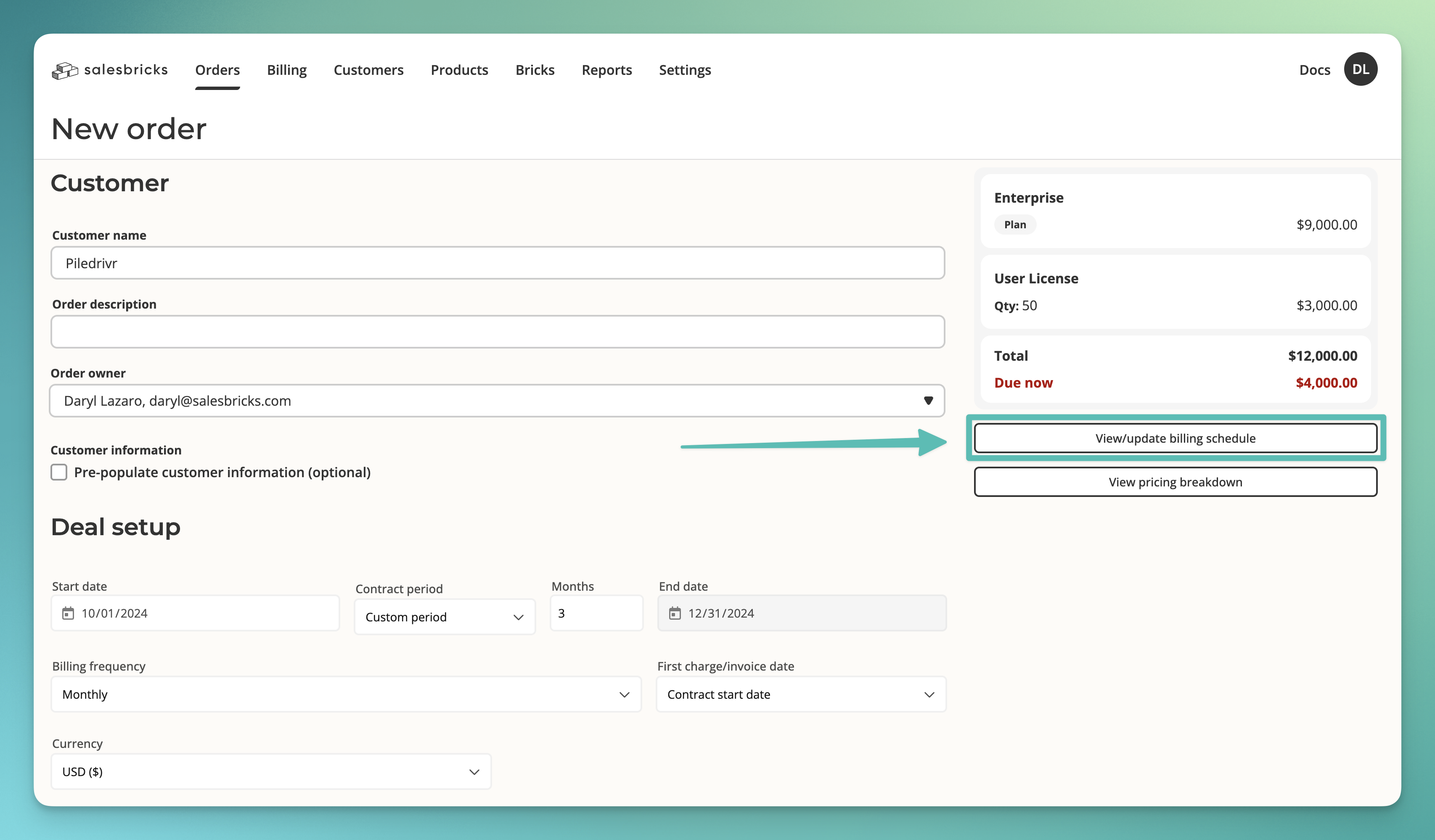
When editing an open order, simply click the button on the right side of the page labeled **"View/update billing schedule."**
<Warning>
  If you do not see the "View/update billing schedule" button, your order may be set up to issue just one invoice.

  If so, you will need to change the **billing frequency** of the order, under the section titled "Deal Setup."
</Warning>

Any modification to the contract value (upgrades, downgrades, or changes to line items) will prompt a review of the existing billing schedule.

If the new TCV does not align with the existing custom billing amounts, the system will detect the discrepancy and require corrective action.

### Examples

<AccordionGroup>
  <Accordion title="1. Adding new line items">
    Original TCV: \$12,000 (Custom billed: \$6k, \$4k, \$2k)

    Added item: \$3,000

    Issue → The TCV is now \$15,000, but custom billing still sums to \$12,000
  </Accordion>

  <Accordion title="2. Changing quantities">
    Original quantity: 10 seats at \$100 each

    Updated quantity: 12 seats at \$100 each

    Issue → Custom billing (\$1,000) no longer matches the new TCV (\$1,200)
  </Accordion>
</AccordionGroup>

### Resolution

<Frame>
  <img src="https://mintcdn.com/salesbricks/YgX7xKXDNNE09RCl/documentation/images/custom-billing/custom-billing-resolution.png?fit=max&auto=format&n=YgX7xKXDNNE09RCl&q=85&s=b243599378c0285fbb6b5e752451b638" alt="custom-billing-resolution" width="1544" height="1752" data-path="documentation/images/custom-billing/custom-billing-resolution.png" />
</Frame>

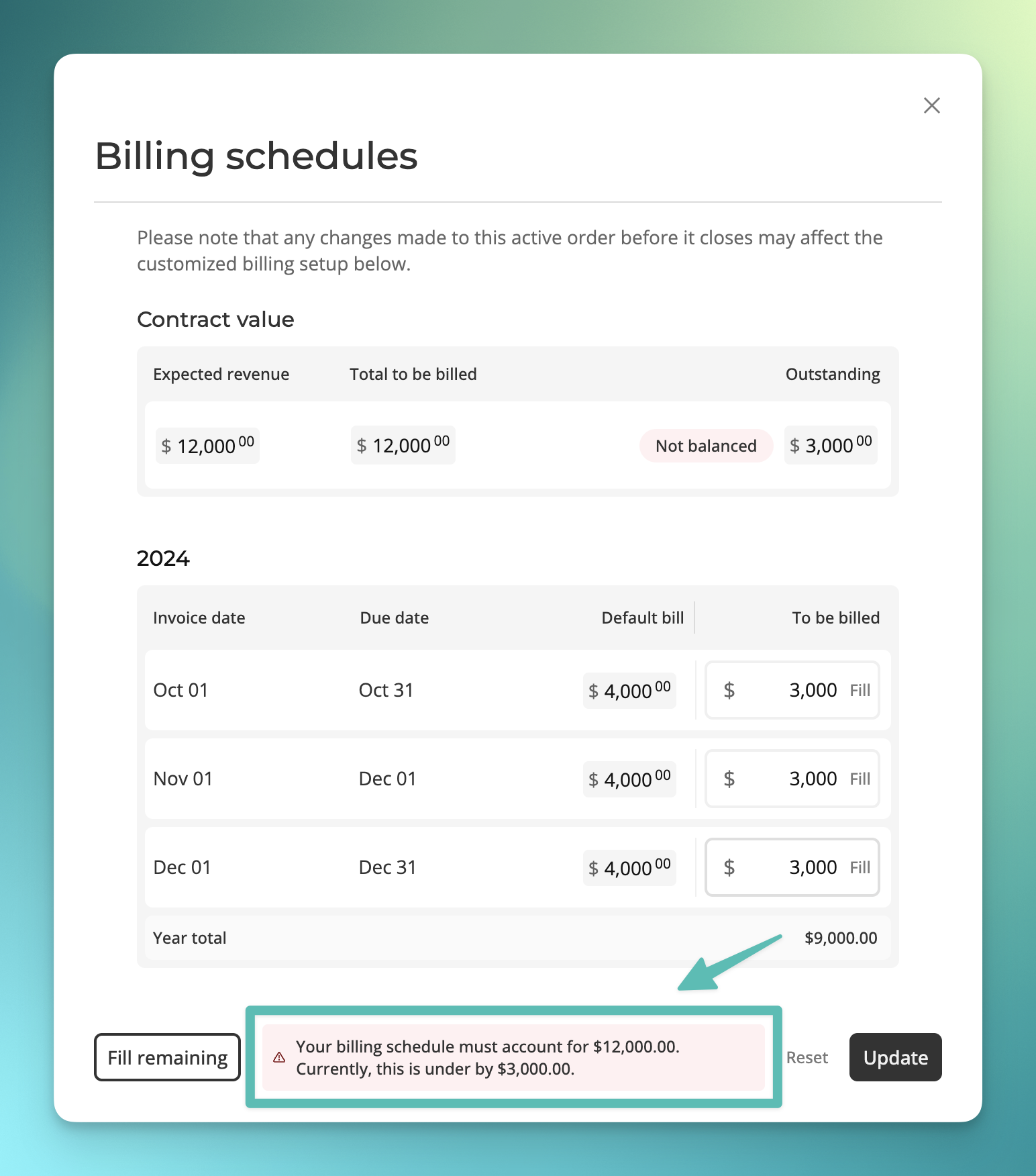
When discrepancies arise between the TCV and custom billing amounts, users will be presented with the following options:

<table>
  <tr>
    <th><u>Update billing schedule</u></th>
    <th><u>Reset to standard billing and continue</u></th>
  </tr>

  <tr style={{verticalAlign: 'top'}}>
    <td>
      * Redirects to the billing schedule editor
      * Users can reallocate the new TCV across custom periods
      * **Requirement: Adjustments must equal the revised TCV to proceed**
    </td>

    <td>
      * Disables custom billing, reverting to equal payment distribution
      * Users can process the order immediately and re-enable custom billing later
    </td>
  </tr>
</table>

## How custom billing is displayed on invoices

**Basic calculation formula**

Line item allocation % = `(Original line item amount / TCV) * 100`

Custom period amount for line item = `(Custom period total * Line item allocation %) / 100`

**Example calculation**

Let's say we have a contract with 2 line items and a TCV of \$12,000, distributed across 3 months using custom billing:

* Month 1: \$6,000 (50% of TCV)
* Month 2: \$4,000 (33.33% of TCV)
* Month 3: \$2,000 (16.67% of TCV)

<Frame>
  <img src="https://mintcdn.com/salesbricks/YgX7xKXDNNE09RCl/documentation/images/custom-billing/custom-billing-modal.png?fit=max&auto=format&n=YgX7xKXDNNE09RCl&q=85&s=6e5266c673a1a36b9cbd0ccc2d0fd18c" alt="custom-billing-modal" width="1548" height="1746" data-path="documentation/images/custom-billing/custom-billing-modal.png" />
</Frame>

The cost breakdown of the line items is as follows:

<table>
  <tr>
    <th><u>Line Item A</u></th>
    <th><u>Line Item B</u></th>
  </tr>

  <tr style={{verticalAlign: 'top'}}>
    <td style={{paddingRight: '2rem'}}>
      * Subtotal: \$9,000
      * Tax (7%): \$630
    </td>

    <td>
      * Subtotal: \$3,000
      * Tax (7%): \$210
    </td>
  </tr>
</table>

And here's how the line items will be charged on each invoice:

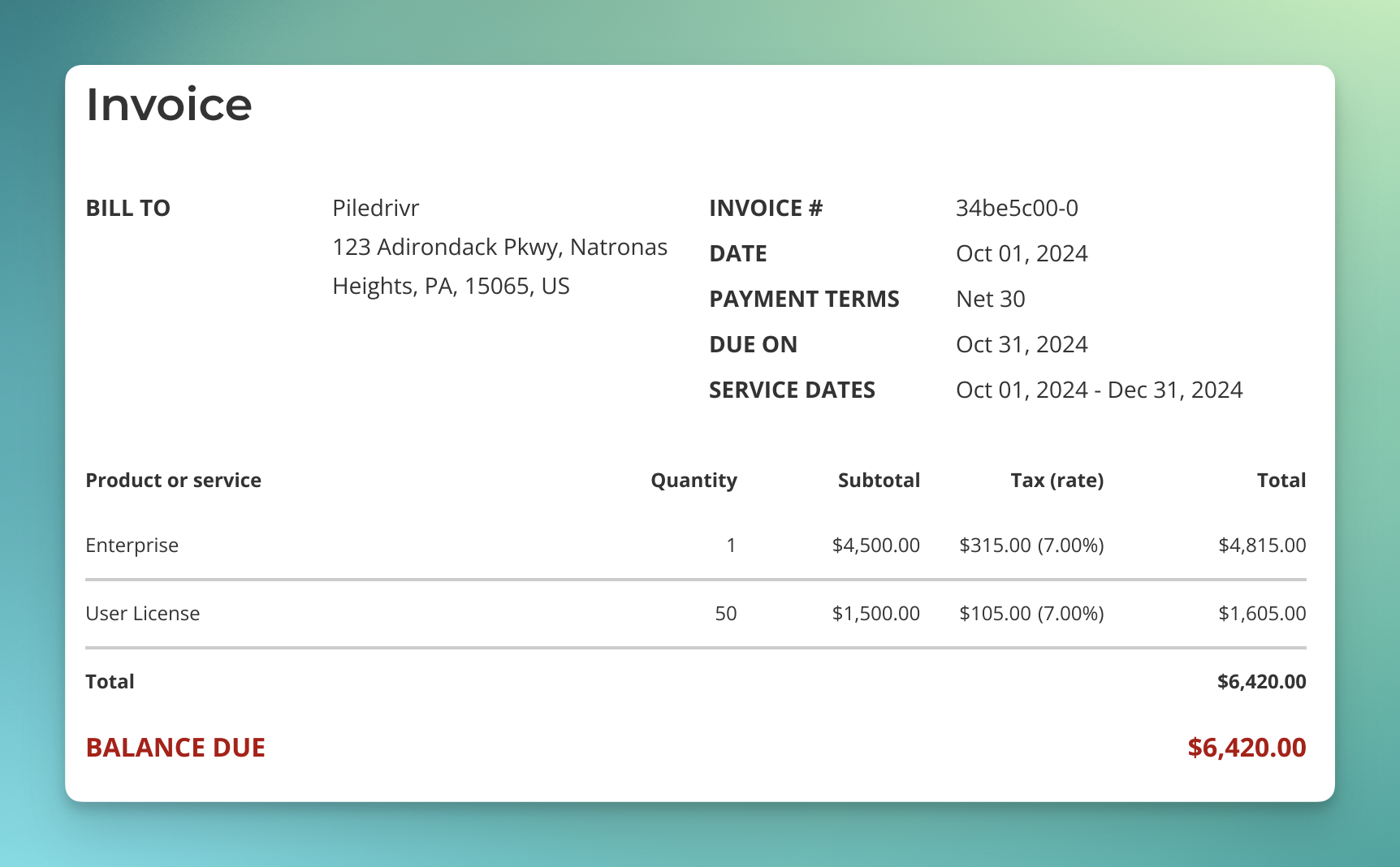
**Month 1** (\$6,000 - Multiplier: 0.5):

<table>
  <tr>
    <th><u>Line Item A</u></th>
    <th><u>Line Item B</u></th>
  </tr>

  <tr style={{verticalAlign: 'top'}}>
    <td style={{paddingRight: '2rem'}}>
      * Subtotal: \$9,000 × 0.5 = \$4,500
      * Tax: \$630 × 0.5 = \$315
    </td>

    <td>
      * Subtotal: \$3,000 × 0.5 = \$1,500
      * Tax: \$210 × 0.5 = \$105
    </td>
  </tr>
</table>

<Frame>
  <img src="https://mintcdn.com/salesbricks/YgX7xKXDNNE09RCl/documentation/images/custom-billing/custom-billing-invoice-01.png?fit=max&auto=format&n=YgX7xKXDNNE09RCl&q=85&s=3641f269b4aba207cb768a6a14f87897" alt="custom-billing-invoice-01" width="1724" height="1068" data-path="documentation/images/custom-billing/custom-billing-invoice-01.png" />
</Frame>

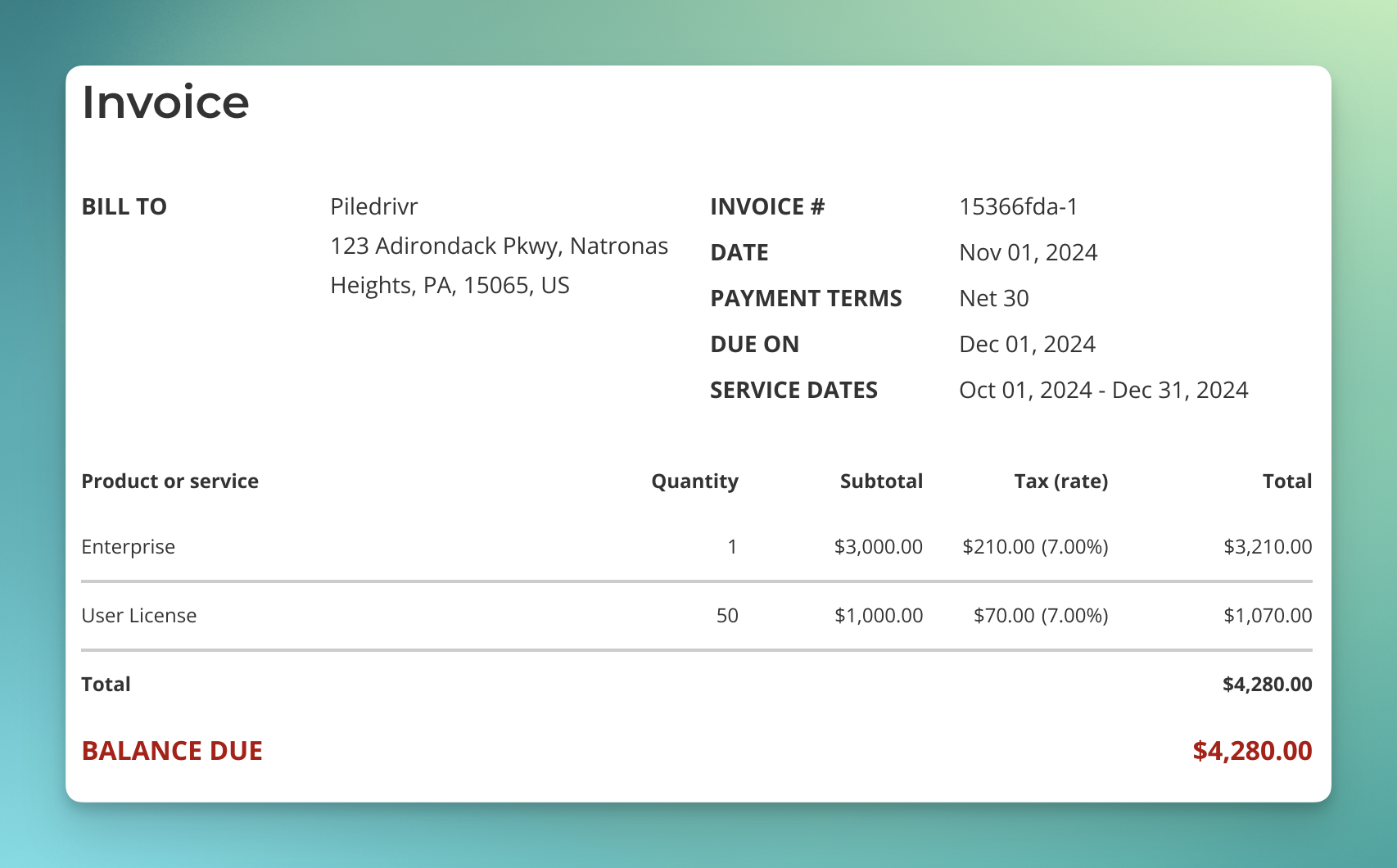
**Month 2** (\$4,000 - Multiplier: 0.3333):

<table>
  <tr>
    <th><u>Line Item A</u></th>
    <th><u>Line Item B</u></th>
  </tr>

  <tr style={{verticalAlign: 'top'}}>
    <td style={{paddingRight: '3rem'}}>
      * Subtotal: \$9,000 × 0.3333 = \$3,000
      * Tax: \$630 × 0.3333 = \$210
    </td>

    <td>
      * Subtotal: \$3,000 × 0.3333 = \$1,000
      * Tax: \$210 × 0.3333 = \$70
    </td>
  </tr>
</table>

<Frame>
  <img src="https://mintcdn.com/salesbricks/YgX7xKXDNNE09RCl/documentation/images/custom-billing/custom-billing-invoice-02.png?fit=max&auto=format&n=YgX7xKXDNNE09RCl&q=85&s=cc709edbe7d3fa67521da56630638608" alt="custom-billing-invoice-02" width="1706" height="1060" data-path="documentation/images/custom-billing/custom-billing-invoice-02.png" />
</Frame>

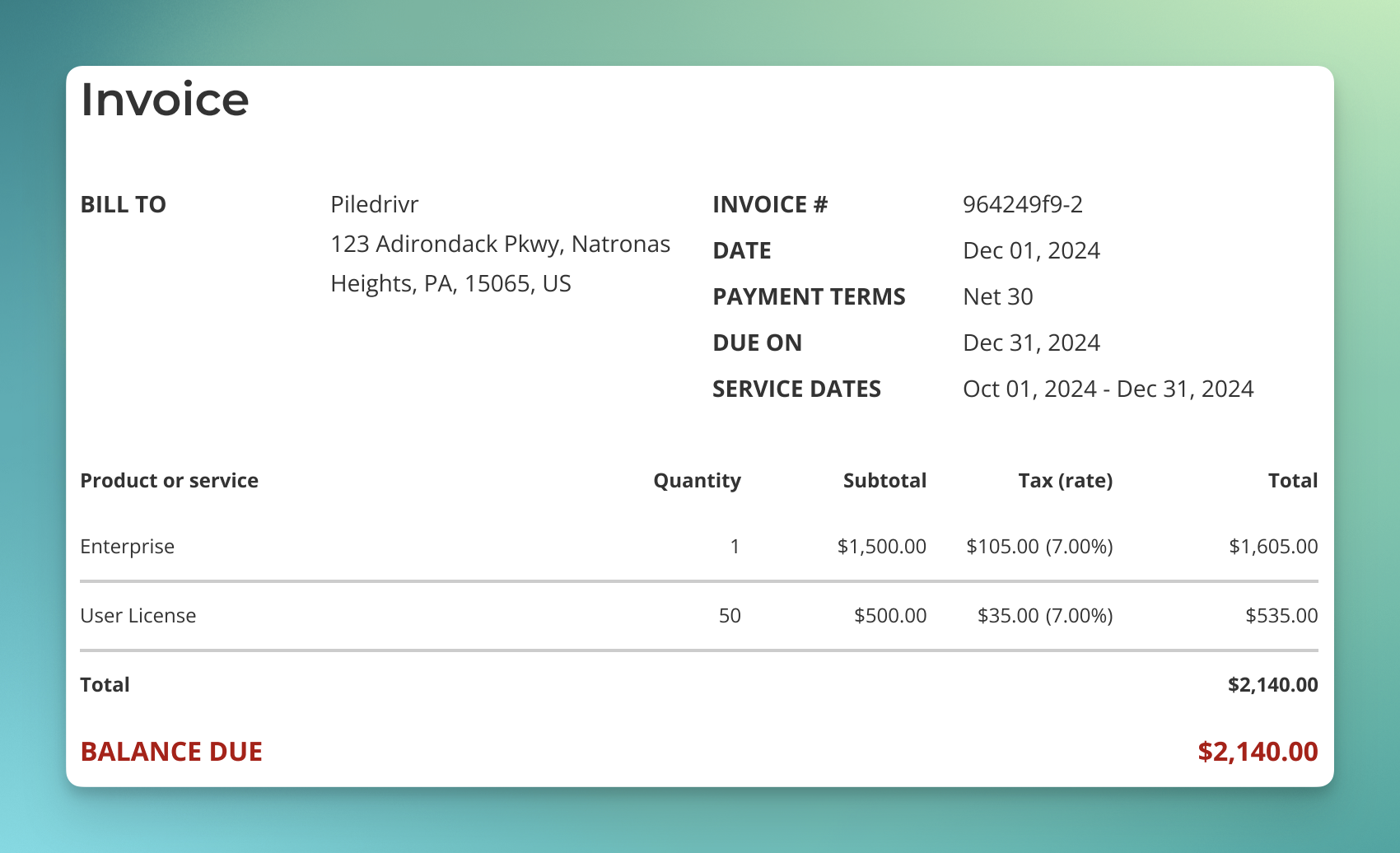
**Month 3** (\$2,000 - Multiplier: 0.1667):

<table>
  <tr>
    <th><u>Line Item A</u></th>
    <th><u>Line Item B</u></th>
  </tr>

  <tr style={{verticalAlign: 'top'}}>
    <td style={{paddingRight: '2rem'}}>
      * Subtotal: \$9,000 × 0.1667 = \$1,500
      * Tax: \$630 × 0.1667 = \$105
    </td>

    <td>
      * Subtotal: \$3,000 × 0.1667 = \$500
      * Tax: \$210 × 0.1667 = \$35
    </td>
  </tr>
</table>

<Frame>
  <img src="https://mintcdn.com/salesbricks/YgX7xKXDNNE09RCl/documentation/images/custom-billing/custom-billing-invoice-03.png?fit=max&auto=format&n=YgX7xKXDNNE09RCl&q=85&s=f43c17f50c7e2a8f477551459177bc8e" alt="custom-billing-invoice-03" width="1700" height="1036" data-path="documentation/images/custom-billing/custom-billing-invoice-03.png" />
</Frame>

### Key points

* All amounts are rounded to the nearest cent
* Each line item is multiplied by the period's ratio (multiplier)
* Tax is calculated using the same multiplier
* Original tax rates are preserved