

Setup
1
Open your integration settings
In Salesbricks, navigate to Settings -> Integrations and find the Finance / ERP section.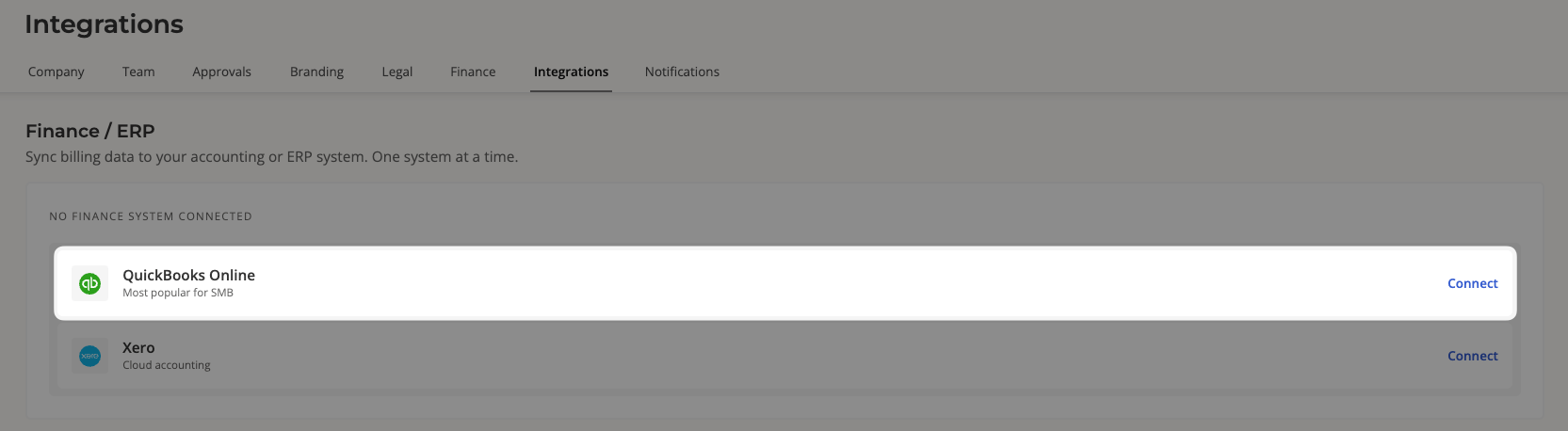
2
Choose QuickBooks Online
Click Connect on the QuickBooks Online option. You’ll be redirected to QuickBooks to sign in.
Only one finance system can be connected at a time. If Xero is already connected, the QuickBooks
option is disabled until you disconnect it.
3
Authorize Salesbricks in QuickBooks
Sign in and allow access to the company you want to sync.Salesbricks uses an OAuth connection to QuickBooks, so your username and password are never stored by Salesbricks.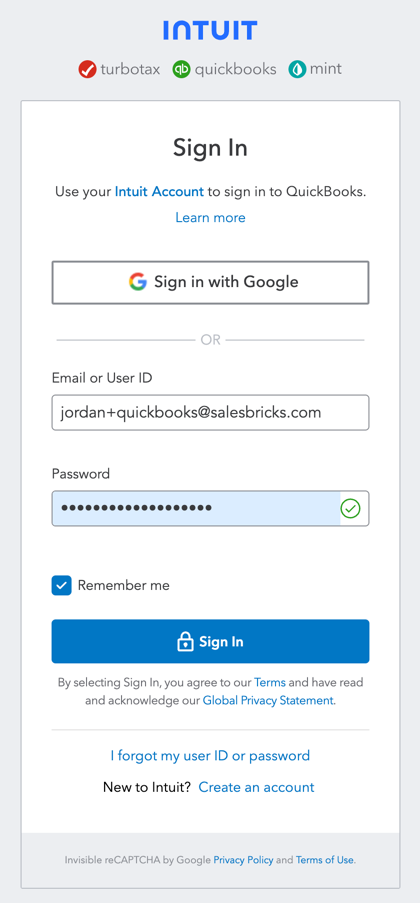
4
Confirm the connection
You’ll land back in Salesbricks with a Connected tag on the QuickBooks Online card. Your integration is complete.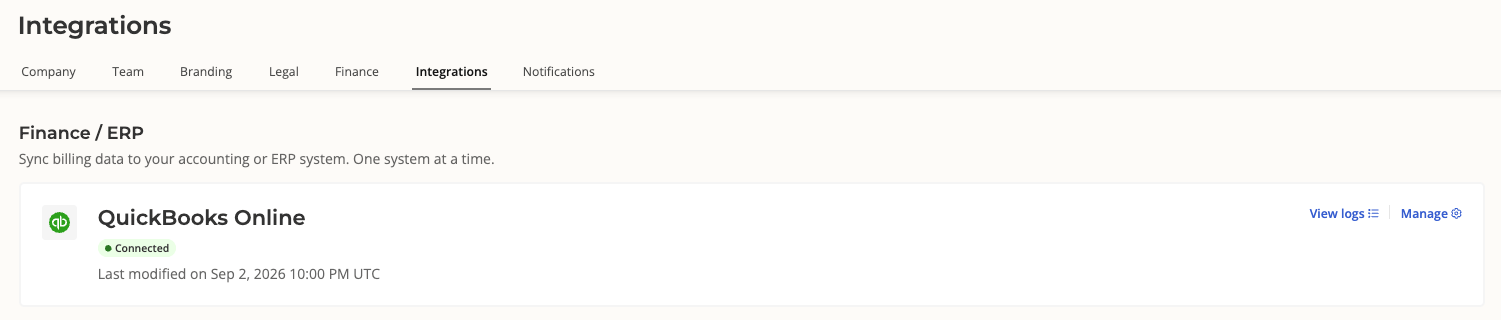
What Salesbricks configures for you
A new connection starts from a working configuration, so invoices sync without any manual setup:These defaults are only applied on a first-time setup. Reconnecting later never overwrites choices
you’ve made.
Managing the connection
The QuickBooks Online card in Settings -> Integrations carries two actions:
From the actions menu on the QuickBooks card under Manage:
If the card shows Needs attention, the connection to QuickBooks has lapsed. Choose Reconnect to reauthorize, which restores syncing without clearing your configuration.
Troubleshooting
Start with View sync logs on the invoice, or View logs on the QuickBooks Online card in your integration settings. Skipped syncs are recorded there with the reason.Invoice not synced
Invoice not synced
Payment not synced
Payment not synced
| Potential cause | Resolution | | --- | --- | | The invoice hasn’t been synced to QuickBooks
yet. | Payments attach to a synced invoice. Resolve the invoice sync first, then re-sync. | |
The payment is larger than the invoice’s open balance in QuickBooks. | Expected. QuickBooks
would book the excess as an unapplied credit, so Salesbricks holds the payment for review. Correct
the invoice balance in QuickBooks, then re-sync. | | _The payment amount is $0._ | Expected.
QuickBooks rejects $0 payments through the API. | | The payment in QuickBooks is for an invoice
that does not exist in Salesbricks. | None. Salesbricks cannot reconcile payments for invoices
outside the platform. | | Your Salesbricks account has been connected to multiple QuickBooks
companies in the past. | Contact Salesbricks Support to reconcile your account. |
Line items aren't mapped to QuickBooks items
Line items aren't mapped to QuickBooks items
| Potential cause | Resolution | | --- | --- | | The brick or plan has no SKU code. | Add a code
in your catalog that matches the SKU on the QuickBooks item, or ask Salesbricks Support to set up
an item mapping. | | More than one QuickBooks item carries the same SKU. | Salesbricks won’t
guess between them. Make the SKU unique in QuickBooks, or map the item explicitly. | | The
invoice is a one-off, with no plan or brick behind its lines. | Expected. One-off lines have
nothing to map to an item. |
Payments post to the wrong account
Payments post to the wrong account
| Potential cause | Resolution | | --- | --- | | The payment method has no account
mapping. | Map that payment method to an
account. Unmapped methods fall back to the default account, then to QuickBooks’ own default. | |
The mapped account was deactivated in QuickBooks. | Pick an active account in the mapping
drawer. |
Classes aren't applied
Classes aren't applied