> ## Documentation Index
> Fetch the complete documentation index at: https://docs.salesbricks.com/llms.txt
> Use this file to discover all available pages before exploring further.
# Getting Started
Welcome to Salesbricks!
This guide will help you prepare your team to build and close your first order.
Whether you want to provide your customers a frictionless checkout experience, automate your subscription billing, offer flexible pricing and contract terms, or manage customer subscriptions seamlessly, setting your team up on Salesbricks is the key to your success.
## Overview
1. Update your company settings
2. Integrate your Stripe account
3. Select your customers' payment options
4. Set up pricing & packaging
## 1. Update your company settings
**a.** In Salesbricks, go to Settings.
**b.** Complete the following sections:
* Company (set company details & contact info)
* Team (add users & define roles)
* Branding (upload company logo & set brand color)
* Legal (upload terms & set document signer)
* Finance (provide banking info & set payment options)
This video guide walks you through how each field is used in the platform.
### Why your company settings matter
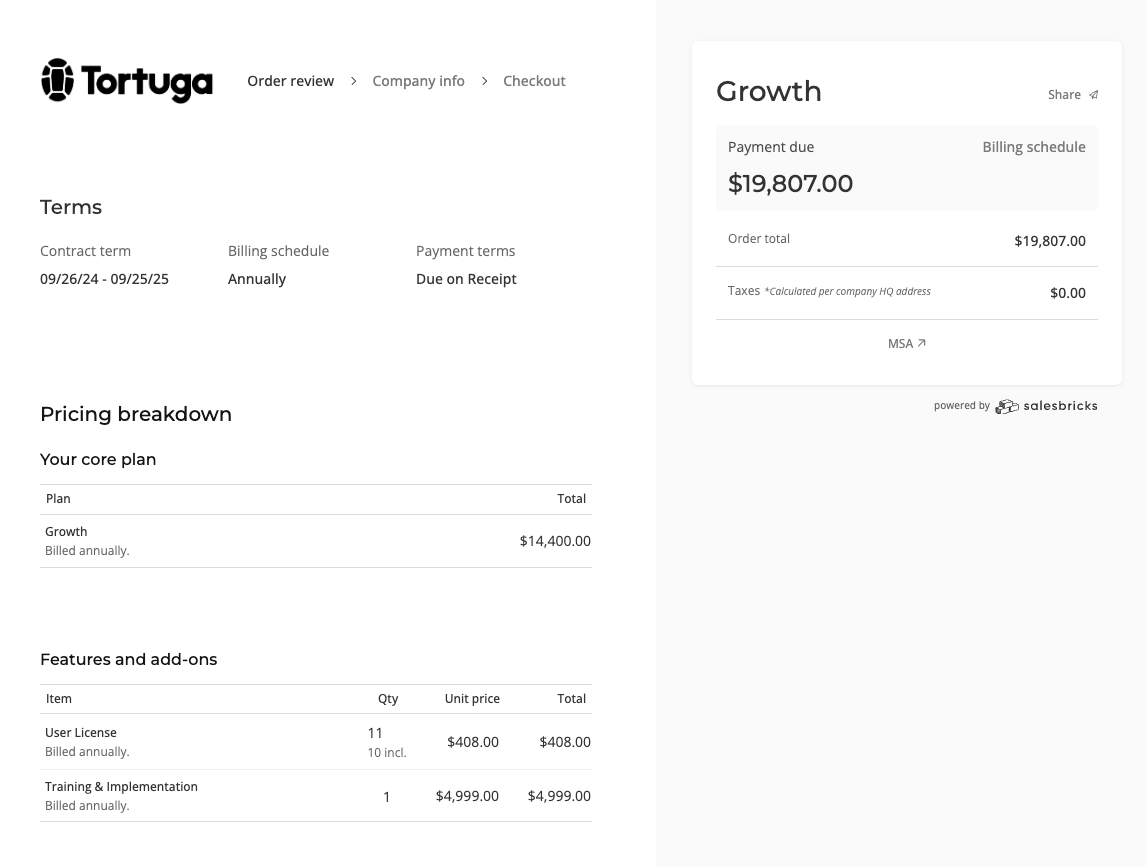 When you customize your settings, you tailor the Salesbricks platform to your company's image and goals: order links showcase your logo and product; invoices include your address and bank instructions. Completing this step means that your branding, legal, and financial information are ready for a seamless sales process.
## 2. Integrate your Stripe account
**a.** In Salesbricks, go to Settings -> Integrations.
**b.** Click Stripe and follow the prompts on screen (along with our detailed setup guide) to create a Stripe Connected account.
### Why your Stripe integration matters
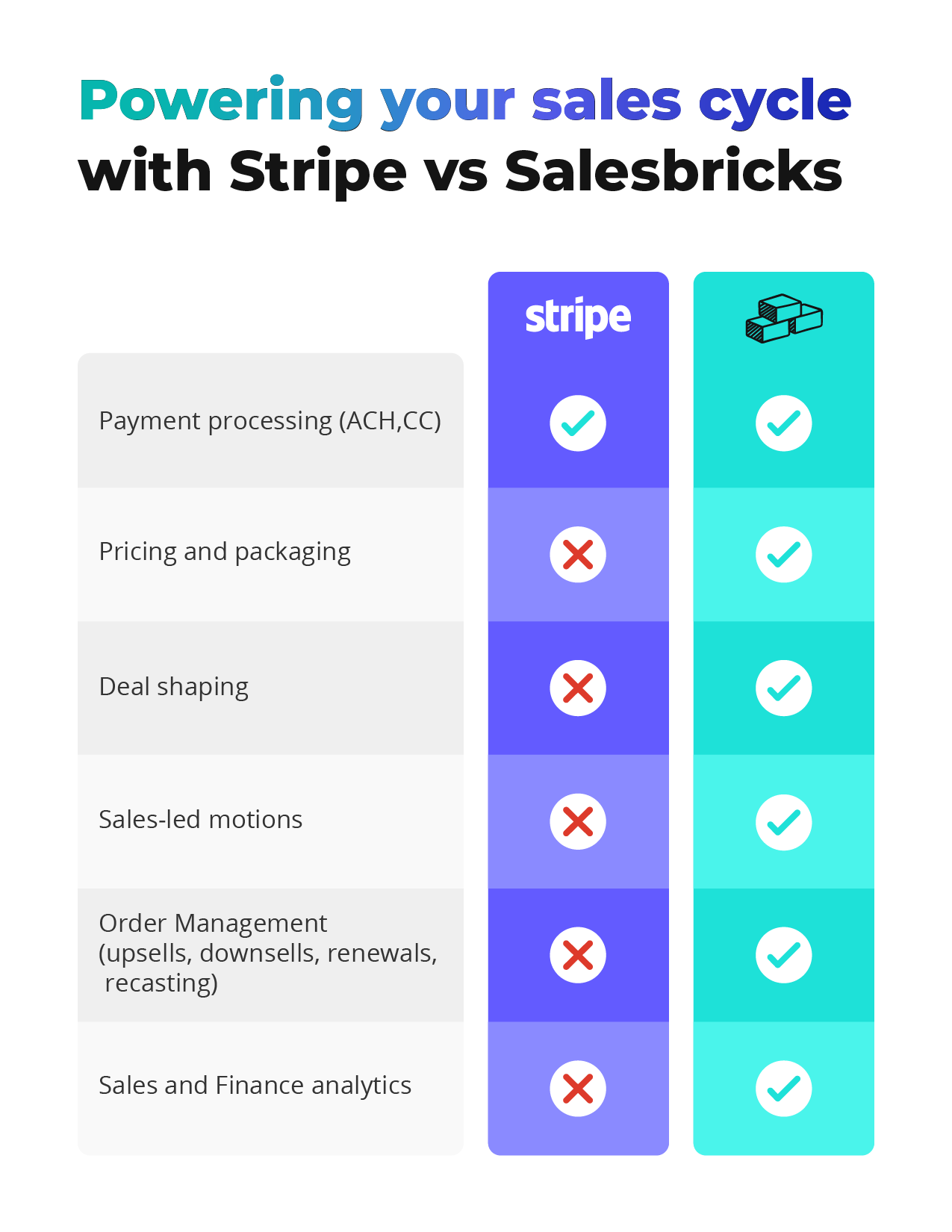
Salesbricks leverages Stripe for credit card & ACH payments. Integrating your Stripe account ensures that your payment process is compliant and automated, minimizing manual intervention.
Read more about how we use Stripe within the Salesbricks platform here.
## 3. Select your customers' payment options
**a.** In Salesbricks, go to Settings -> Finance.
**b.** Click the Edit icon and select the payment options you want to enable for **checkout** (customer purchase), as well as how your customers can **pay an invoice**.
### Why your customers' payment options matter
Now that your Stripe account is integrated, you can enable secure, instant transactions online by allowing your customers to pay via credit card or ACH debit.
Click here to read a detailed guide about our variety of payment options.
## 4. Set up pricing & packaging
**a.** In Salesbricks, go to Products.
**b.** Create a product.
[https://docs.salesbricks.com/quickstart-guide/products-plans-bricks/creating-a-product](https://docs.salesbricks.com/quickstart-guide/products-plans-bricks/creating-a-product)
**c.** Within your product, create a plan.
[https://docs.salesbricks.com/quickstart-guide/products-plans-bricks/creating-a-plan](https://docs.salesbricks.com/quickstart-guide/products-plans-bricks/creating-a-plan)
**d.** Within your plan, click "Edit bricks" to start adding bricks to your plan.
**e.** Click "+ New brick" to create a brick, which you could then add to your plan.
[https://docs.salesbricks.com/quickstart-guide/products-plans-bricks/creating-a-brick](https://docs.salesbricks.com/quickstart-guide/products-plans-bricks/creating-a-brick)
**f.** Define your pricing and publish your plan.
### Why pricing & packaging matters
When you customize your settings, you tailor the Salesbricks platform to your company's image and goals: order links showcase your logo and product; invoices include your address and bank instructions. Completing this step means that your branding, legal, and financial information are ready for a seamless sales process.
## 2. Integrate your Stripe account
**a.** In Salesbricks, go to Settings -> Integrations.
**b.** Click Stripe and follow the prompts on screen (along with our detailed setup guide) to create a Stripe Connected account.
### Why your Stripe integration matters
Salesbricks leverages Stripe for credit card & ACH payments. Integrating your Stripe account ensures that your payment process is compliant and automated, minimizing manual intervention.
Read more about how we use Stripe within the Salesbricks platform here.
## 3. Select your customers' payment options
**a.** In Salesbricks, go to Settings -> Finance.
**b.** Click the Edit icon and select the payment options you want to enable for **checkout** (customer purchase), as well as how your customers can **pay an invoice**.
### Why your customers' payment options matter
Now that your Stripe account is integrated, you can enable secure, instant transactions online by allowing your customers to pay via credit card or ACH debit.
Click here to read a detailed guide about our variety of payment options.
## 4. Set up pricing & packaging
**a.** In Salesbricks, go to Products.
**b.** Create a product.
[https://docs.salesbricks.com/quickstart-guide/products-plans-bricks/creating-a-product](https://docs.salesbricks.com/quickstart-guide/products-plans-bricks/creating-a-product)
**c.** Within your product, create a plan.
[https://docs.salesbricks.com/quickstart-guide/products-plans-bricks/creating-a-plan](https://docs.salesbricks.com/quickstart-guide/products-plans-bricks/creating-a-plan)
**d.** Within your plan, click "Edit bricks" to start adding bricks to your plan.
**e.** Click "+ New brick" to create a brick, which you could then add to your plan.
[https://docs.salesbricks.com/quickstart-guide/products-plans-bricks/creating-a-brick](https://docs.salesbricks.com/quickstart-guide/products-plans-bricks/creating-a-brick)
**f.** Define your pricing and publish your plan.
### Why pricing & packaging matters
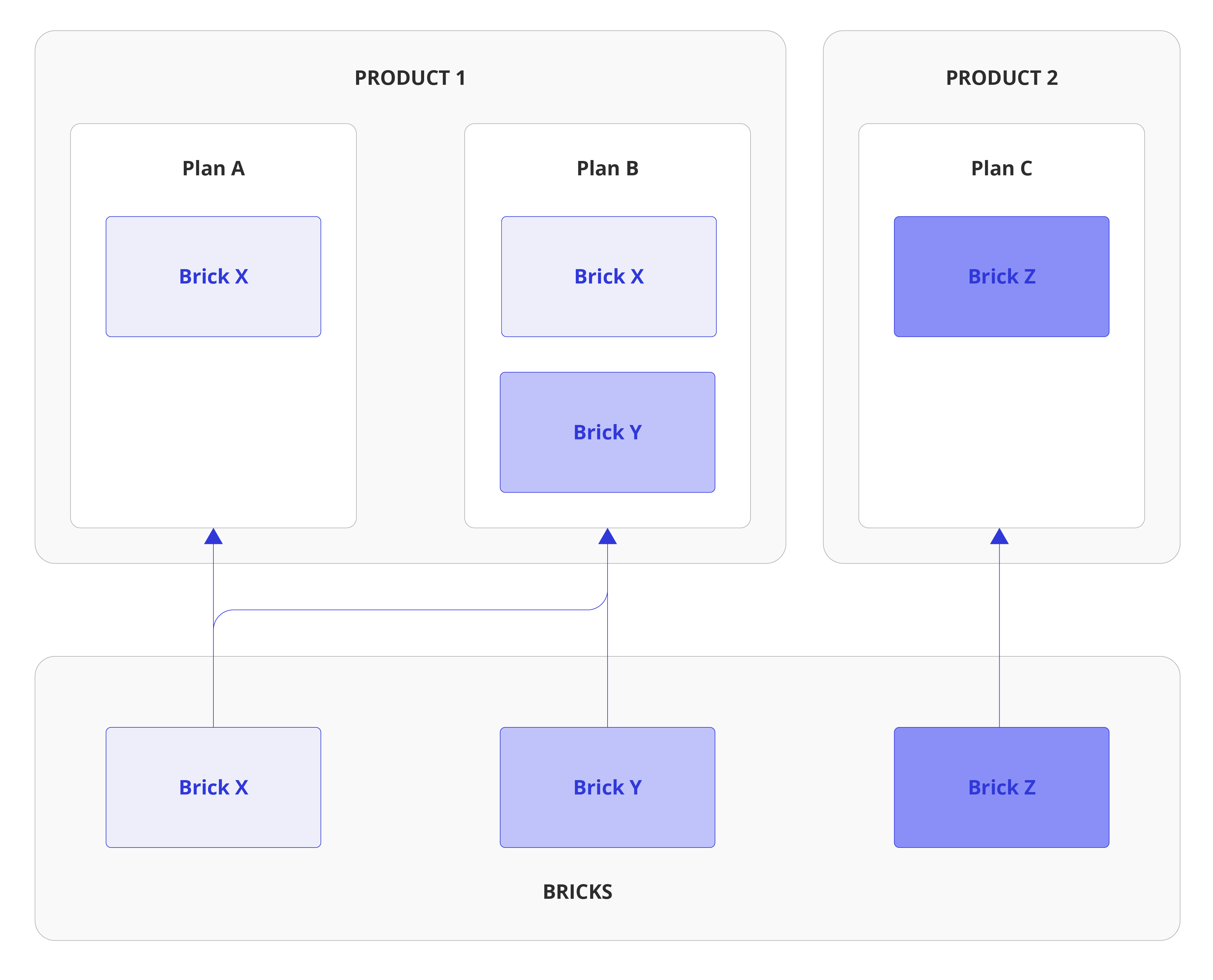 Configuring your pricing in advance will set you up for repeatable sales motions. From here, you will be able to build orders using your preset pricing.
Alternatively, our order builder allows you override your preset pricing at the time of order creation, to build out an entirely bespoke proposal for your customer.
## Next Steps
Once you complete these steps, you'll be ready to hit the ground running and start managing deals on Salesbricks.
You could use this opportunity to continue connecting other integrations:
Currently, we support integration with Salesforce or HubSpot.
#### Why your CRM integration matters
Integrating your CRM will enable you to quote and close orders in Salesbricks, and allow the order data to sync across both systems for org-wide visibility and continuity.
Click here to start setting up your Slack integration.
#### Why your Slack integration matters
Our Slack integration allows your sales, leadership, finance, and customer success teams to stay updated on order and subscription progress in real-time. Getting notifications directly within Slack accelerates your communication cycles, and helps your teams respond faster to changes.
Click here to start setting up your Quickbooks integration.
#### Why your Quickbooks integration matters
Our Quickbooks integration allows you to automate your invoice, billing, and accounting workflows by seamlessly syncing invoices, customers, and payments from Salesbricks into Quickbooks.
Aside from these, it's time to build your very first order - you can read more about that here.
For any additional help or troubleshooting, please reach out to Salesbricks Support via Slack.
Configuring your pricing in advance will set you up for repeatable sales motions. From here, you will be able to build orders using your preset pricing.
Alternatively, our order builder allows you override your preset pricing at the time of order creation, to build out an entirely bespoke proposal for your customer.
## Next Steps
Once you complete these steps, you'll be ready to hit the ground running and start managing deals on Salesbricks.
You could use this opportunity to continue connecting other integrations:
Currently, we support integration with Salesforce or HubSpot.
#### Why your CRM integration matters
Integrating your CRM will enable you to quote and close orders in Salesbricks, and allow the order data to sync across both systems for org-wide visibility and continuity.
Click here to start setting up your Slack integration.
#### Why your Slack integration matters
Our Slack integration allows your sales, leadership, finance, and customer success teams to stay updated on order and subscription progress in real-time. Getting notifications directly within Slack accelerates your communication cycles, and helps your teams respond faster to changes.
Click here to start setting up your Quickbooks integration.
#### Why your Quickbooks integration matters
Our Quickbooks integration allows you to automate your invoice, billing, and accounting workflows by seamlessly syncing invoices, customers, and payments from Salesbricks into Quickbooks.
Aside from these, it's time to build your very first order - you can read more about that here.
For any additional help or troubleshooting, please reach out to Salesbricks Support via Slack.