

Overview
A usage pool lets multiple usage bricks draw down from a single shared bucket of units. Instead of pricing and committing to each metered activity separately, your customer buys (or is billed for) one pool of units, and each pooled brick consumes from it at its own individual rate. This is the model behind “credits” pricing. For example, a company might sell credits where a text request consumes 1 credit, an image generation consumes 5 credits, and a video generation consumes 50 credits. The customer commits to 100,000 credits for the year, and all three activities burn down the same balance at different rates. A pool can be billed in one of two ways:Usage pools are enabled per account. If you don’t see the Set brick as usage pool checkbox when creating a usage brick, ping us in your dedicated Slack channel or email support@salesbricks.com. Pay as you go pools are enabled separately from pre-commitment pools.
Key concepts
Setup
1
Create the pool brick
Create a new brick with the Usage schedule. Check Set brick as usage pool.Give the brick a name and unit text that describe the shared resource, for example “Usage Credits” with a custom unit of “credit”. The unit text appears on the order form and invoices next to the committed quantity.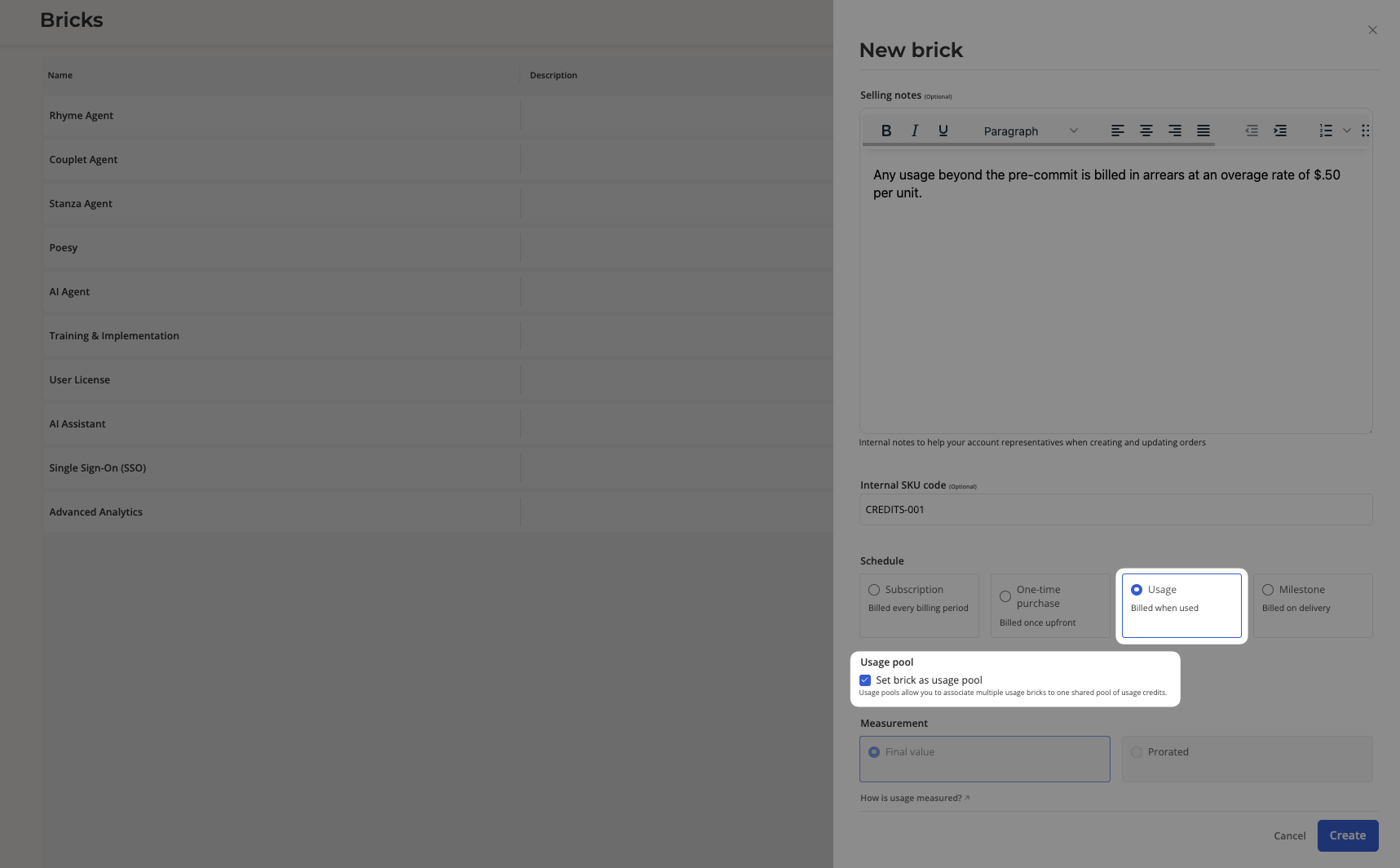
2
Create the pooled bricks
Create one regular Usage brick for each activity that will draw from the pool, for example “Text requests”, “Image generations”, and “Video generations”. If you already have usage bricks for these, you can reuse them.Pooled bricks are metered as whole-unit counts. You record raw events against them (one image generated, one request served) and the pool unit rate handles the conversion to pool units.
3
Add the pool brick to a plan
Go to Products, select a product, then a plan, and click the edit icon. Scroll to the “Bricks” section, click Edit bricks, and add the pool brick as an add-on.Hover over the pool brick and click the edit icon to open Pool brick pricing and packaging.
4
Choose a billing mode
Select Pre-commitment (paid at the beginning of the billing period) or Pay as you go (paid monthly in arrears). The two modes are mutually exclusive on a given pricing.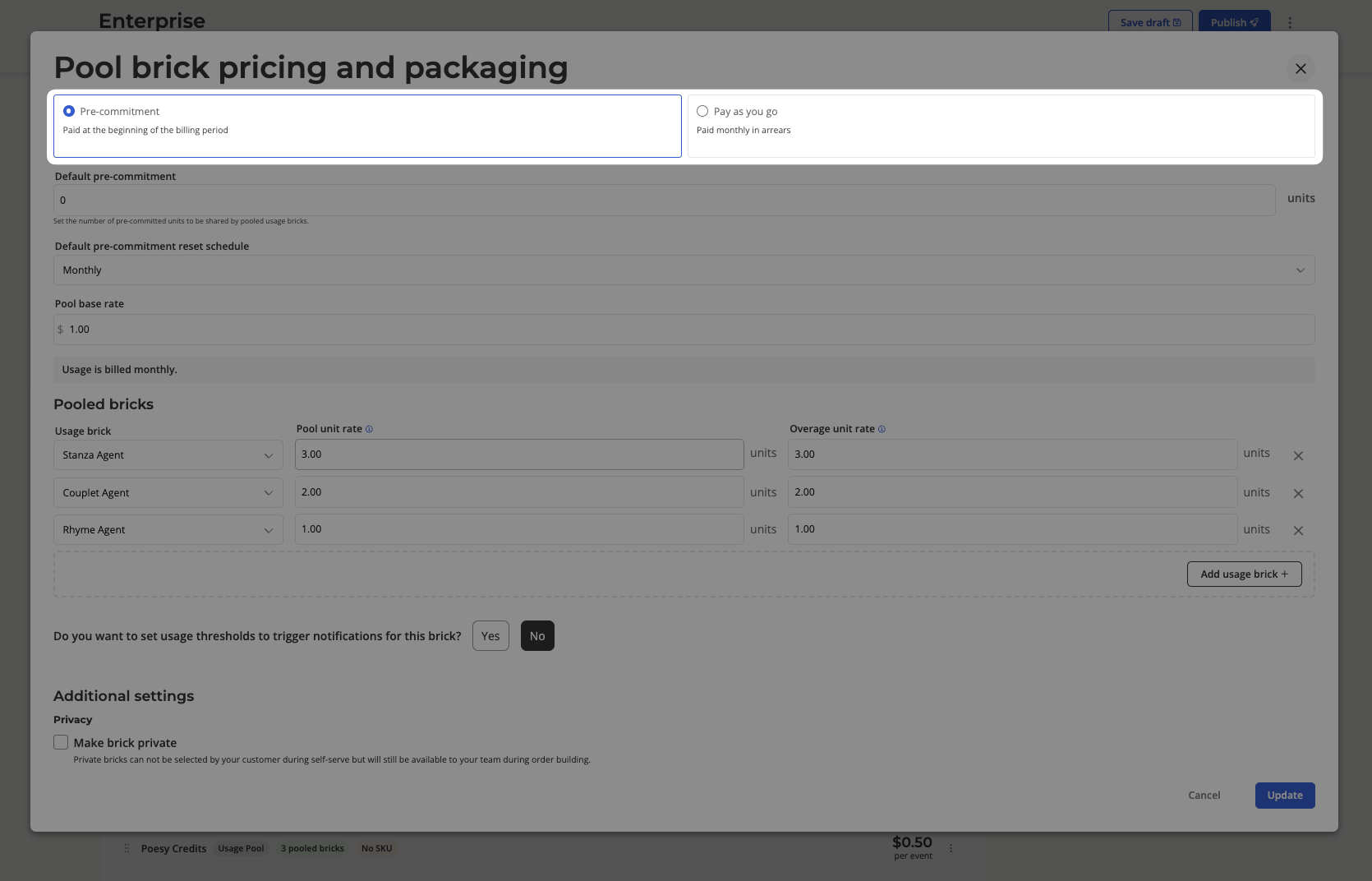
- Pre-commitment
- Pay as you go
- Default pre-commitment: the number of pool units to pre-fill on new orders.
- Default pre-commitment reset schedule: Monthly, Quarterly, Semi-annually, Annually, or Contract period.
5
Set the pool base rate and add pooled bricks
Enter the Pool base rate for each currency the plan supports. This is the price of one pool unit.Under the pooled bricks table, click Add usage brick for each brick that should draw from the pool and set: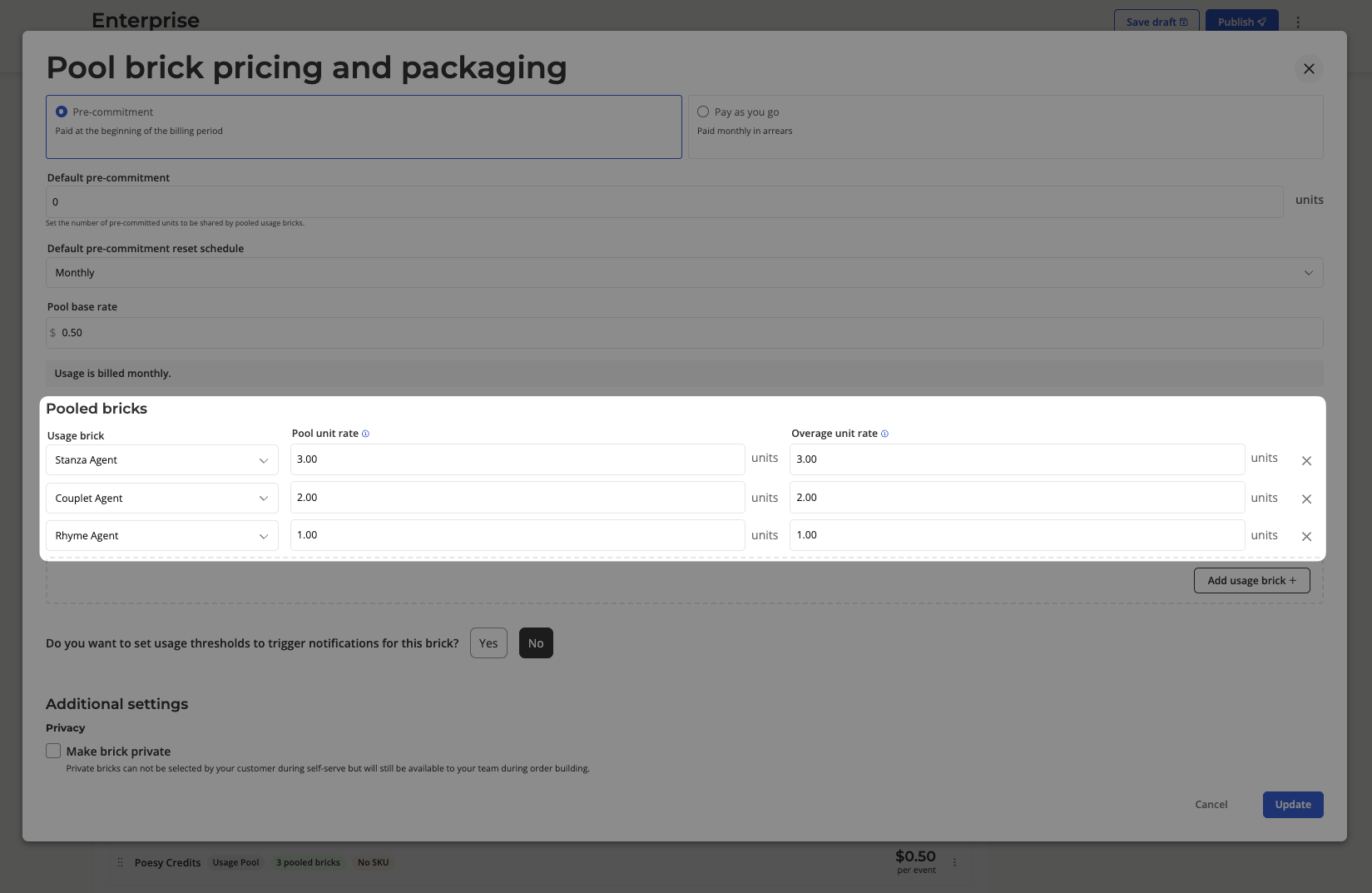
- Pool unit rate: pool units consumed per raw unit of this brick.
- Overage unit rate (pre-commitment only): the multiplier applied to the pool base rate for each raw unit billed as overage.
6
Save and publish
Save the pricing, then publish the plan version. Pooled bricks are added to the plan automatically as part of the pool. They do not appear as separate add-ons on the plan, and their pricing is derived from the pool.
How pre-commitment pools bill
The customer commits to a number of pool units per reset period and pays for them upfront at the pool base rate. As usage is recorded against pooled bricks, each event is converted to pool units (raw count × pool unit rate) and deducted from the remaining balance for the current period. Once the balance reaches zero, further usage is overage. Each raw unit of overage on a pooled brick is charged at that brick’s overage unit rate × pool base rate, and billed in arrears on the monthly usage invoice. Example
In one month the customer records 6,000 text requests and 1,000 image generations.
- Upfront charge for the month: 10,000 × $0.10 = $1,000.00
- Pool units consumed: (6,000 × 1) + (1,000 × 5) = 11,000 credits
- Overage: 1,000 credits over the commitment
- Overage is attributed to whichever pooled brick’s events crossed the limit. If the last 200 image generations landed after the pool was exhausted, that is 200 raw units × 6 × $0.10 = $120.00 billed in arrears on the usage invoice.
The Contract period schedule meters a single commitment across the whole contract. The periodic schedules (Monthly, Quarterly, Semi-annually, Annually) reset the balance at the start of each period. Unused units do not roll over.
How pay-as-you-go pools bill
There is no upfront commitment. At the end of each month, Salesbricks sums the pool units consumed across all pooled bricks and multiplies by the pool base rate. If a minimum monthly price is set and the month’s usage cost falls below it, the customer is billed the minimum instead.Monthly charge = max(pool units consumed × pool base rate, minimum monthly price)
- Light month: 2,000 text requests and 200 image generations = 3,000 credits × $0.10 = $300.00. Below the floor, so the customer is billed $500.00.
- Heavy month: 6,000 text requests and 1,000 image generations = 11,000 credits × $0.10 = $1,100.00. Above the floor, so the customer is billed actual usage.
Building an order
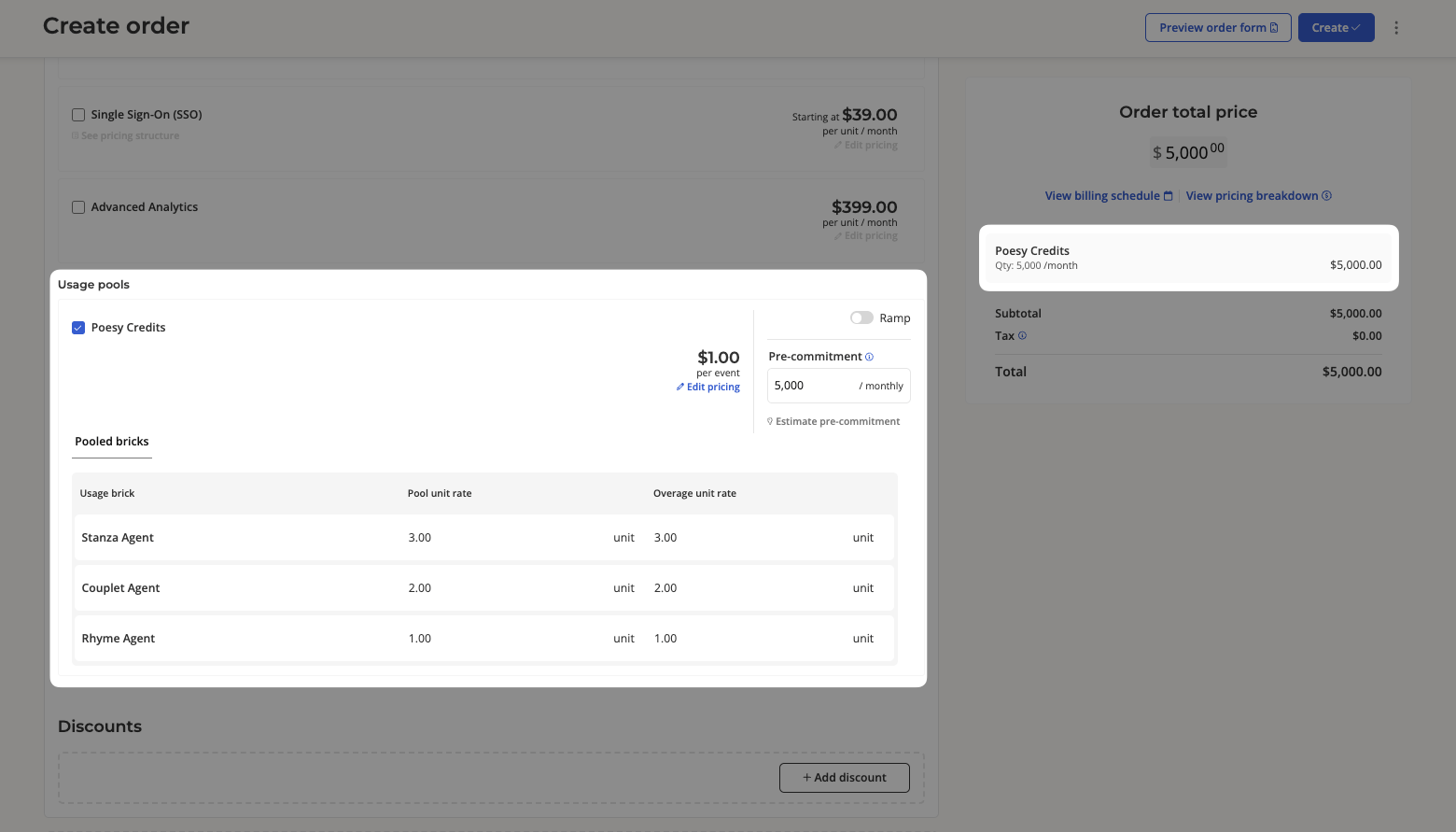
When a plan includes a usage pool, the order builder shows a Usage pools section. Select the pool to add it to the order.- For pre-commitment pools, the quantity input is pre-filled with the default pre-commitment. Adjust it for the deal, or click Estimate pre-commitments to suggest a quantity from expected usage of each pooled brick.
- For pay as you go pools there is no quantity to set.
- The Pooled bricks tab under the pool lists each pooled brick with its pool unit rate (and overage unit rate for pre-commitment pools).
Recording usage
Record usage against the pooled bricks, not the pool brick. Send each event through the usage endpoint with the pooled brick’sbrick_id, or record it manually from the subscription’s usage page. A usage entry that targets the pool brick itself is rejected.
Each event is converted to pool units at ingestion (raw count × pool unit rate) and deducted from the pool.
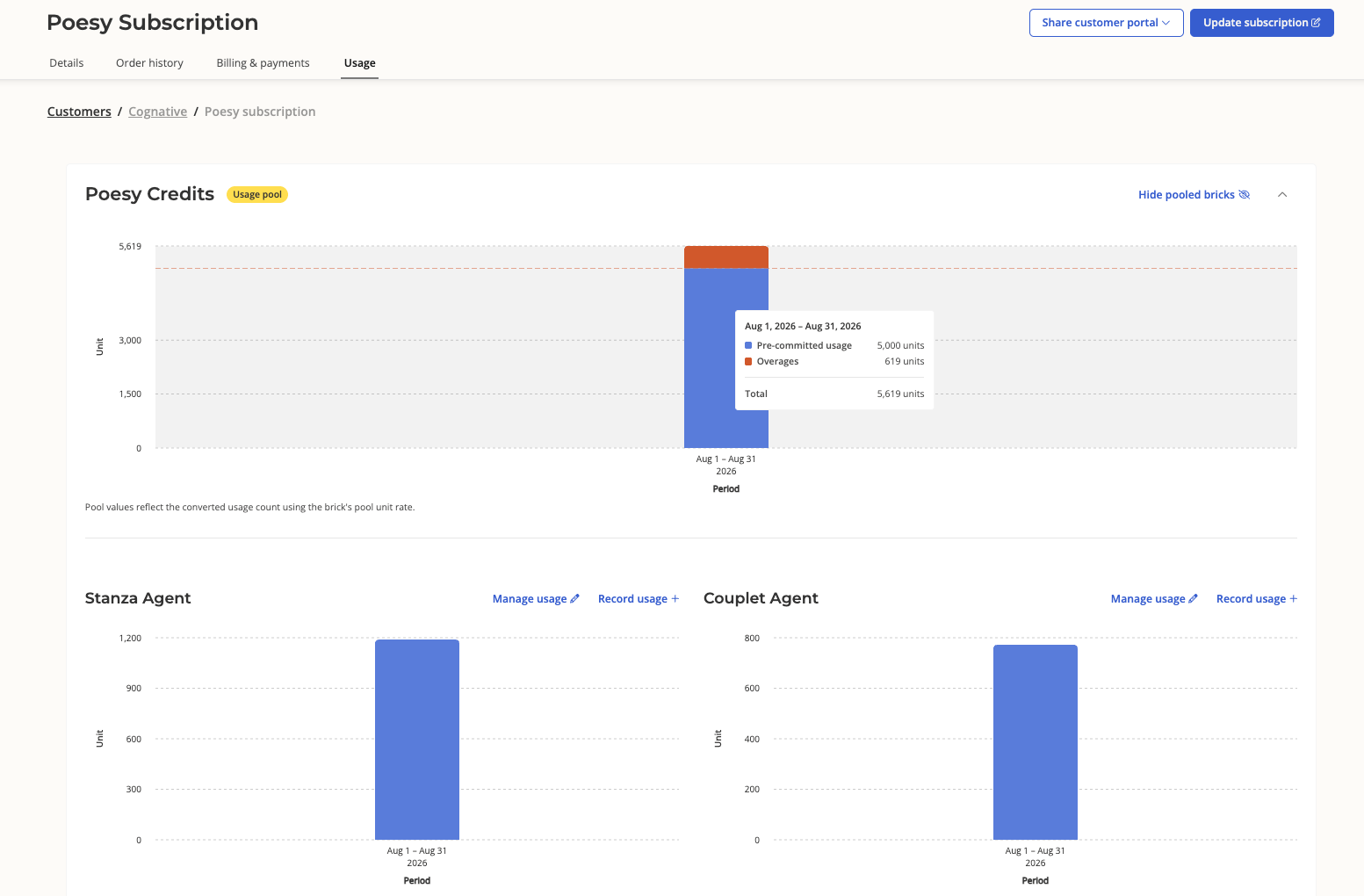
On the subscription’s Usage page, the pool appears as a card with a Usage pool badge. Its chart shows the consolidated pool balance in pool units. Click Show pooled bricks to expand a chart for each pooled brick in its own raw units, with Record usage and Manage usage actions for each.
Invoices
- Pre-commitment: the upfront invoice for each reset period carries one line for the pool at the committed quantity. Overage appears on the monthly usage invoice as a line per pooled brick that went over, in that brick’s raw units at its overage rate.
- Pay as you go: when usage for the month is below the minimum monthly price, the usage invoice shows one line for the pool at the minimum. When usage exceeds the minimum, the invoice shows a line per pooled brick with its raw quantity and effective rate.
Usage alerts
Usage alerts for a pool are configured on the pool brick and evaluate the pre-committed threshold type, for example “the customer has used 90% of their committed credits”. Usage recorded against any pooled brick counts toward the pool’s thresholds. Units and monetary thresholds are not evaluated for pooled usage.Things to know
- The pool flag is permanent. Decide at brick creation whether a brick is a pool. To convert an existing usage brick into a pool, create a new brick.
- Pool bricks always use Final value measurement. Pooled bricks are metered as whole-unit counts, so the Monetary unit type does not apply to pools.
- Minimum required units are not supported on pools. Use a pay-as-you-go pool with a minimum monthly price instead.
- Pricing is per plan version. Changing a pool’s base rate, pooled bricks, or unit rates means publishing a new plan version. Existing subscriptions keep the pricing they closed on.
- Archiving a pooled brick removes it from its pools. The archive dialog lists the pools and plans that will be affected. You cannot archive a pool’s only member; add another brick or remove the pool first.
- Removing a pool from a plan also removes its pooled bricks from that plan, since their pricing is derived from the pool.
- API. When creating a subscription through the API, pass the pool brick’s
brick_idin the bricks list. Pooled bricks cannot be passed alongside their pool. Usage reporting endpoints return pool bricks in pool units, with overage reported on the individual pooled bricks.