

Overview
Approval workflows let you set guardrails on your deals. You define the terms your team can offer on its own, and any order that goes beyond them is held for review by a Sales Manager or Admin before it can be shared with your customer, signed, or closed. Orders that stay within your rules are approved automatically, so your team only reviews the deals that need it.Requirements
Approval workflows must be enabled on your Salesbricks seller org, and require role-based access control (RBAC).If you don’t see Approvals in Settings, approval workflows aren’t enabled for your account yet. Reach out to us in your dedicated Slack channel.
Any one approver can approve an order. Approvals apply across your whole org, there are no per-rule approvers or multi-step approval chains.
How approval rules work
Every time an order is saved, Salesbricks checks it against your active rules:- If the order passes every rule, it’s approved automatically.
- If it breaks any rule, it needs approval. One broken rule is enough, and every broken rule is listed for the approver.
Automatic approvals are enabled separately. If they aren’t on for your account, every new order needs approval. Reach out to us in your dedicated Slack channel to turn them on.
Rule types
Scaling a rule with deal size
The Discount threshold, Payment terms, and Contract length rules are set as a curve: you set the limit at a few deal sizes, and Salesbricks draws a smooth curve through those points to find the limit for each order. For example, a discount threshold rule could use these points: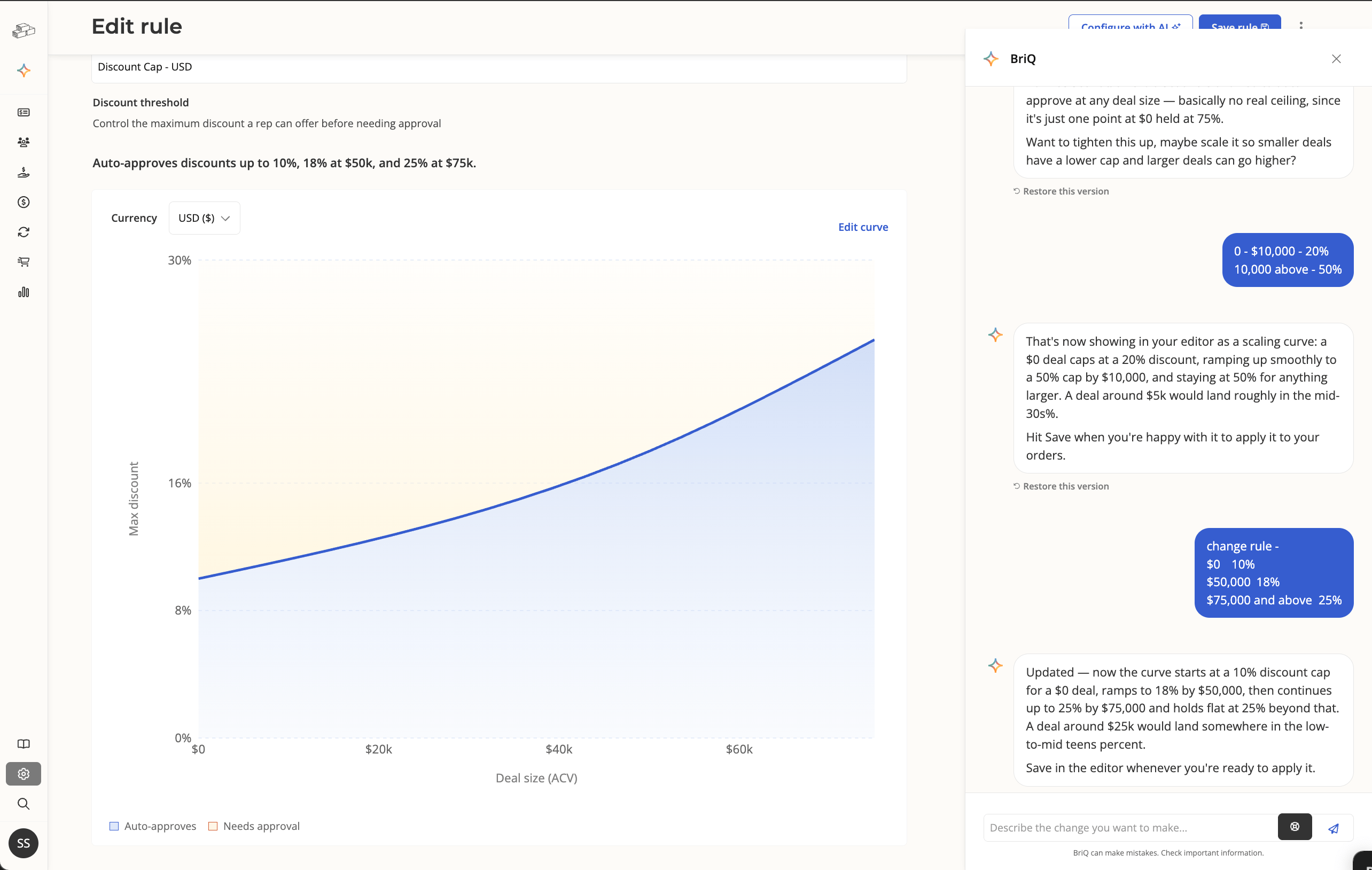
What each rule measures
Each rule has a currency, chosen from your company’s supported currencies, and only checks orders in that currency. A USD rule doesn’t check an order in EUR, so set up rules for each currency you sell in.
Setting up approval rules
1
Turn on approval workflows
In Salesbricks, go to Settings -> Approvals and click Manage approvals. Turn on Require approval before orders are shared.Only Admins can see Manage approvals and this toggle.Until you add a rule, the order builder shows “Approvals are on, but no rules are set up yet. Orders won’t be checked until you add one.”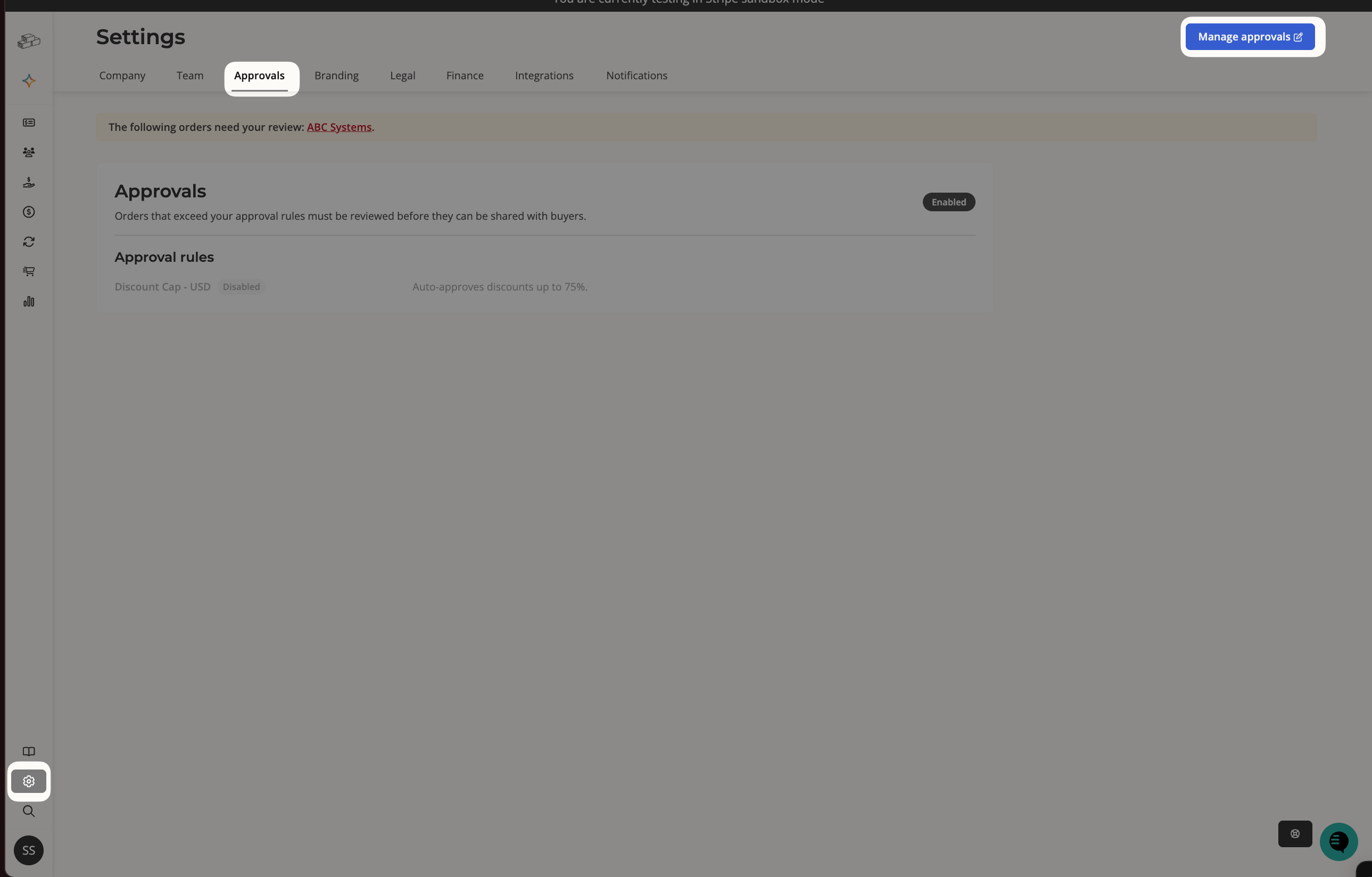
2
Add a rule with BrIQ
Click Add rule to open the BrIQ sidebar, and describe the rule in plain language. For example: “Require approval for discounts above 10% on small deals, rising to 18% at $50k and 25% at $75k and above.”BrIQ saves the rule as an inactive draft, so it doesn’t apply to your orders yet.
3
Review the rule
Click Edit on the rule’s card to open it in the editor, and choose the rule’s currency.For Discount threshold, Payment terms, and Contract length, click Edit curve to adjust the points, then Done editing. For Custom MSA and Custom commercial terms, click Edit threshold.
4
Turn on the rule
Switch the rule to Active and click Save rule. Every new rule starts out inactive, and the switch only takes effect when you save.You can also turn a rule on or off from its card’s menu with Enable rule or Disable rule, or delete a rule you no longer need.
Changing or deleting a rule doesn’t affect open orders right away. Each open order is checked against your current rules the next time it’s saved.
Orders built by an approver
When an Admin or Sales Manager builds or edits an order they own or co-own and it breaks a rule, they see a callout such as “1 rule falls outside policy. As an approver, you can approve it and proceed.” Clicking Create and approve (or Update and approve) saves and approves the order in one step.Approval statuses
Approval status is tracked separately from the order stage. An order stays Open while it moves through approval. Use the Approval status column and filter on the Orders page to track it. (In the filter, Pending review is listed as Pending.)Editing an approved order
Every save checks the order against all of your active rules again and replaces its existing approval. Approved exceptions aren’t remembered: if an approved order is outside your discount, payment terms, or contract length rules, any edit, even an unrelated one, sends it back for review. An approved custom MSA or commercial terms document isn’t flagged again unless the document changes. Saving an approved order with Save as draft moves it back to Draft.Orders that skip approval
- Auto-renewals are approved automatically.
- Trial orders don’t go through approval.
Notifications
In-app banners: approvers see a banner listing the orders that need their review, and reps see a banner listing their rejected orders. Email: Salesbricks sends these emails automatically:Best practices
- Start with a discount threshold rule. It covers the most common reason deals need sign-off.
- Use deal-size curves rather than one flat limit, so larger deals can earn deeper discounts without waiting on review.
- Ask approvers to add clear notes when they reject an order, so reps can fix it on the first try.
- Make sure everyone who should approve deals has the Admin or Sales Manager role.