

Renewal metrics
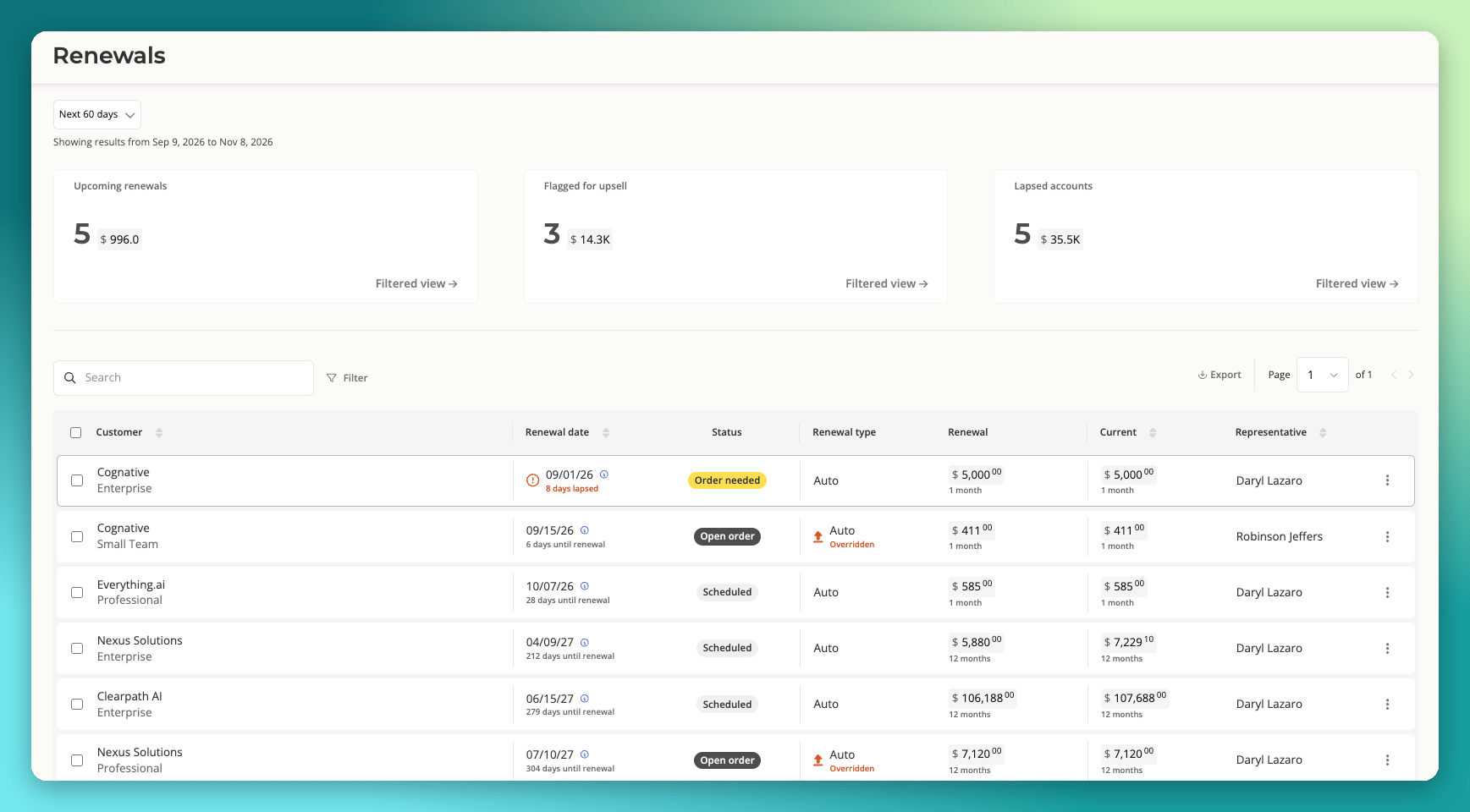
Three metric cards sit at the top of the page. Each card shows a count of subscriptions and their combined renewal value for the selected date range.- Upcoming renewals: subscriptions whose renewal date falls inside the selected range.
- Flagged for upsell: subscriptions your team flagged as growth opportunities inside the selected range.
- Lapsed accounts: subscriptions that passed their renewal date without renewing inside the selected range.
Renewals table
The table lists one row per subscription with the following columns:- Customer: customer name and plan. Badges appear here when a subscription is flagged for upsell or has a renewal uplift scheduled.
- Renewal date: the current contract end date, with days until renewal or days lapsed.
- Status: the subscription’s current state. See Renewal statuses below.
- Renewal type: Auto or Mutual, based on the renewal terms on the active order.
- Renewal: the estimated value of the next contract term.
- Current: the value of the current contract term.
- Representative: the seller team member the subscription is attributed to.
For larger datasets, the table may take a few extra seconds to load. Applying filters can improve performance.
Renewal statuses
Filters
Click Filter to narrow the table. Filters can be combined, and active filters appear as tags you can remove individually.- Status: Active, Order needed, Scheduled, Open order, Terminating, Terminated, Paused.
- Plan and Product: limit to specific plans or products.
- Tag: limit to subscriptions carrying a given tag.
- Renewals: Mutual, Auto, or Nonstandard renewal. Nonstandard renewals are subscriptions whose renewal contract period differs from the current term.
- Contract period: Monthly, Multi-month, Annual, Multi-year, or Custom duration.
- Dates: filter by renewal date range or by number of days lapsed.
- Amount: filter by current spend range.
Export
Click Export above the table to download the current view as a CSV. The export respects your active search, filters, and sort order. Columns are Customer, Renewal date, Status, Renewal type, Contract period, Current spend, and Representative.Row actions
Click the dots on the right-hand side of a row to open the action menu. The actions shown depend on the subscription’s state.- View renewal details: open the renewal details view for the subscription.
- Create renewal order: generate a renewal order based on the existing subscription, with the option to modify entitlements and contract terms. Not shown when the subscription already has an open order.
- Uplift renewal value: schedule a percentage price increase for the next term. See Renewal uplift below.
- Terminate subscription: schedule the subscription to end, either on the renewal date or on a specific date you choose. You can record an internal reason and optionally send the customer a notification. Salesbricks warns you if unpaid invoices will be voided or paid invoices may need refunding.
- Reinstate subscription: undo a scheduled or completed termination. Shown in place of Terminate subscription on terminated rows.
- Flag for upsell: mark the renewal as a growth opportunity. The row gains an Upsell identified badge and the subscription counts toward the Flagged for upsell metric.
- Remove upsell flag: clear the flag. Shown in place of Flag for upsell on flagged rows.
- View customer: jump to the full customer profile.
- View active order: open the order the renewal will build upon.
- View latest open order: open the unsigned renewal order, when one exists.
- View billing history: open the customer’s invoice and payment history.
Create, uplift, terminate, reinstate, and flag actions require permission to create or update orders. Team members without those permissions see only the view actions.
Renewal details
The renewal details view collects everything you need to prepare for a renewal conversation on one page.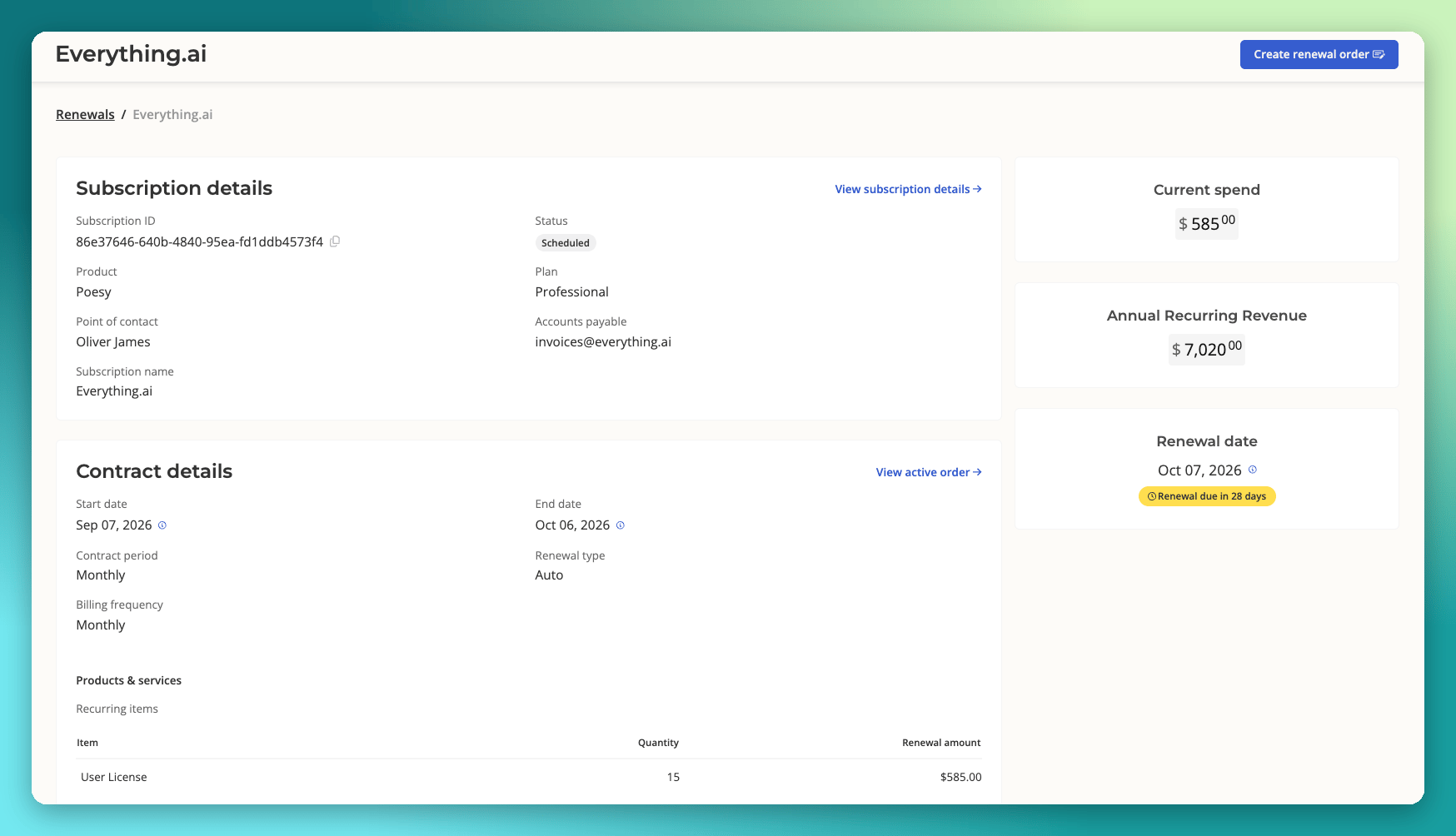
- Header metrics: current spend, annual recurring revenue, and the renewal date with days remaining.
- Subscription details: subscription ID, product, plan, point of contact, and accounts payable contact, with a link to the full subscription page.
- Contract details: start date, end date, contract period, renewal type, and billing frequency, with a link to the active order.
- Order history: every order on the subscription, with a link to the full order history.
Renewal uplift
Renewal uplift applies a percentage price increase to a subscription’s recurring rates at renewal. Use it to account for annual price increases, contractual escalation clauses, or to adjust pricing on multi-year deals. By default the uplift applies to every recurring plan and brick rate on the subscription. One-time and milestone bricks are never uplifted. Usage bricks are uplifted only when you turn on Apply uplift to usage rates, which then raises both the pay-as-you-go rate and any pre-commitment rate.Applying an uplift
- In the Renewals page, select one or more renewals using the checkboxes on the left side of each row. To uplift a single renewal you can instead choose Uplift renewal value from its row action menu.
- Click Uplift renewal value ↑ in the action bar that appears at the bottom of the page.
- Enter the percentage increase in the Renewal contract value uplift field.
- Optionally check Apply uplift to usage rates to include usage bricks.
- Leave Disclose renewal uplift on checkout checked to show the buyer the scheduled uplift during checkout, or uncheck it to hide it.
- Click Apply uplift.
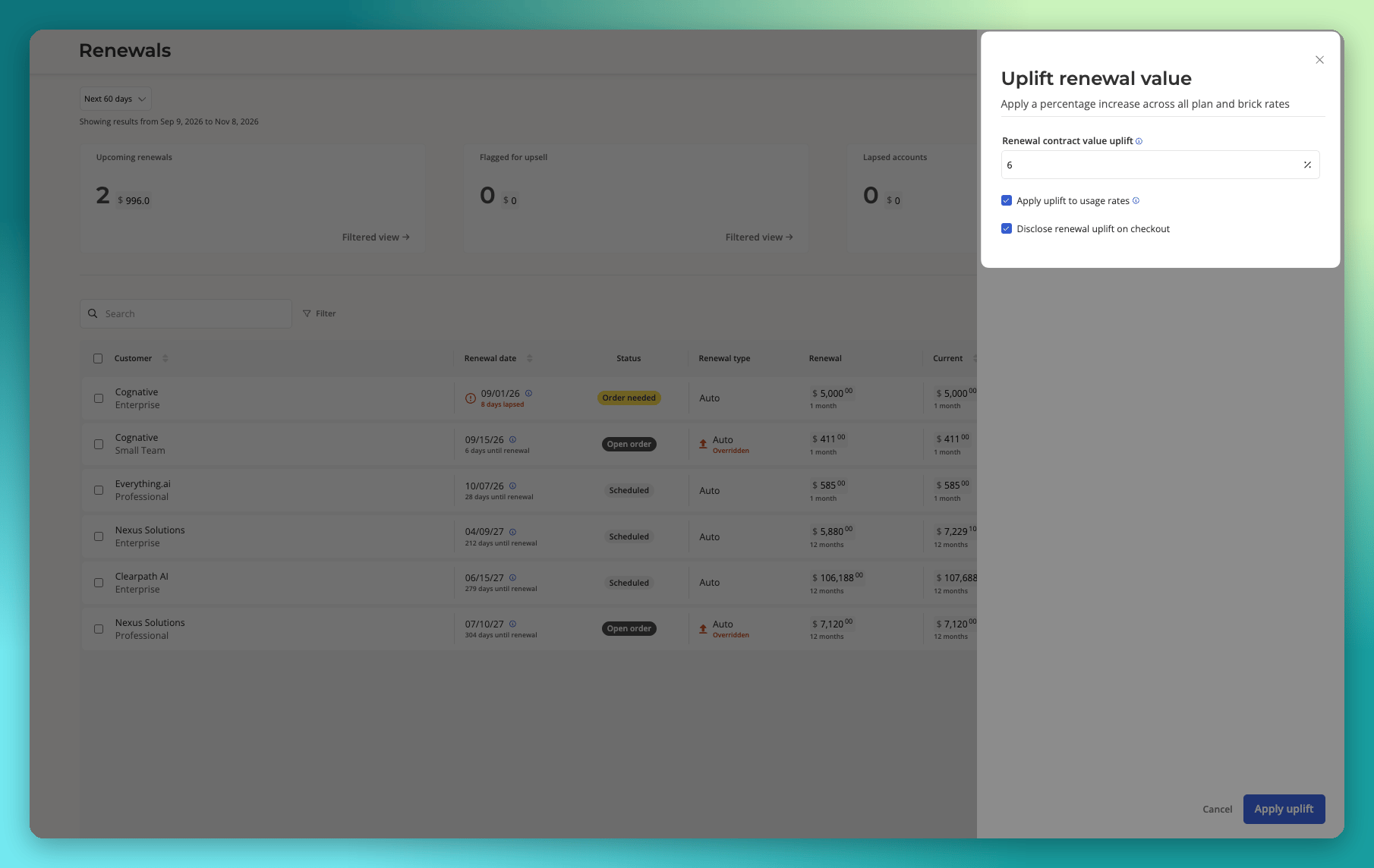
If a selected renewal already has an uplift, the new percentage replaces it. If a selected renewal has an open renewal order, that order is updated with the new rates. The drawer lists any affected subscriptions before you confirm.