

BrIQ can make mistakes, always verify important information before acting on it.
Overview
BrIQ is Salesbricks’ built-in AI assistant that lets you ask questions about your revenue data in plain language. Instead of manually running reports or digging through billing records, you can type a question and get a structured answer in seconds. BrIQ is best suited for revenue operations tasks:- checking on invoices
- understanding collection status
- reviewing monthly revenue
- or looking up a specific customer’s billing history
Accessing BrIQ
Click Ask BrIQ ✨ in the left sidebar to open the BrIQ interface. From there: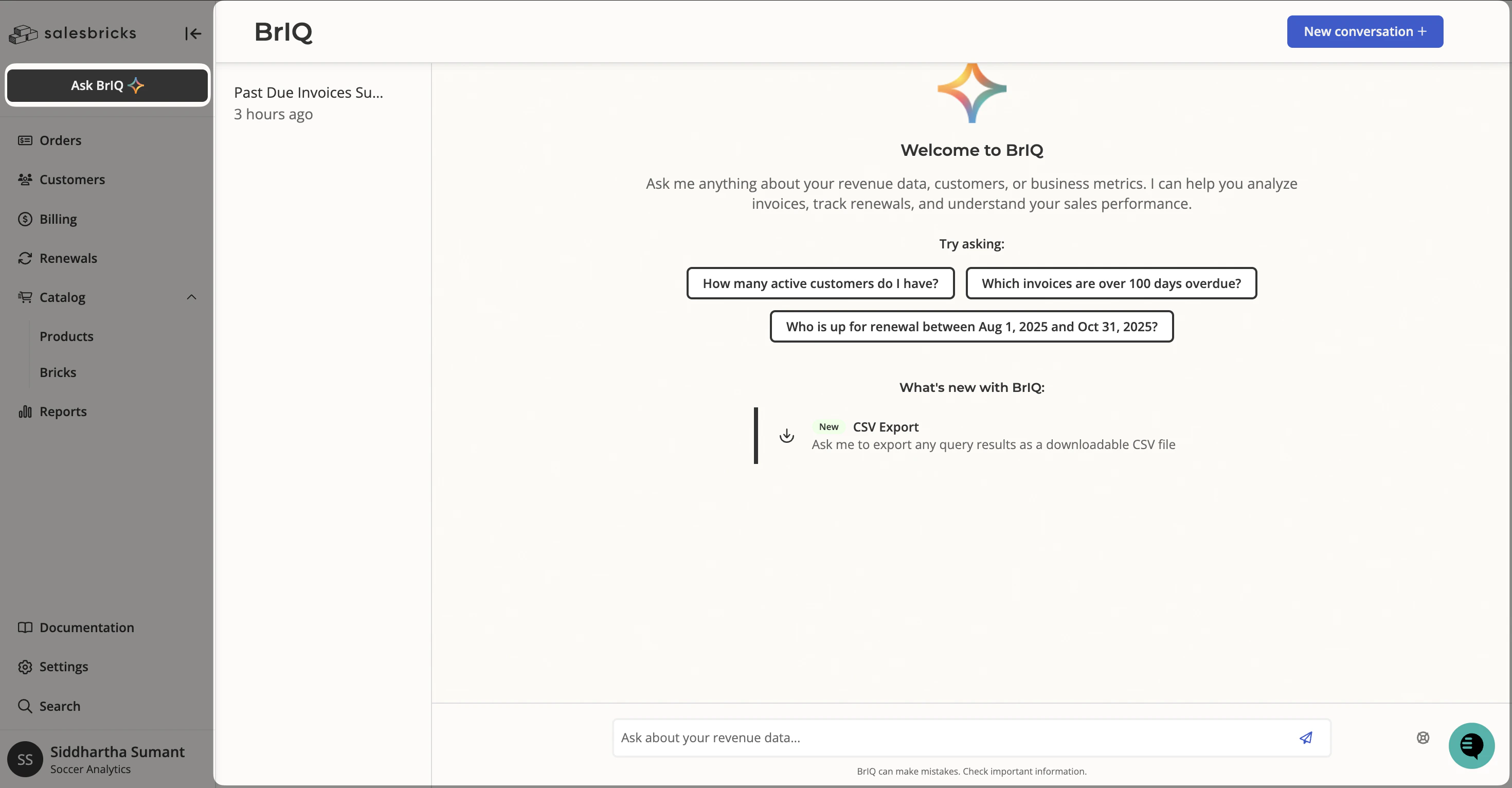
- Type your question in the input bar and press Enter.
- Click New conversation + in the top-right corner to start a fresh chat at any time.
- Your previous conversations are listed in the left panel so you can return to them.
What you can ask BrIQ
BrIQ can answer a wide range of questions about invoices, customers, and revenue. Below are some common use cases with example prompts you can use as a starting point.Invoice tracking
Use BrIQ to quickly surface outstanding or overdue invoices — across all customers or for a specific one. Example prompts:- “Show me all past due invoices”
- “What are [Insert Company] outstanding invoices? Include the invoice number, amount due, due date, days past due, and payment link.”
- “Which customers have the most unpaid invoices?”
- “Show me invoices past due more than 90 days”
Revenue reporting
Ask BrIQ about revenue for a specific time period and it will return MRR totals, a customer-by-customer breakdown, and a narrative summary with key highlights. Example prompts:- “How much revenue was generated this month?”
- “Compare this month’s revenue to last month”
Customer billing history
Look up a specific customer’s billing picture without leaving the chat. Example prompts:- “Show all invoices for [Customer Name]”
- “What is [Customer]‘s renewal date and current spend?”
- “Pull all invoices for [Customer] including paid ones”
How BrIQ presents answers
BrIQ formats its answers to be easy to scan and act on:- Tables — For invoice lists or revenue breakdowns, BrIQ organizes data into a structured table with relevant columns.
- Narrative summary — After any table, BrIQ provides a short written summary with key highlights (e.g., total billed, total collected, % paid).
- Direct links — BrIQ includes clickable links to customer pages and invoice payment pages within its responses.
- Suggested follow-ups — At the end of each response, BrIQ offers a few suggested next questions to help you keep exploring.
Tips for better results
Be specific about what you want. If you want a table in a specific format, say so. For example: “Show [Company]‘s outstanding invoices as a bulleted list with invoice number, amount due, due date, days past due, and payment link.” Use the customer’s exact name. If BrIQ doesn’t find a match, it may return no results or suggest similar names. Try the name exactly as it appears in Salesbricks. Ask follow-up questions. BrIQ remembers the context of your conversation. You can follow up with “Now show me the same for last month” or “Which of those are more than 60 days overdue?” without repeating yourself. Use the suggested prompts. After each response, BrIQ surfaces relevant follow-up questions. Clicking one of these is a quick way to drill deeper without typing.What BrIQ can’t do
BrIQ is a read-only data assistant — it can look things up and surface insights, but it cannot make changes in Salesbricks. Here are some common requests that BrIQ will decline and redirect you to handle manually:| Action | What to do instead |
|---|---|
| Undo or reverse a manual payment | Go to the invoice’s Bill Statement page and use the payment options there, or contact Salesbricks Support. |
| Create a new product or brick | Use the product catalog in the Salesbricks admin UI to create and configure bricks. |
| Create a proposal or order | Use the order builder in Salesbricks to create a new order or proposal. |
| Cancel or reverse an order | Order changes need to be made directly in Salesbricks. Reach out to your support channel if you need help. |
Have feedback on BrIQ? Let your Salesbricks team know in your dedicated Slack channel. We’re actively improving BrIQ based on how customers use it.